
Photolemur export: advanced settings
Photolemur’s advanced settings allow you to choose the location where you want to save your photos, rename and resize your images, choose a file format, set the quality, and select a color profile.
All these setting can be saved as presets. The list of presets is located on the left side of the export window.
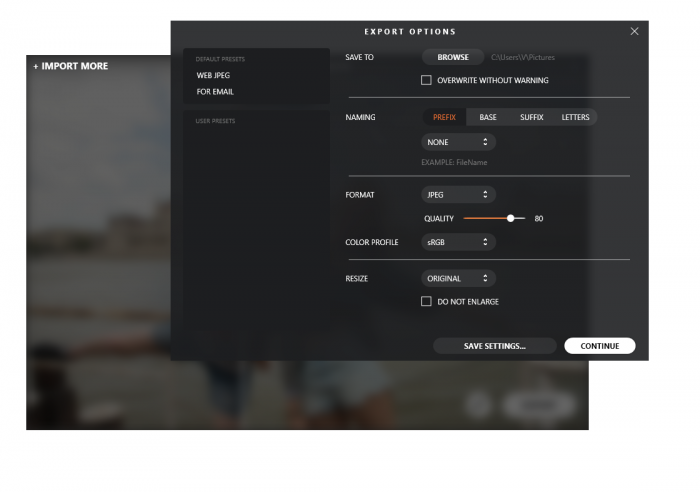
There are 2 default presets in Photolemur: ‘WEB JPEG’ and ‘FOR EMAIL’.
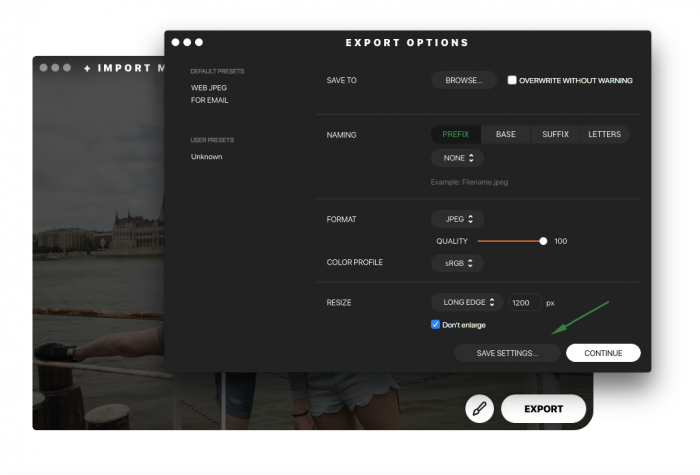
If you want to save your settings as a preset, click on ‘Save settings’ button on the bottom of the window. After that your modified settings will be saved as a user preset.
Note
Your original photo will be overwritten only if the exported image and original image names match.Naming
The filename of your image can be modified in several ways. You can add a prefix or suffix to your original filename, change the base, and make the letters uppercase or lowercase.
The prefix, suffix, and base can be modified in the following ways:
- NONE
If you select this option under Prefix and Suffix, no prefix or suffix will be added to your filename. This option can’t be selected under the base and is replaced by the Filename option. If you select Filename under base and None under Prefix and Suffix, your filename won’t be modified.
- FILENAME
If you select FILENAME under Prefix, the prefix will be the name of the imported file. If you select FILENAME under Suffix, the suffix will be the name of the imported file.
Let’s say you want to modify an image named London.jpeg and select Prefix > Filename. In this case, the exported image name will be London_London.jpeg. If you also select Suffix > Filename, the image will be saved as London_London_London.jpeg.
- CUSTOM TEXT
Custom text allows you to enter a name manually. If you want to modify your image name without adding any prefixes or suffixes, select Custom Text under Base and enter a new name.
- COUNTER
In the counter, enter a starting number that will be added to your images. If you’re exporting more than one photo and type 4 in the counter field under Suffix, for instance, your images will be saved as Filename_4.jpeg, Filename_5.jpeg, Filename_6.jpeg, and so on. If you select Counter under Base, your filename will be replaced by that number.
- TIMESTAMP
If you select Timestamp under Prefix or Suffix, the current date will be added before or after your filename. If you select Timestamp under Base, the current date will replace your original filename.
Letters contains the following options:
- Leave as it is
- Upper case
- Lower case
Format, Color Profile
In Photolemur, you can save images in the following formats:
- JPEG
- PNG
- TIFF
- JPEG-2000
- Photoshop
The following color profiles are supported:
- sRGB
- Adobe RGB
- ProPhoto RGB
- Resize
You can resize your images by setting the long edge, short edge, or absolute dimensions. Or you can maintain the original image size.
Resizing by long edge means that you can set the desired length of the longest side of your image. The shorter side will be resized proportionally.
Resizing by short edge means that you can set the desired length of the shorter side of your image. The longer side will be resized proportionally.
Dimensions allow you to enter absolute dimensions in pixels.

