
Luminar User Guide
Luminar User Guide
Batch Processing Photos
If you have several images from one photo shoot, you can often save time by applying the same develop settings to multiple photos. This is particular helpful to those who should events, sports, and other types of photography where a lot of images are shot under similar conditions. The Batch Processing feature is very versatile and contains many options that you can conveniently apply to a large set of images.
Getting Started with Batch ProcessingLet’s start the batch process.
- The first step is to load the photos you want to develop. This can be done a few ways:
- Choose File > Batch process.
- Press Ctrl + B.
- Choose Batch Process in the welcome screen. A new window opens.
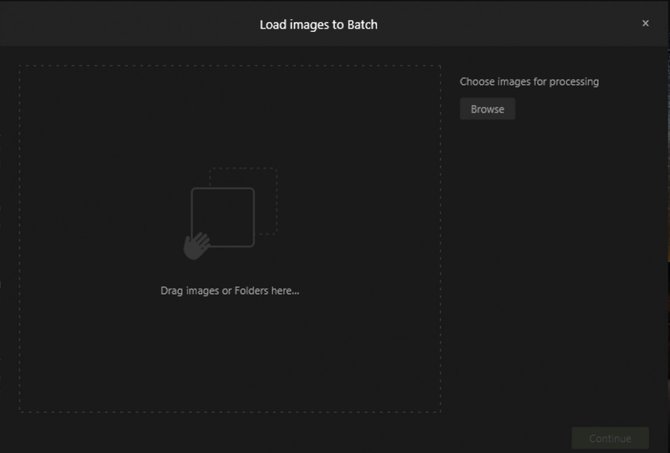
- You must now load the images you want to batch process. To do so you can:
- Drag files or folders into the Batch Process window
- Click the Browse button and select the images you want to use.
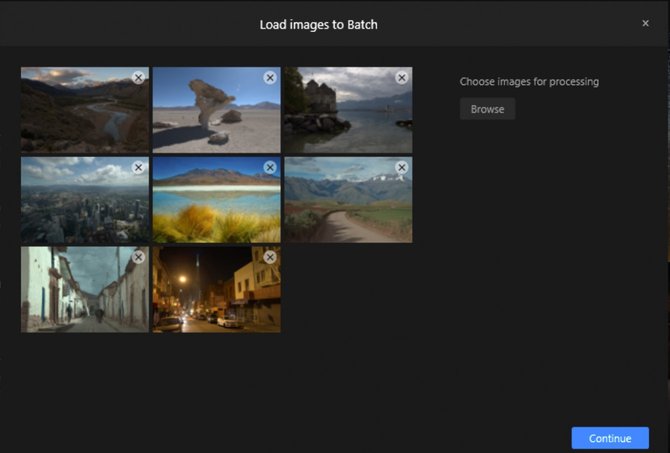
- You can click the x button in the upper-right corner to remove a selected image.
- After the images you wish to process have been selected, press the Continue button to reveal options and settings for Batch Processing.
The Batch Processing feature is very versatile and contains many options that you can conveniently apply to a large set of images. Here are the options you have available:
Default SettingsIn the upper left corner of the dialog are useful presets to configure how the batch process will run. These change all of the options for what type of files are generated (however you should still specify a destination). Bundled presets include:
- Web JPEG. Creates files ready to post to websites.
- For Email. Creates smaller files optimized for email.
- Last Use. The settings from the previous time using the Batch Process command.
This section contains any custom workflows you’ve created. These can be made using the settings on the right. To store the Batch Process settings for later click the Save Settings button at the bottom of the window. Be sure to give the preset a descriptive name.
When you're ready to configure the batch process, there are several useful settings to choose from.
- Preset. The Preset controls let you choose from any Luminar preset. This includes all bundled presets, installed presets, and user-generated ones. First, choose the Category and then the individual Preset. You can use the Amount slider to refine the preset’s strength.
- Save to. This option lets you choose where processed files will be saved. You can save them in their current location or browse to select another folder. When you’ve made a choice, the file “path” will be displayed. Note: Because it is possible to overwrite your original files, it is a good practice to save your batch-processed files into a new folder separate from the original files.
- Naming. Luminar 2018 has very flexible file naming options. You can add a prefix and suffix, choose from a variety of base names and even select the case of the letters. This gives you tremendous flexibility to organize your files as part of the batch processing operation.
- Format. Choose way type of file should be created. You can make a JPEG, JPEG-2000, PNG, PDF, TIFF or PSD file during the batch processing.
- Color Profile. This controls how the colors are interpreted. Options include sRGB, Adobe RGB, and ProPhoto RGB
- Resize. Easily choose a dimension for the new files.
After selecting your desired Batch Processing options, click the Continue button in the lower right of the window to begin the operation. This will display a processing window showing progress.
- To return to the Image Selection window and select different images prior to beginning a Batch Processing operation, click the Back button in the lower left of the window.
- To cancel Batch Processing altogether, click the “X” in the upper-right corner of the window.

Download the full Luminar
2018 User Guide for Windows in PDF Format
You may Also like
Have any questions?
Contact Us Help our product become better for you.
Take this survey for a chance to win an amazing prize!
Or learn more here

