
 View plans
Eye Editor to Remove Dark Circles and Eye Bags
Elevate your portraits with the powerful AI eye fixer in Luminar. With advanced Face AI, you can naturally enhance eyes, remove fatigue, and bring back a fresh look—without losing authenticity. Face AI now includes improved dark circles removal and functionality for improving eyebrows for even faster, more precise results.
VIEW PLANSProfessional Eye Editing Made Simple
With Luminar, how to edit eyes becomes effortless. The tool intelligently analyzes facial features and delivers precise adjustments that enhance the eye area while preserving natural expression and detail.
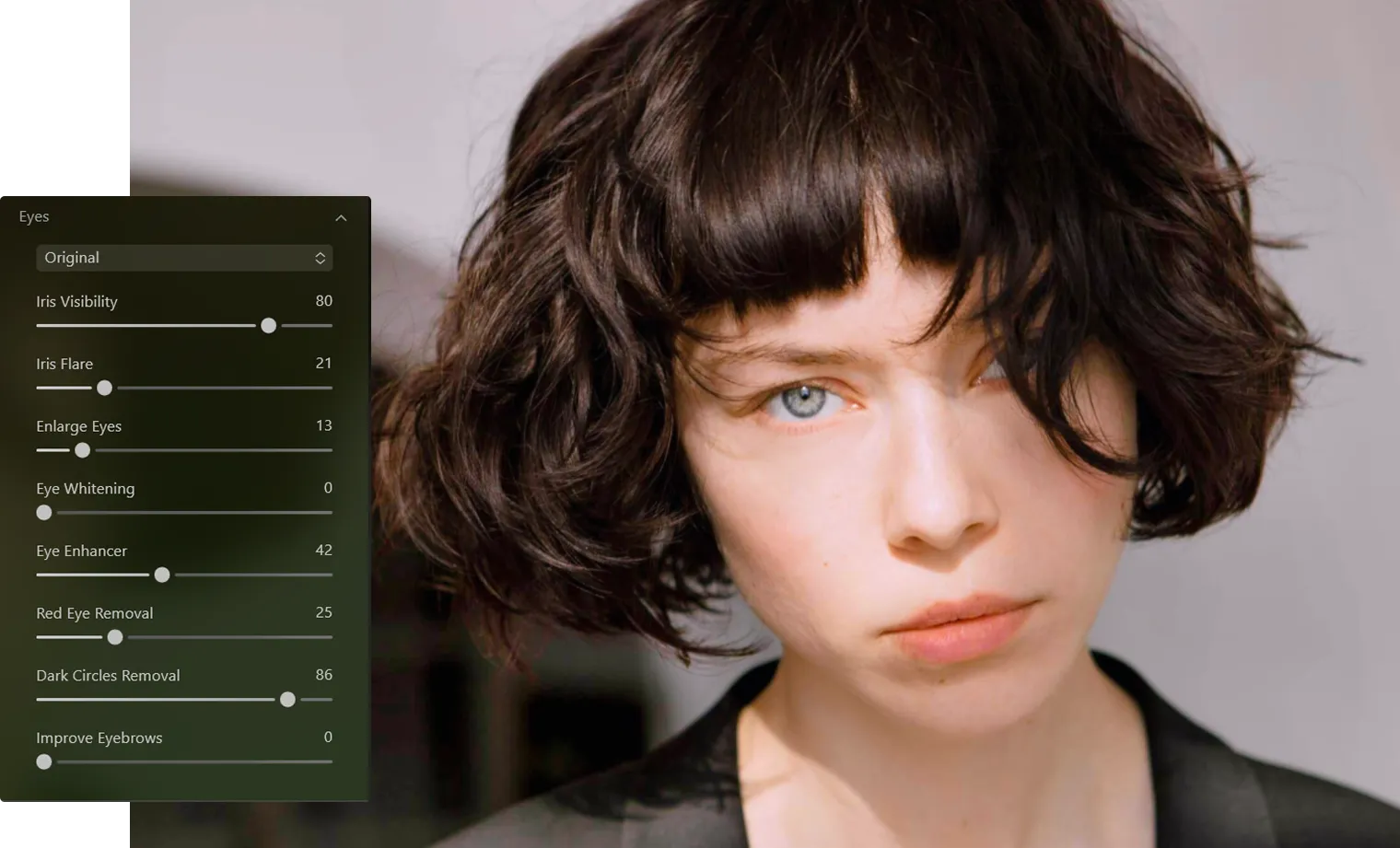
Erase Signs of Tiredness Without Losing Authenticity
Say goodbye to tired-looking eyes. The advanced dark circle remover and eyebag remover tools in Luminar help you reduce shadows and puffiness while maintaining realistic skin texture and tone.



© shutterstock
Save Hours of Manual Eyes Retouching
Instead of spending time on complex manual edits, Luminar automates the process so you can focus on creativity. The tool intelligently detects eye areas and applies precise corrections in seconds.
Simple Steps to Perfect Eye Editing
1. Open your photo in Luminar
2. Go to Face AI and select eye enhancement tools
3. Adjust dark circles, puffiness, and eyebrow improvements as needed
Simple Steps to Perfect Eye Editing
1. Open your photo in Luminar
2. Go to Face AI and select eye enhancement tools
3. Adjust dark circles, puffiness, and eyebrow improvements as needed
Save Hours of Manual Eyes Retouching
From professional headshots to editorial photography, Face AI ensures your subjects always look their best. Whether you’re editing a single image or a full session, you can create consistent, high-quality results with ease. Key benefits include:
• Precise dark circles removal without over-editing
• Natural enhancement using advanced Face AI
• Subtle corrections that preserve skin texture and eye detail
• Precise dark circles removal without over-editing
• Natural enhancement using advanced Face AI
• Subtle corrections that preserve skin texture and eye detail


© shutterstock


High-performance image editor
24/7 technical support
30-day money back guarantee
AI-powered editing tools
Explore Other Features
Luminar has plenty of other features to help you edit faster and easier

Face Shine Removal
NEW!


© Shutterstock
Remove unwanted gloss and oil shine from faces while preserving natural skin texture.

Image Smoother


© Ksenia Kazak
Enhance your visuals with smoothing to instantly add a touch of professionalism and polished perfection.

Red Eye Remover


© Shutterstock
Fix red-eye instantly to bring back natural, vibrant eyes in every photo!
FaceAI


© Depositphoto
Experience the magic of AI with Face AI Editor—effortlessly enhance, retouch, and beautify!

Skinny Face
© Ksenia Kazak
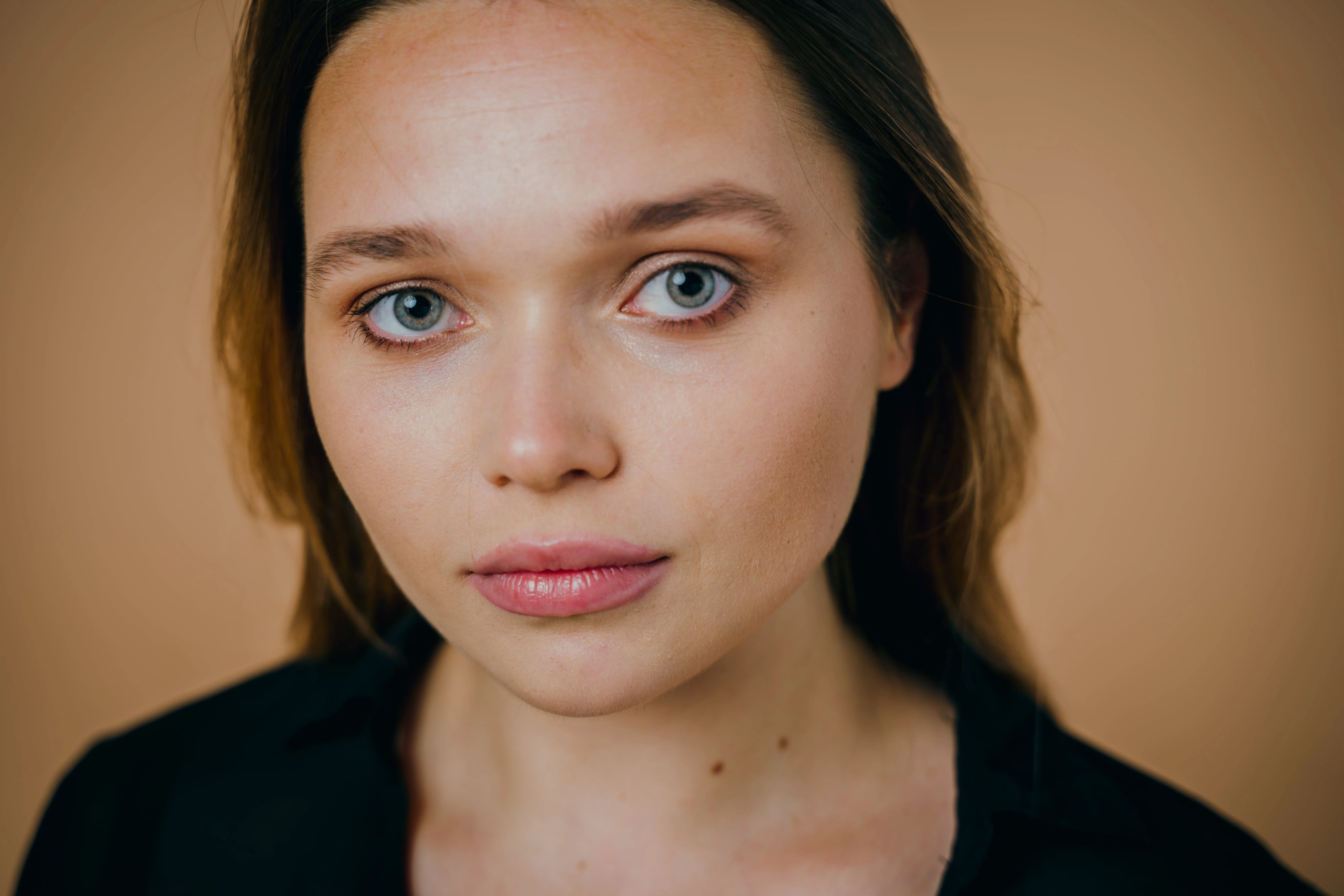
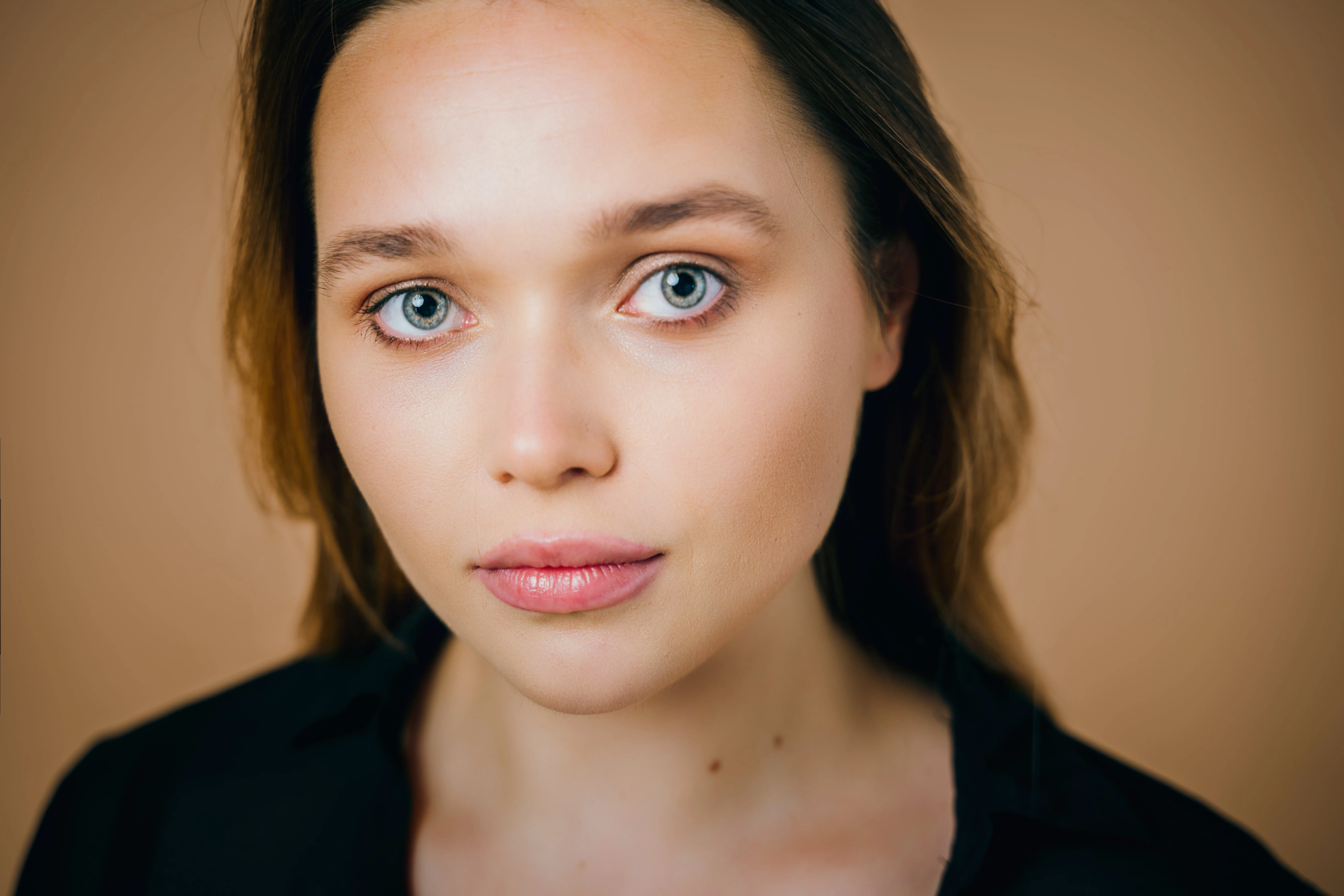
Discover Luminar's Slim Face feature and revolutionize your photos with just a slide! Try it now!

Beauty Filter
.webp)
.webp)
© bloodua
Perfect every shot in seconds—try our beauty filter and make your photos look their absolute best with zero effort.
FAQ
How to remove eye bags from photos in Luminar?
Open your image in Luminar, go to Face AI, and adjust the eye enhancement tools to reduce puffiness and smooth the under-eye area naturally.
How to remove dark circles from photos in Luminar?
Use the dark circles tool inside Face AI. It intelligently detects under-eye shadows and reduces them while preserving natural skin tones.
Does the tool work on close-up portraits and full-body photos?
Yes, Luminar’s Face AI works on both close-up and full-body images, automatically detecting and enhancing facial features regardless of framing.
Can I undo or adjust eye editing after applying it?
Absolutely. Luminar uses non-destructive editing, allowing you to refine, adjust, or completely undo any changes at any time.
Why Luminar is the best eye editor?
Luminar stands out for eye editing because Face AI brings multiple eye enhancements into one dedicated workflow. You can brighten and enhance the eyes, remove red eye and dark circles, improve eyebrows, enlarge the eyes, whiten them, or even adjust the iris for a more polished portrait while controlling the strength of each effect.
In which use cases is the Luminar AI eye editor most effective?
Luminar’s eye editing tools are especially effective for portraits, headshots, beauty photography, wedding photos, and close-up selfies. They are useful when eyes appear dark, tired, affected by red eye, or simply need subtle enhancement to draw more attention to the subject.
