
 요금제 보기
다크서클과 눈 밑 지방을 제거하는 눈 편집기
Elevate your portraits with the powerful AI eye fixer in Luminar. With advanced Face AI, you can naturally enhance eyes, remove fatigue, and bring back a fresh look—without losing authenticity. Face AI now includes improved dark circles removal and functionality for improving eyebrows for even faster, more precise results.
요금제 보기전문적인 눈 보정, 이제 간편하게
With Luminar, how to edit eyes becomes effortless. The tool intelligently analyzes facial features and delivers precise adjustments that enhance the eye area while preserving natural expression and detail.
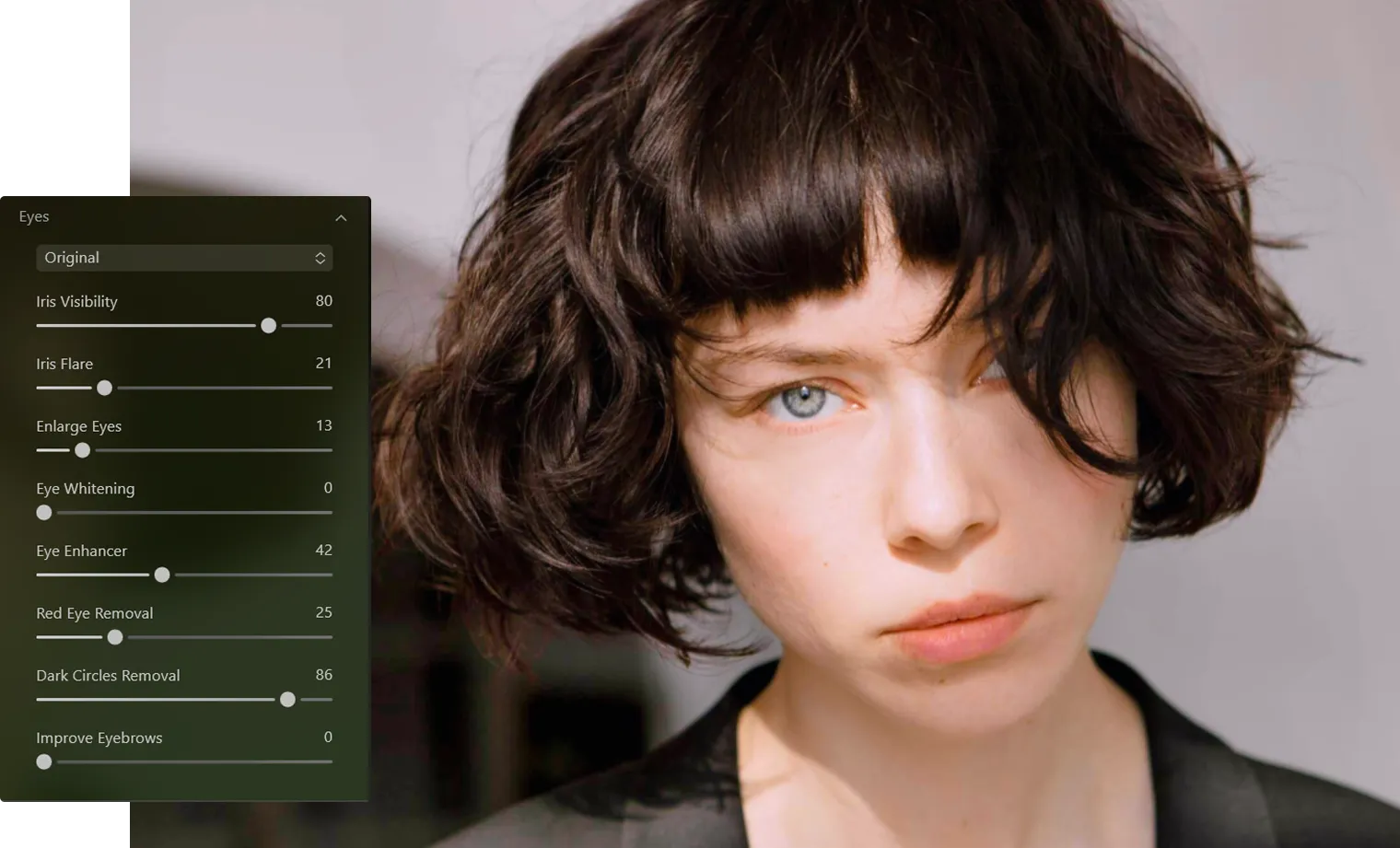
자연스러운 매력을 잃지 않으면서 피로한 기색을 지워보세요
Say goodbye to tired-looking eyes. The advanced dark circle remover and eyebag remover tools in Luminar help you reduce shadows and puffiness while maintaining realistic skin texture and tone.



© shutterstock
수시간에 달하는 수동 눈 보정 작업 시간을 절약하세요
Instead of spending time on complex manual edits, Luminar automates the process so you can focus on creativity. The tool intelligently detects eye areas and applies precise corrections in seconds.
완벽한 눈 보정을 위한 간단한 단계
1. Open your photo in Luminar
2. 얼굴 AI로 이동하여 눈 보정 도구를 선택하세요
3. 필요에 따라 다크서클, 눈가 붓기를 보정하고 눈썹을 정리합니다
완벽한 눈 보정을 위한 간단한 단계
1. Open your photo in Luminar
2. 얼굴 AI로 이동하여 눈 보정 도구를 선택하세요
3. 필요에 따라 다크서클, 눈가 붓기를 보정하고 눈썹을 정리합니다
수시간에 달하는 수동 눈 보정 작업 시간을 절약하세요
전문적인 프로필 사진부터 에디토리얼 사진에 이르기까지, 얼굴 AI는 피사체가 언제나 최상의 모습을 보여줄 수 있도록 도와줍니다. 단일 이미지를 편집하든 전체 촬영 분량을 편집하든, 쉽고 간편하게 일관성 있고 고품질의 결과물을 만들어낼 수 있습니다. 주요 장점은 다음과 같습니다.
• 과도한 보정 없이 정교한 다크서클 제거 기능
• 고급 얼굴 AI를 활용한 자연스러운 보정
• 피부 질감과 눈의 디테일을 살리는 미세한 보정
• 과도한 보정 없이 정교한 다크서클 제거 기능
• 고급 얼굴 AI를 활용한 자연스러운 보정
• 피부 질감과 눈의 디테일을 살리는 미세한 보정


© shutterstock


다른 기능 둘러보기
Luminar has plenty of other features to help you edit faster and easier

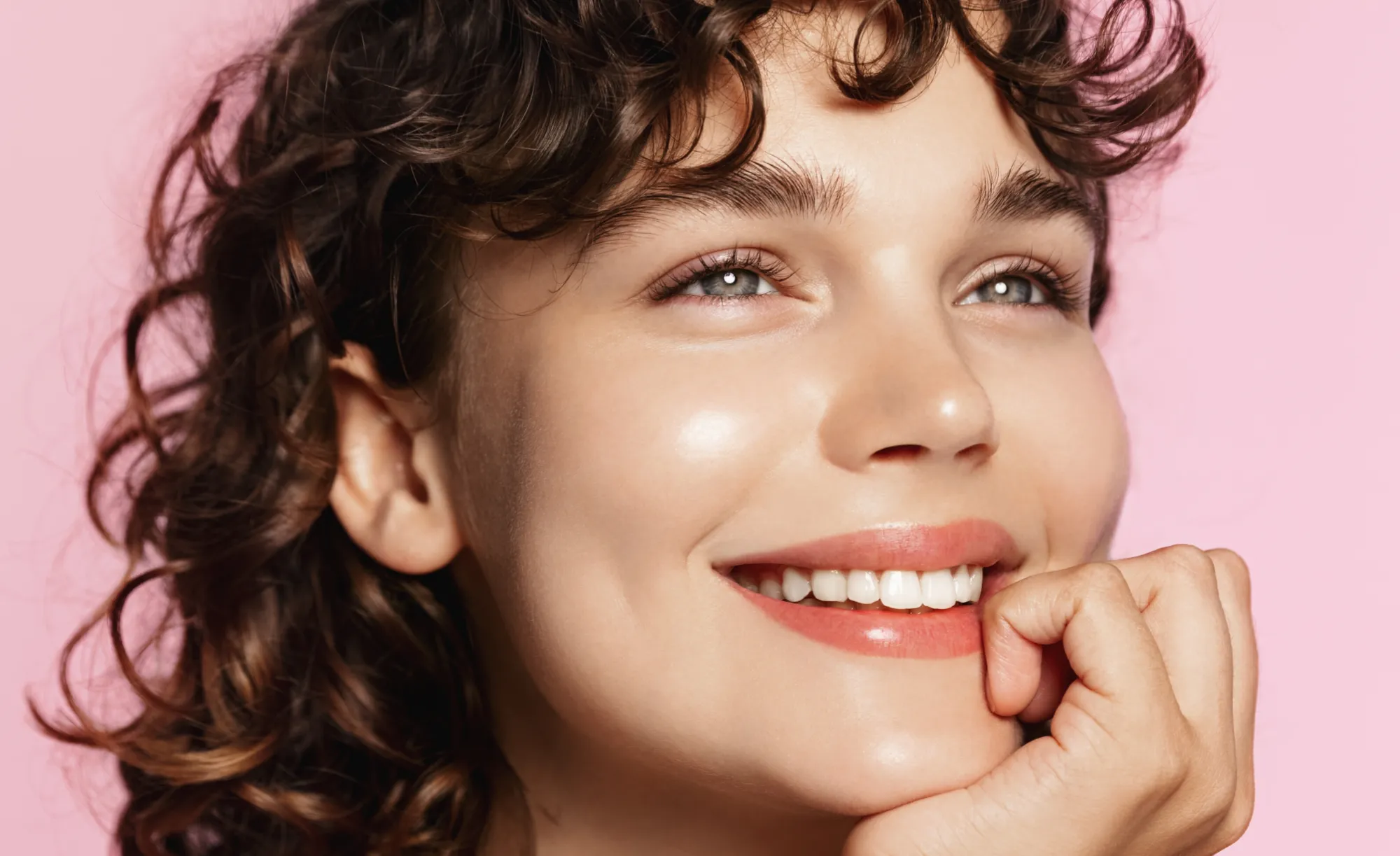






갸름한 얼굴
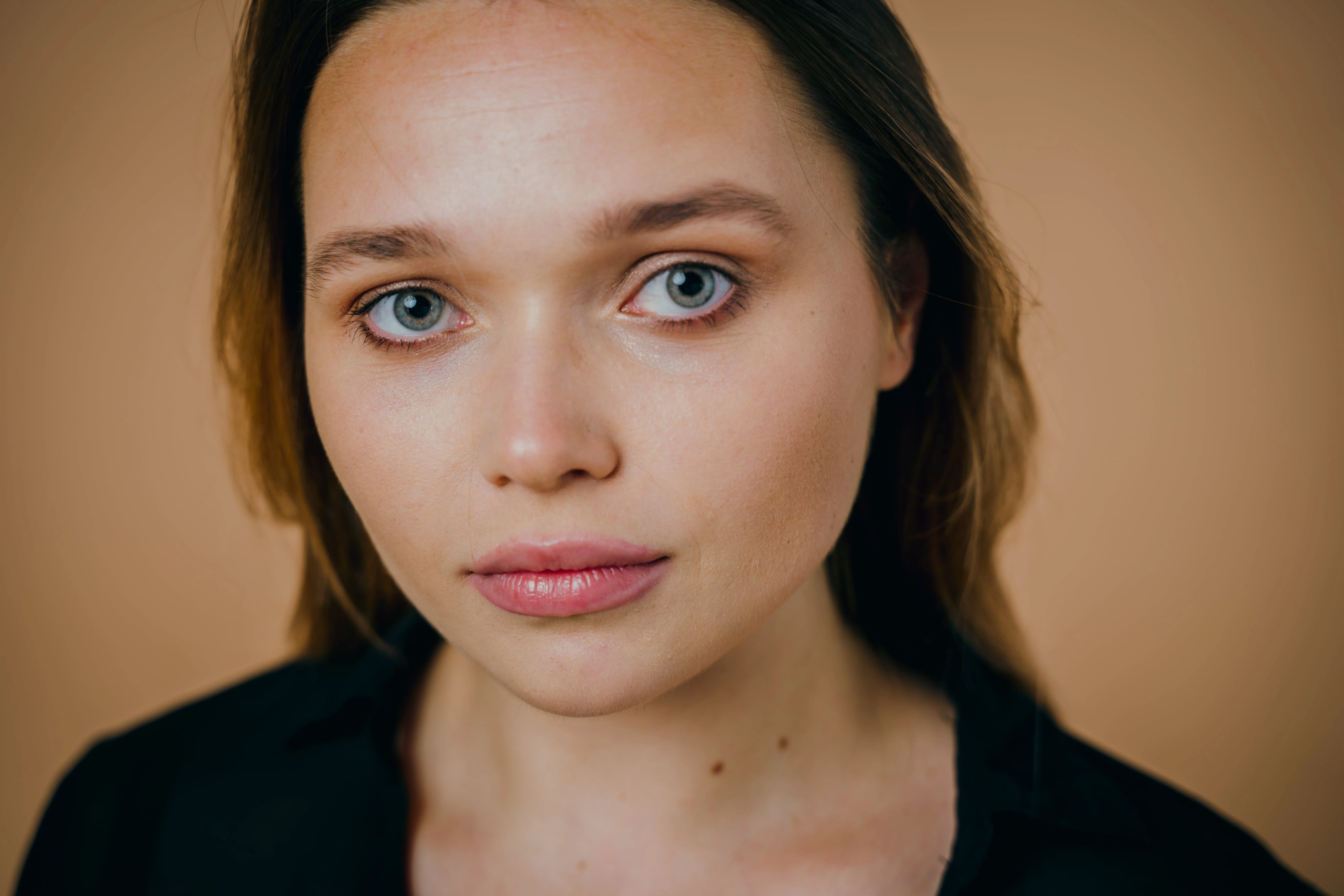
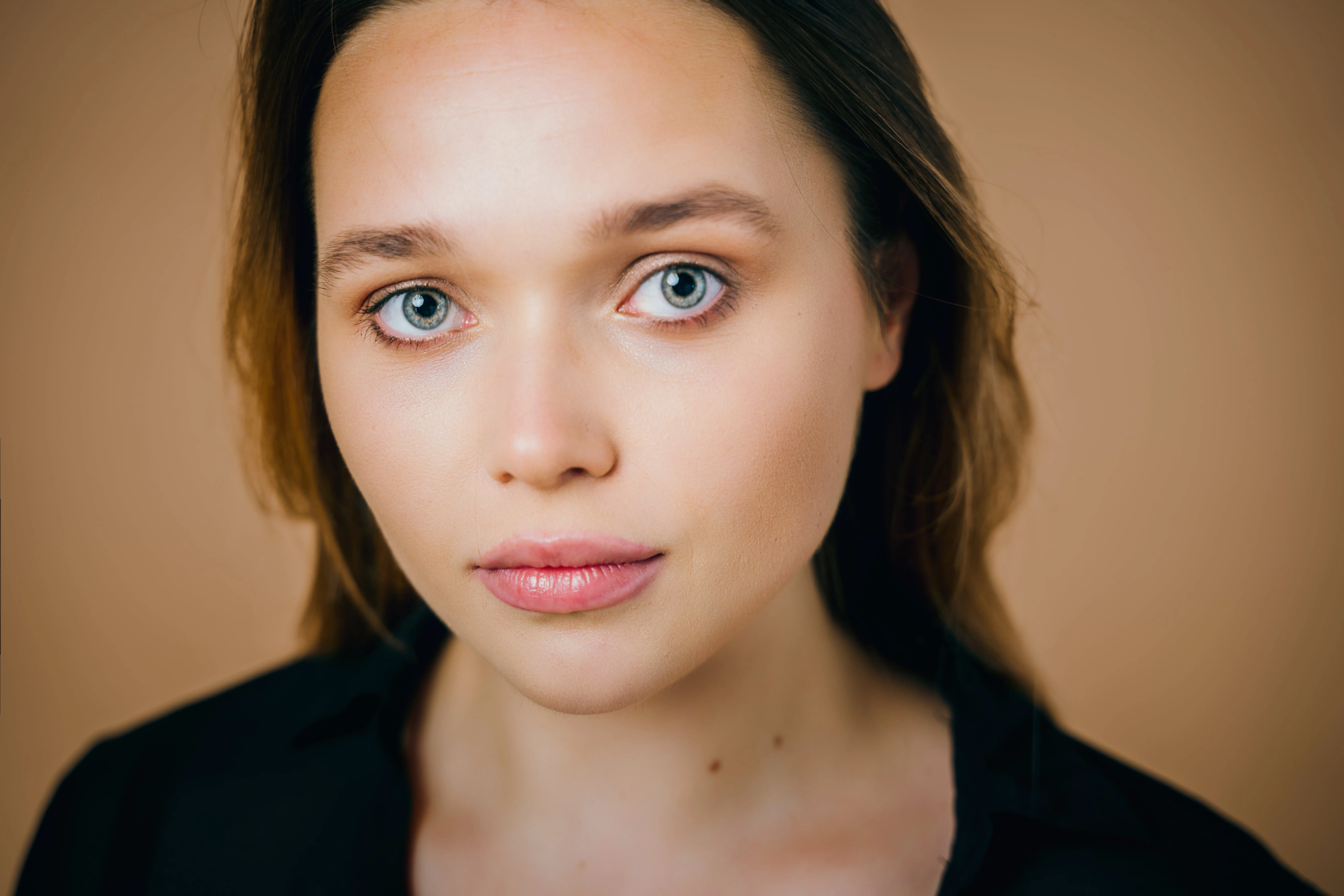
© Ksenia Kazak
Discover Luminar's Slim Face feature and revolutionize your photos with just a slide! Try it now!

.webp)
.webp)
자주 묻는 질문
How to remove eye bags from photos in Luminar?
Open your image in Luminar, go to Face AI, and adjust the eye enhancement tools to reduce puffiness and smooth the under-eye area naturally.
How to remove dark circles from photos in Luminar?
얼굴 AI의 다크서클 보정 도구를 사용해 보세요. 이 도구는 눈 밑의 다크서클을 지능적으로 감지하여 자연스러운 피부 톤을 유지한 채로 개선해 줍니다.
이 도구를 클로즈업 인물 사진과 전신 사진에도 사용할 수 있나요?
Yes, Luminar’s Face AI works on both close-up and full-body images, automatically detecting and enhancing facial features regardless of framing.
눈 편집을 적용한 후 되돌리거나 조정할 수 있나요?
Absolutely. Luminar uses non-destructive editing, allowing you to refine, adjust, or completely undo any changes at any time.
Why Luminar is the best eye editor?
Luminar stands out for eye editing because Face AI brings multiple eye enhancements into one dedicated workflow. You can brighten and enhance the eyes, remove red eye and dark circles, improve eyebrows, enlarge the eyes, whiten them, or even adjust the iris for a more polished portrait while controlling the strength of each effect.
In which use cases is the Luminar AI eye editor most effective?
Luminar’s eye editing tools are especially effective for portraits, headshots, beauty photography, wedding photos, and close-up selfies. They are useful when eyes appear dark, tired, affected by red eye, or simply need subtle enhancement to draw more attention to the subject.
