View plans

Captivating Image Smoother

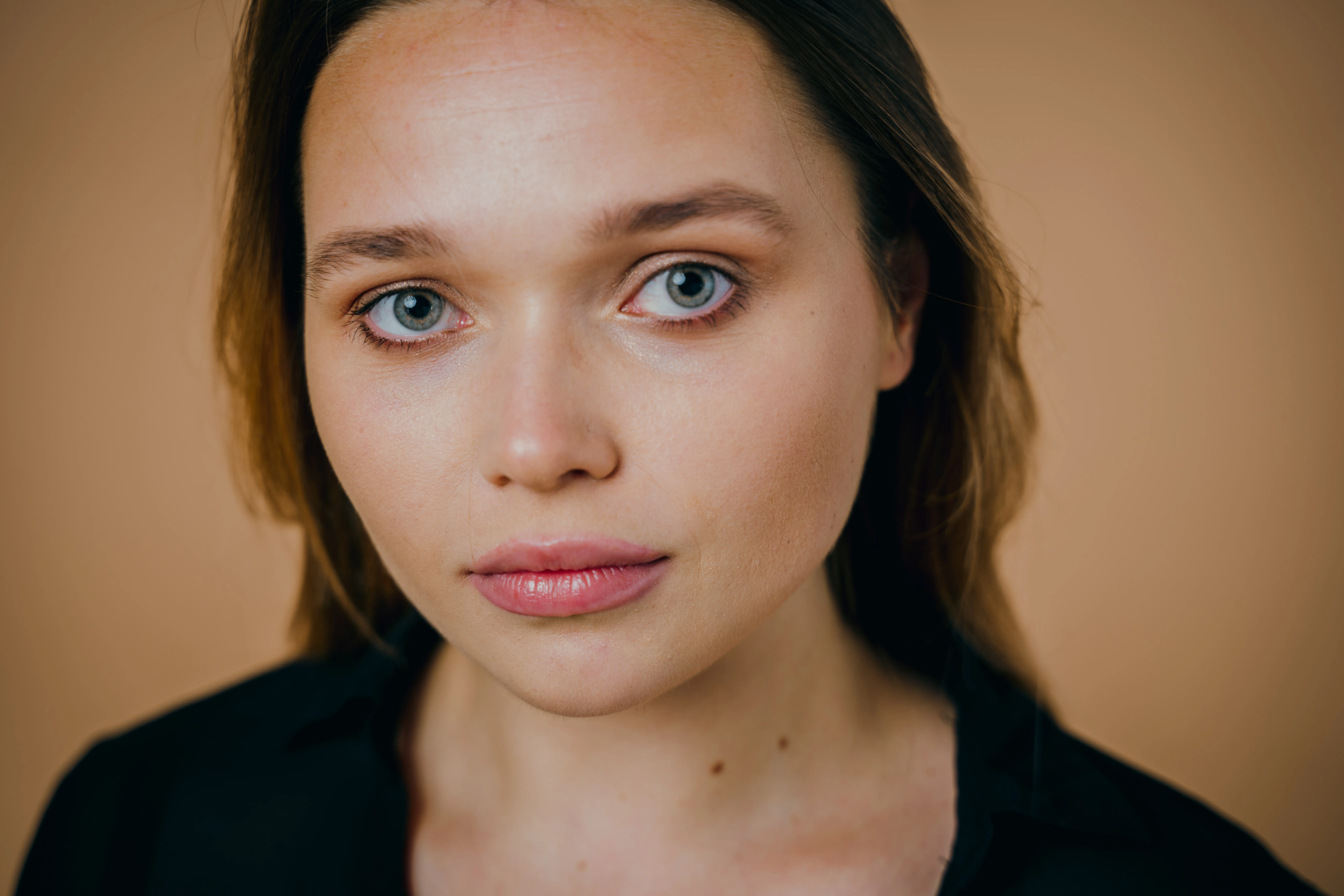
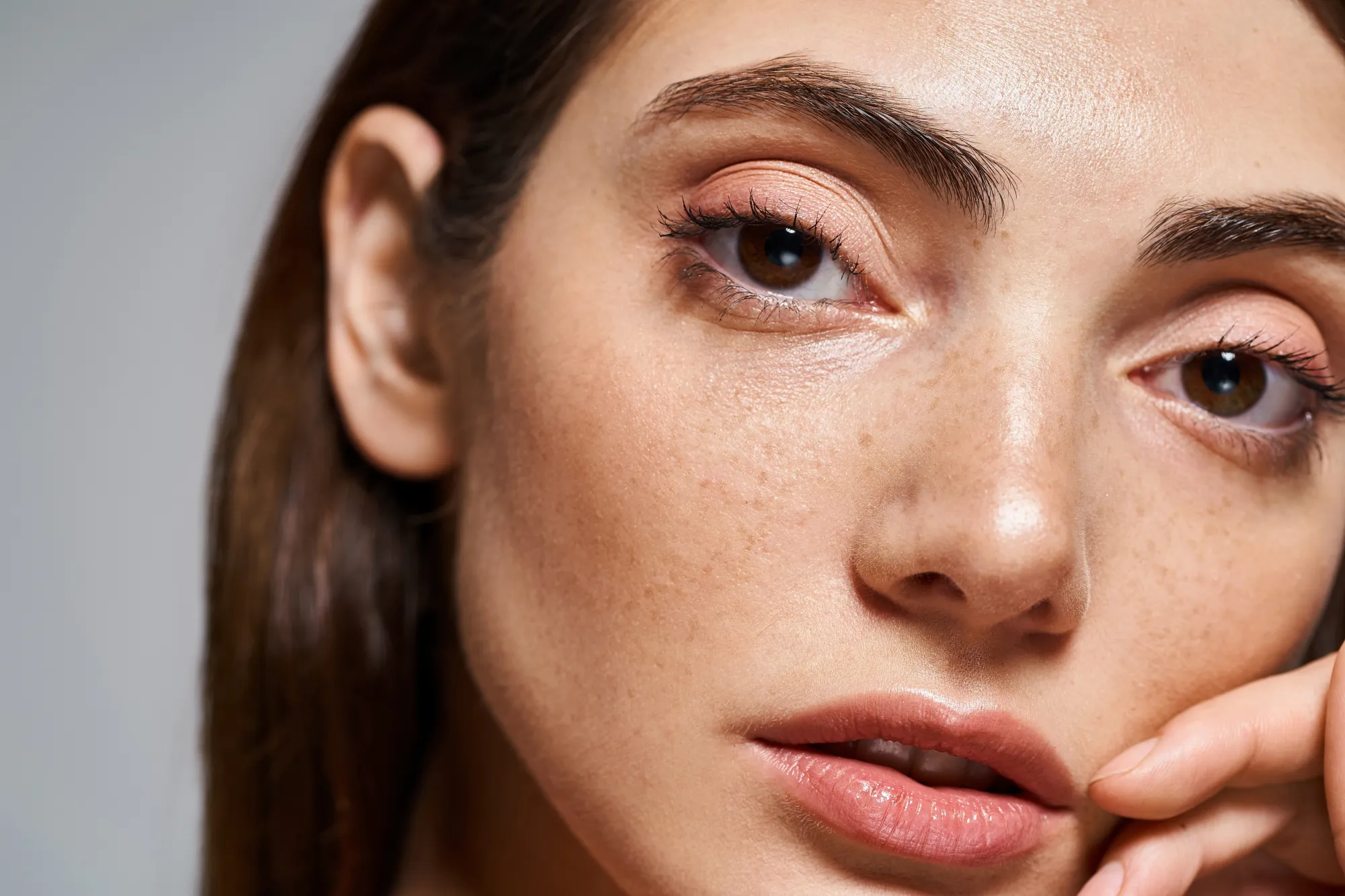
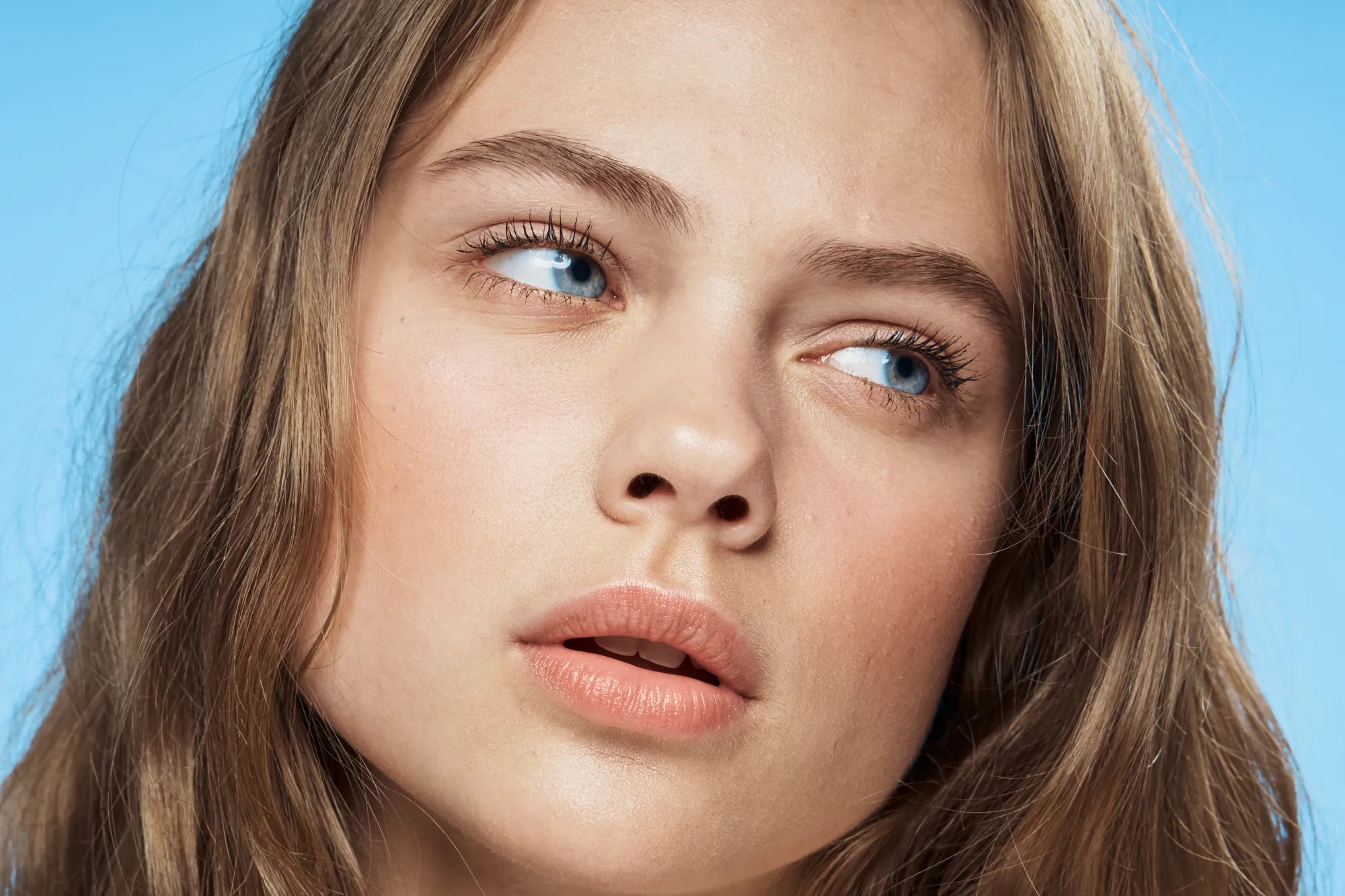
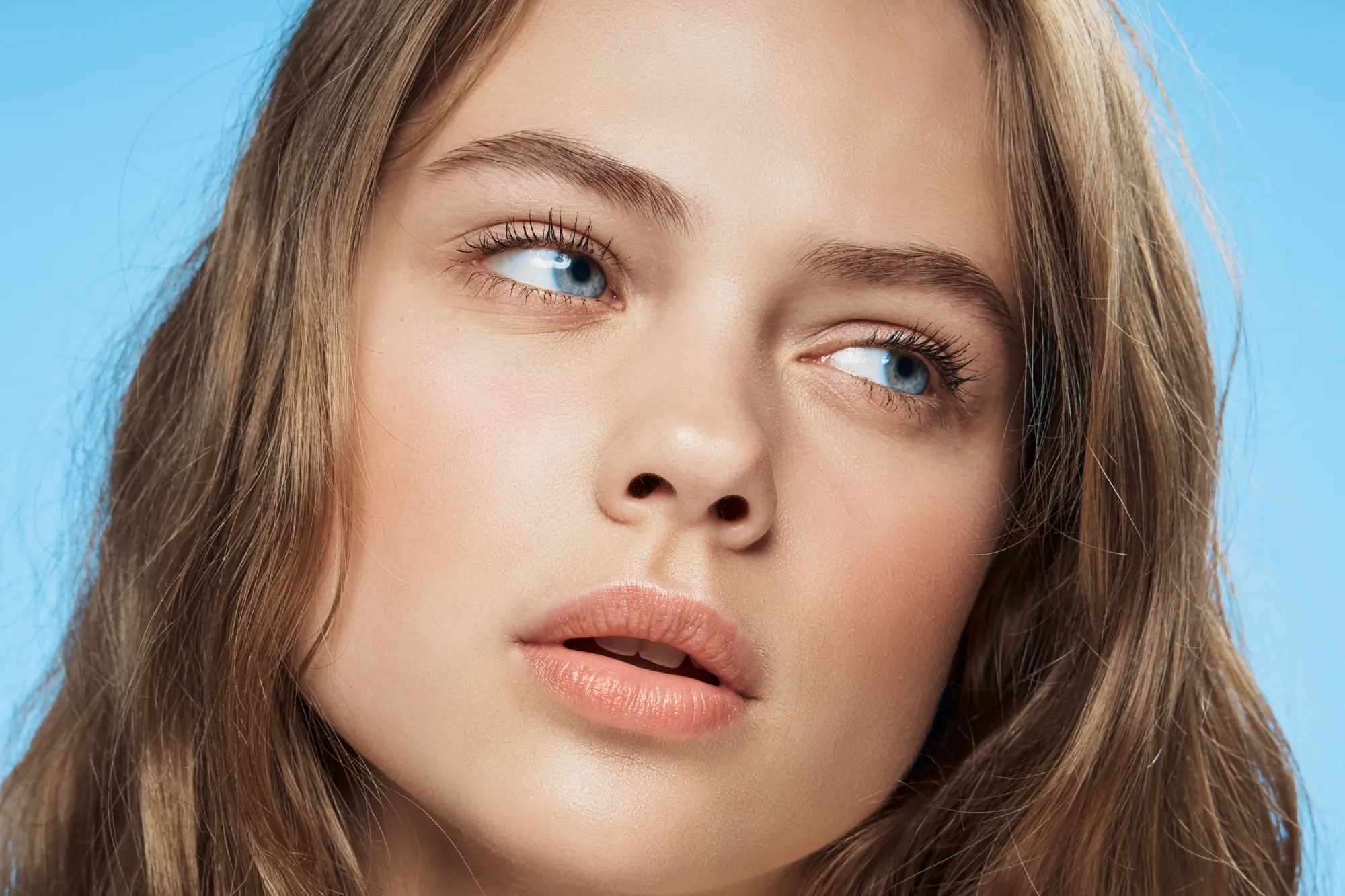
Smoothing can give images a more polished and visually pleasing appearance, which is often desirable in photography, graphic design, and other visual arts. Plus, a smooth image can convey a sense of professionalism and quality.

View plans

How to Say Goodbye to Grainy, Uneven Details?

The Luminar Neo photo editor has plenty of AI-powered features that can give you a smoother and more polished look. AI image smoothing is a fast and efficient way to get the results you want.
© Ksenia Kazak

Why the Power of Precision and Smoothness Matters?

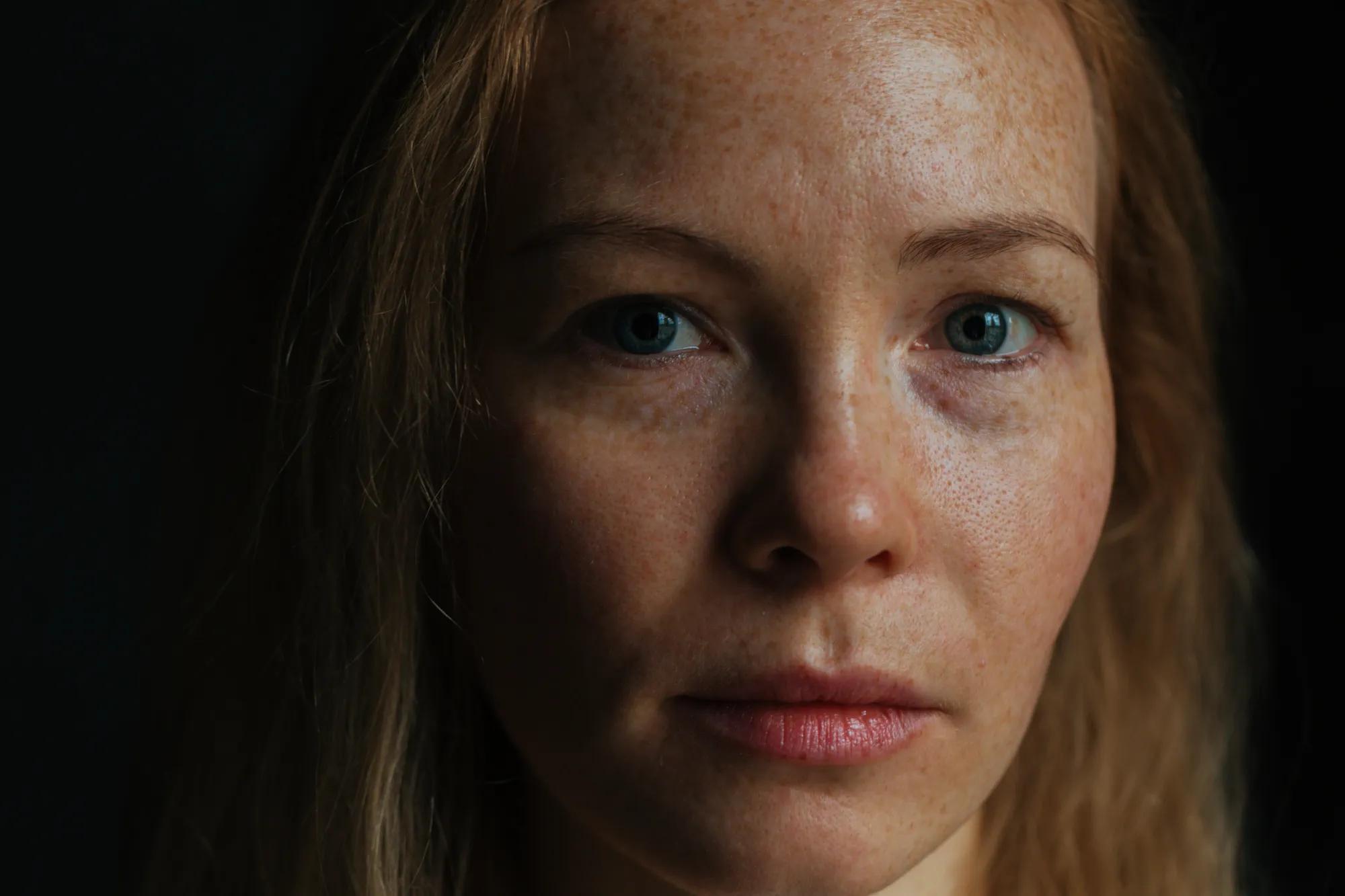
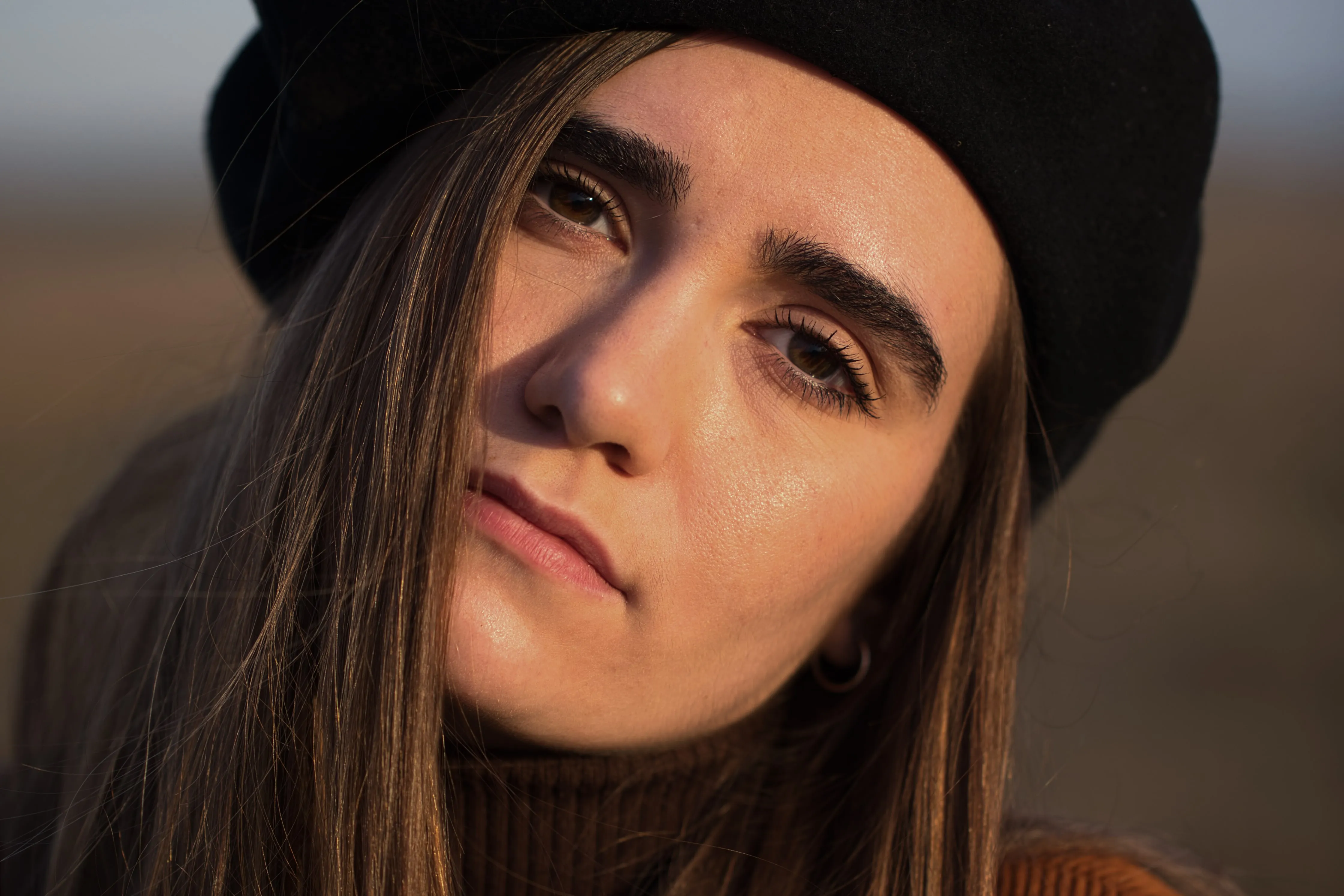
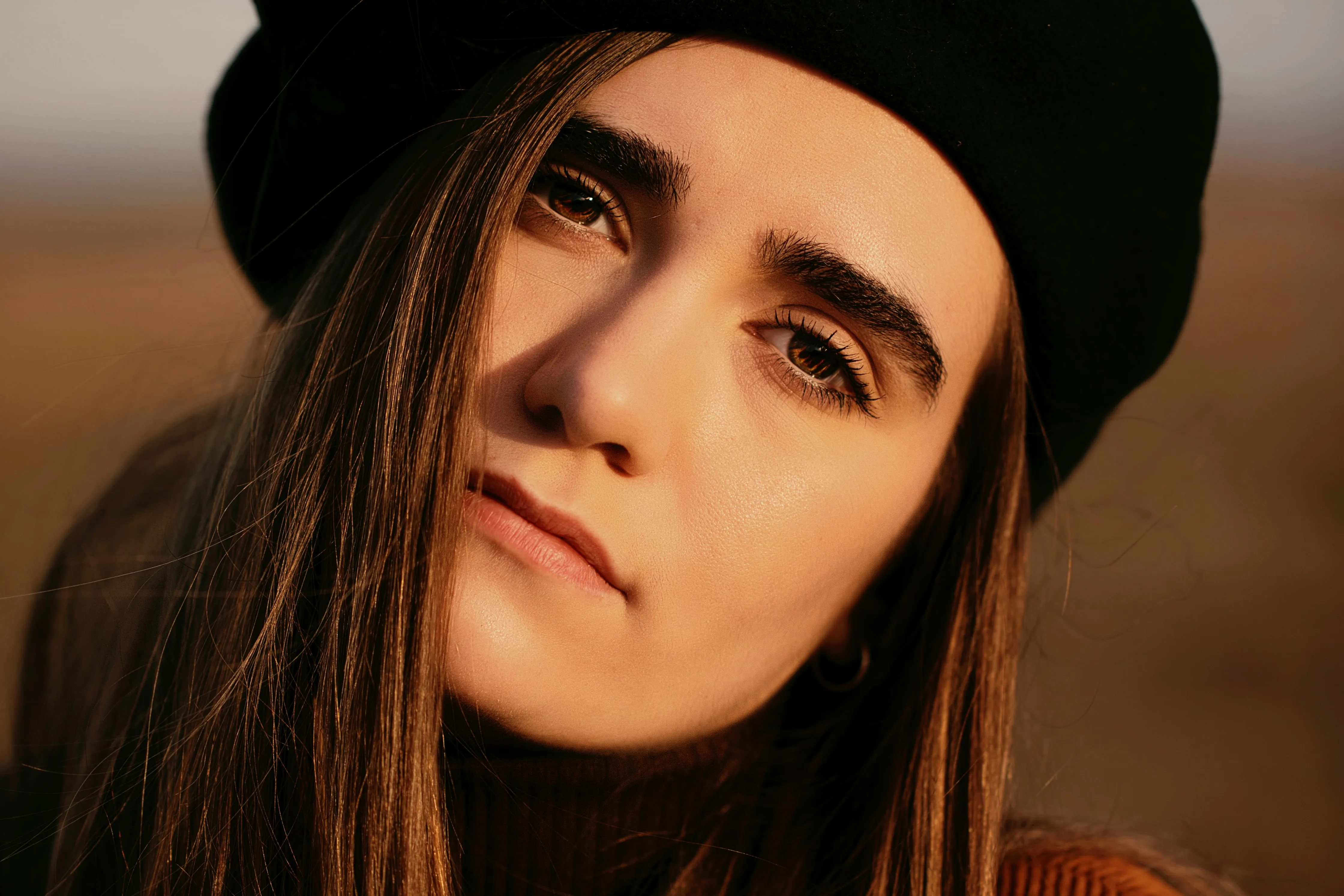
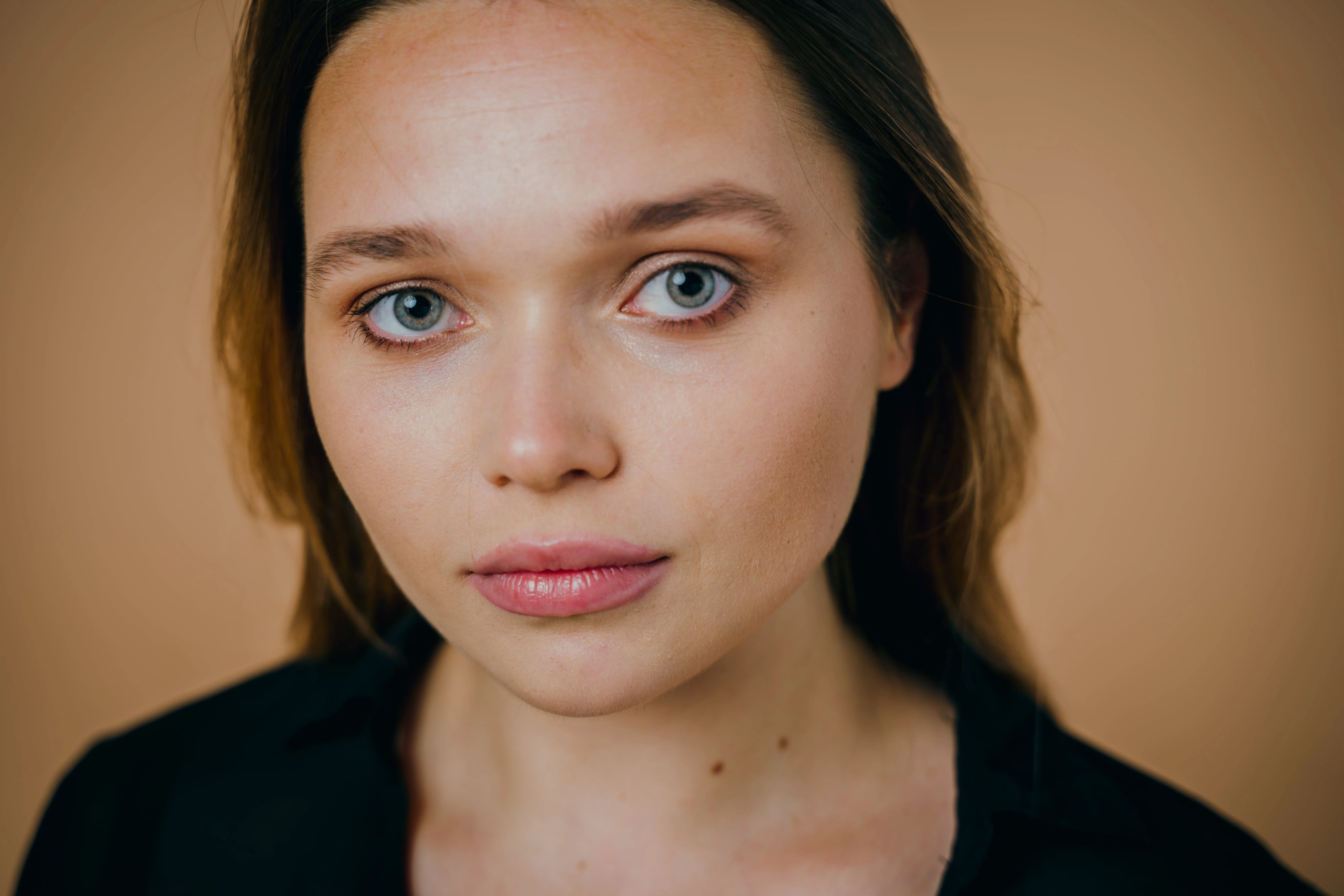
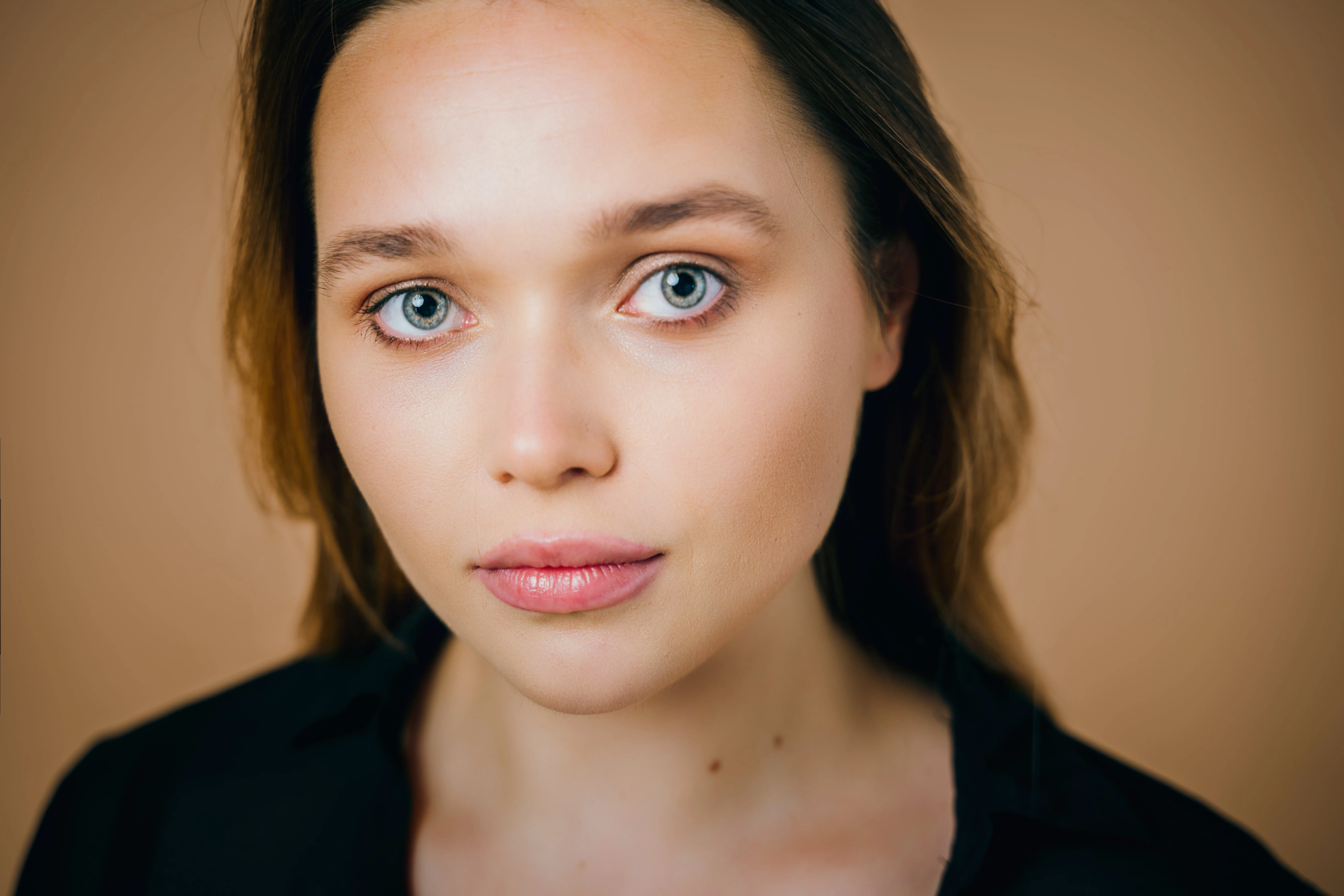
Smoothing can help reduce noise in images. In photography, noise is unwanted variations in brightness and color that can be introduced by factors like low-light conditions or high ISO settings.

Smoothing helps to eliminate or minimize these imperfections.
(2)
(3)
(4)
Before
After
© Ksenia Kazak
(5)
(6)
(7)
Before
After
© alinatroeva

Image Smoothing Made Simple

Depending on thecontents of the image, there are different tools you can use to achieve to achieve a softening photos effect.

Discover Skin AI for a smoother skin in portraits, Enhance AI for an overall polished look, the Noiseless AI Extension for reducing grain efficiently and smoothing out your image, but not too much. 

Unleash the Potential of Crisp, Professional-Grade Images

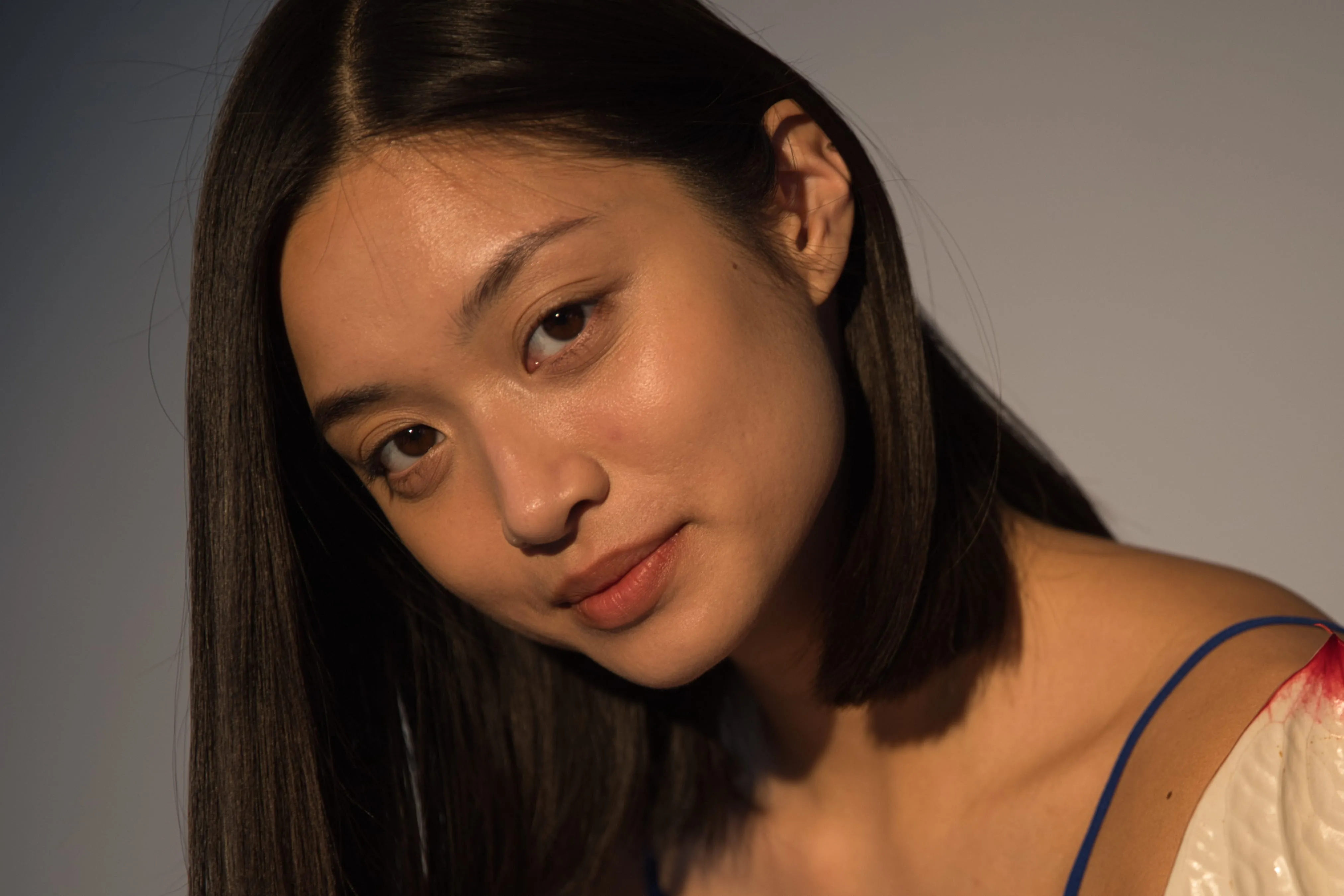
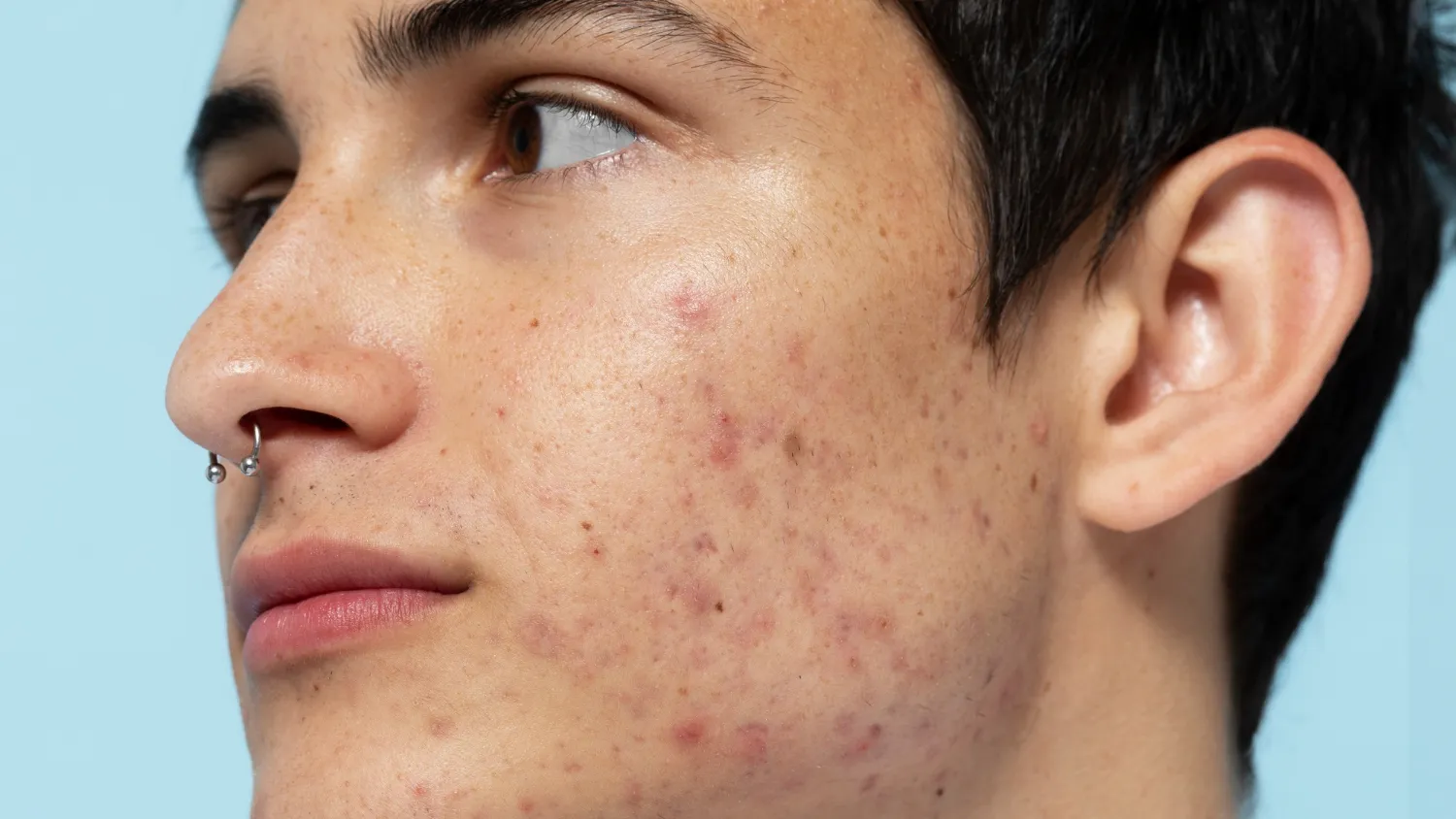
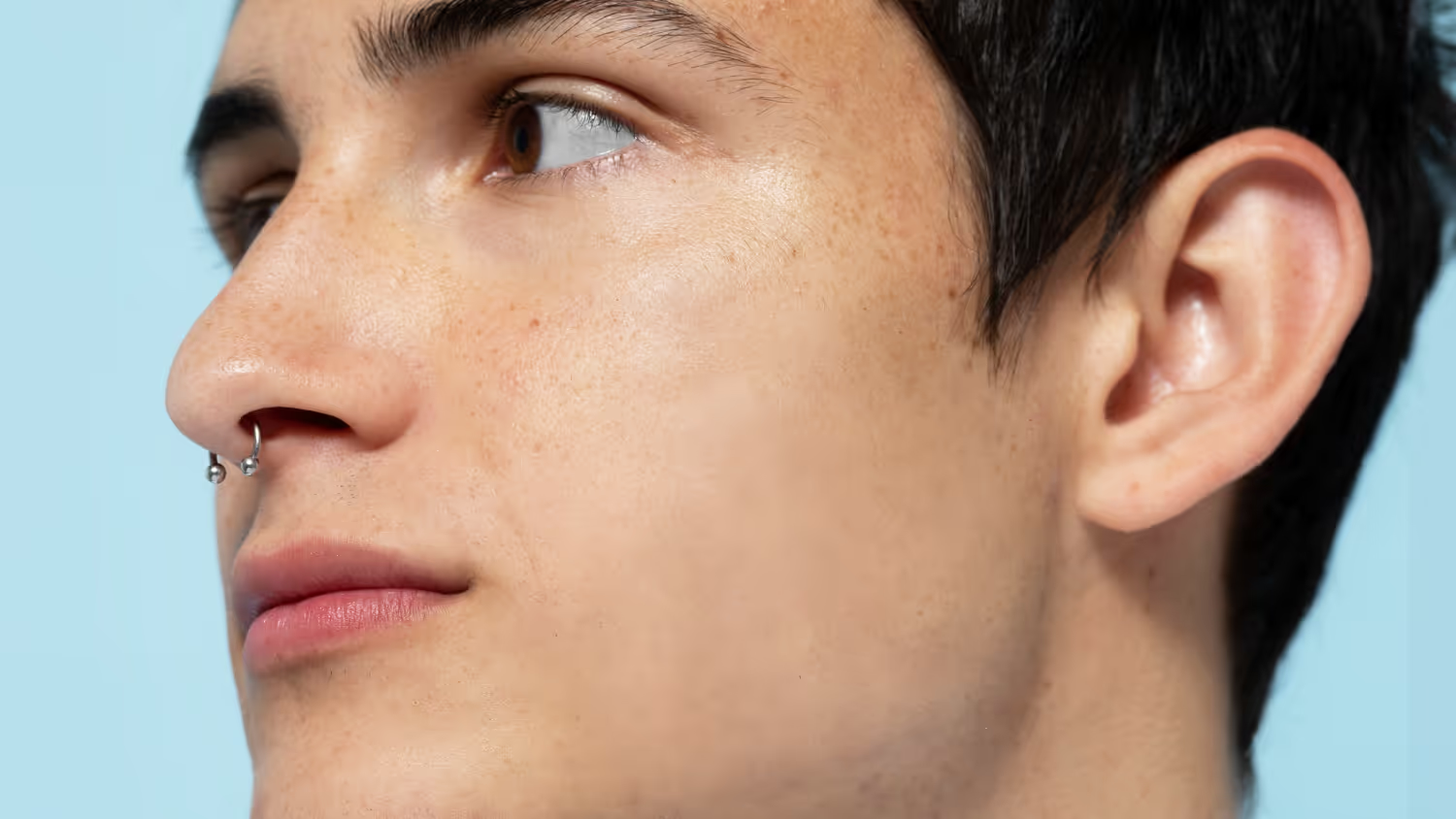
Want a smoother image, for example, a portrait? Use Skin AI that can smooth the skin but make sure small details like hair and eyelashes are sharp.

• Amount. This slider smooths the skin and removes unwanted variations while preserving texture and detail.

• Shine Removal. Excessive shine on the forehead or cheeks ruins an otherwise perfect photo. The Shine Removal tool generates realistic-looking skin to restore patches of the face that were washed out by excessive light. This slider adjusts the intensity of the Shine Removal effect.

• Skin Defects Removal AI. Select this checkbox to remove skin defects in a portrait automatically.
(8)

Explore Other Features
Luminar Neo has plenty of other features to help you edit faster and easier
(9)
FaceAI
(10)
(11)
Before
After
© shutterstock

FaceAI

Experience the magic of AI with Face AI Editor—effortlessly enhance, retouch, and beautify!
(12)
SkinAI
(13)
(14)
Before
After
© Ksenia Kazak

SkinAI

Transform your skin with Skin AI — achieve flawless, imperfection-free beauty today!
(15)
Photo Retouching
(16)
(17)
Before
After
© Lisa

Photo Retouching

Effortlessly retouch your photos, remove distractions, and showcase your best work with speed and ease.
(9)
Wrinkle Remover
(19)
(20)
Before
After
© Ksenia Kazak

Wrinkle Remover

Take control of your portraits and smooth wrinkles naturally and confidently, on your terms.
(21)
Skinny Face
(22)
(23)
Before
After
© mathewbrowne_anglesey

Skinny Face

Discover Luminar Neo's Slim Face feature and revolutionize your photos with just a slide! Try it now!
(24)
Blemish Remover
(25)
(26)
Before
After
© reewungjunerr

Blemish Remover

Polish your photos, giving you the refined appearance you deserve.

An application & plugin
For macOS & Windows

  • High-performance AI editor
  • 24/7 technical support

  • 30-day money back guarantee

  • Join our communities

Frequently Asked Questions

How to use AI image smoother tools in Luminar Neo?

Depending on your needs, you may want to use the Skin AI tool for portraits, Noiseless AI to get rid of grainy details, or Enhance AI for on overall more polished look.

Will using the image smoother affect the sharpness of my images?

You can use the Supersharp tool to restore sharpness if you need more detailed and sharp results. Luminar Neo gives you full control over your results.

Can I undo the smoothing effect if I'm not satisfied with the results?

Yes. Simply undo the step in the Edits tab and try again.

Can the image smoother be used for batch processing multiple images at once?

Of course! If you’re satisfied with the effect you have achieved on one image, you can easily copy and paste the adjustments in the catalog across multiple images.
(28)