Ver los planes

Suavizado de Imágenes para un Acabado Profesional

Give your images a clean, polished look in seconds. Smoothing reduces noise, evens out details, and keeps textures natural—so your photos feel refined, not overedited.

VIEW PLANS

How to Use the Face Smoother Tool

(2)

Open your photo. Upload your image to Luminar Neo and select the Skin AI tool.

(3)

Apply smoothing. Adjust the Amount slider to smooth skin and even out texture while keeping it natural.

(4)

Refine details. Use Shine Removal to reduce highlights and Skin Defects Removal to clean up imperfections.

(5)

Keep it balanced. Fine-tune the effect to avoid over-smoothing—your goal is clean, natural skin, not a “plastic” look.

(6)

Save or continue editing. Export your photo or enhance it further with other Luminar tools.

Where Face Photo Smoother Fits

Portrait & lifestyle photography
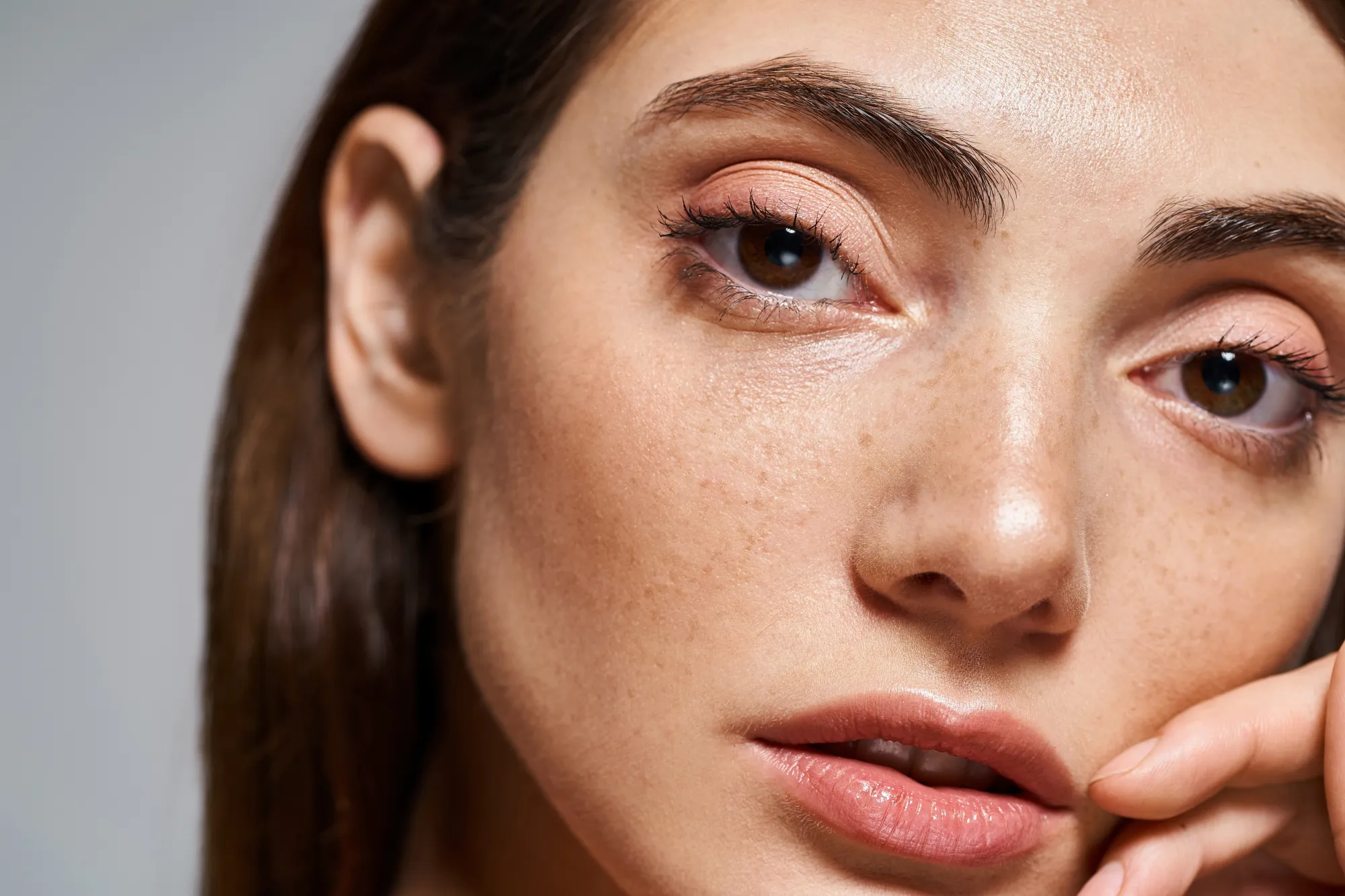
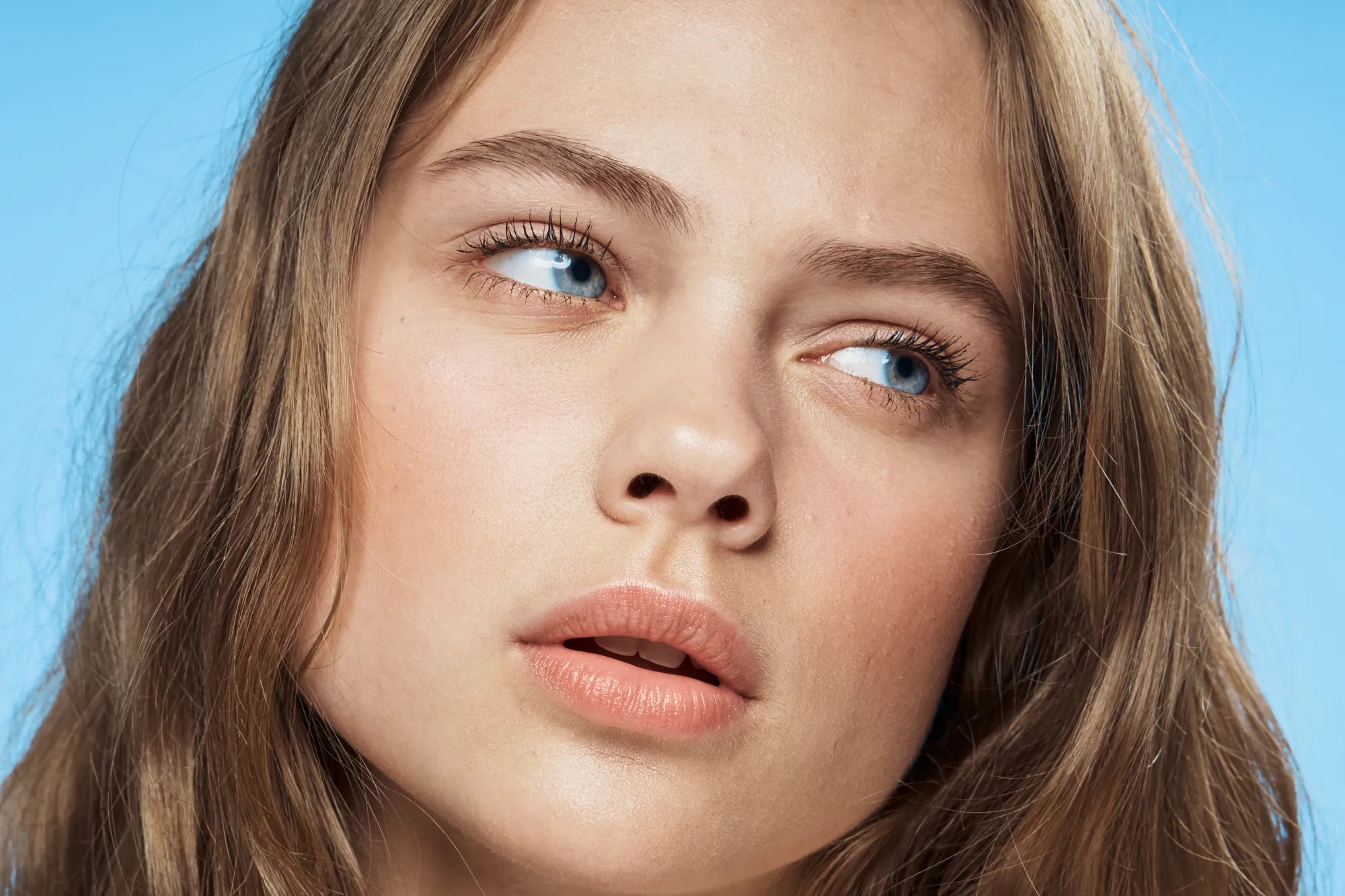
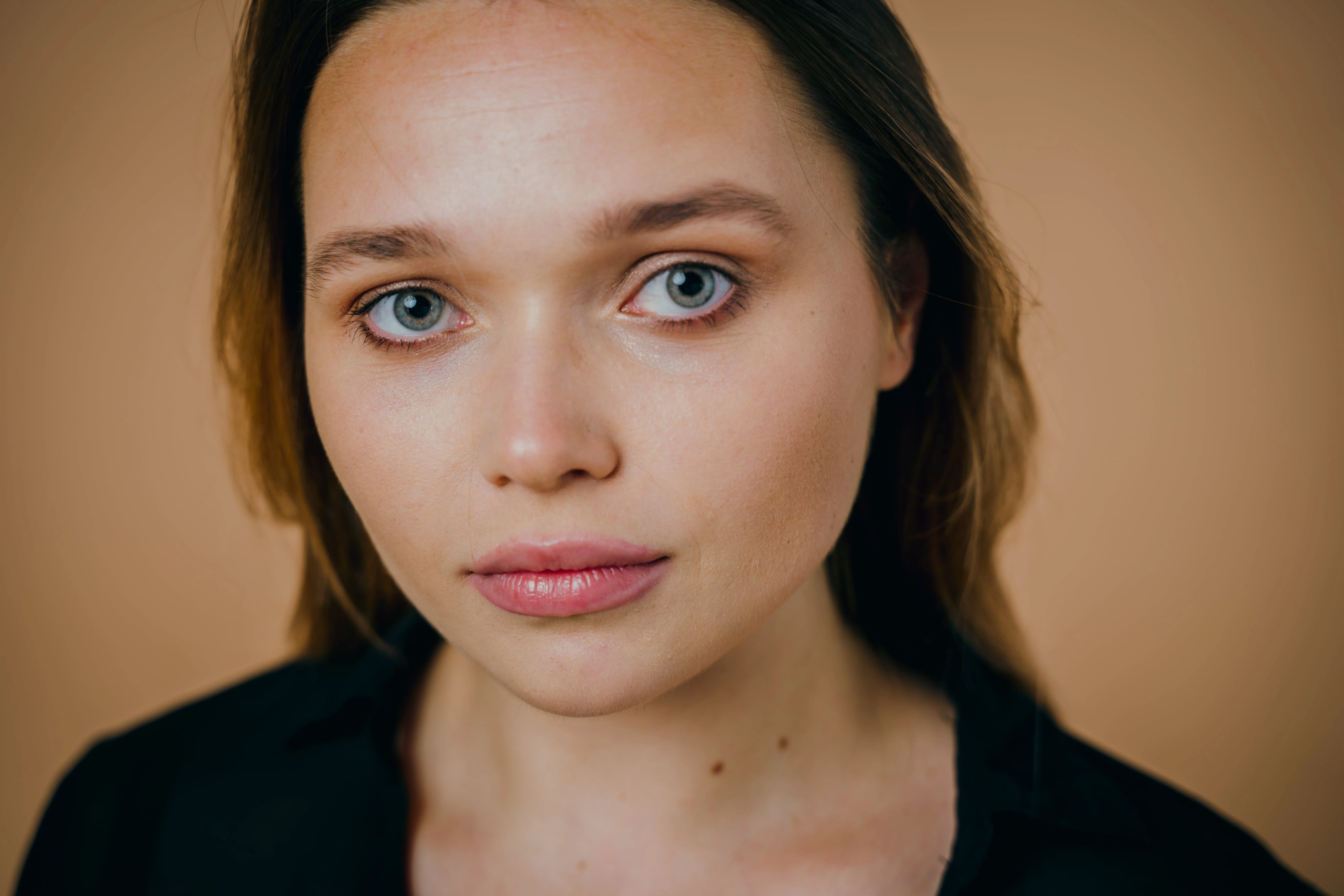
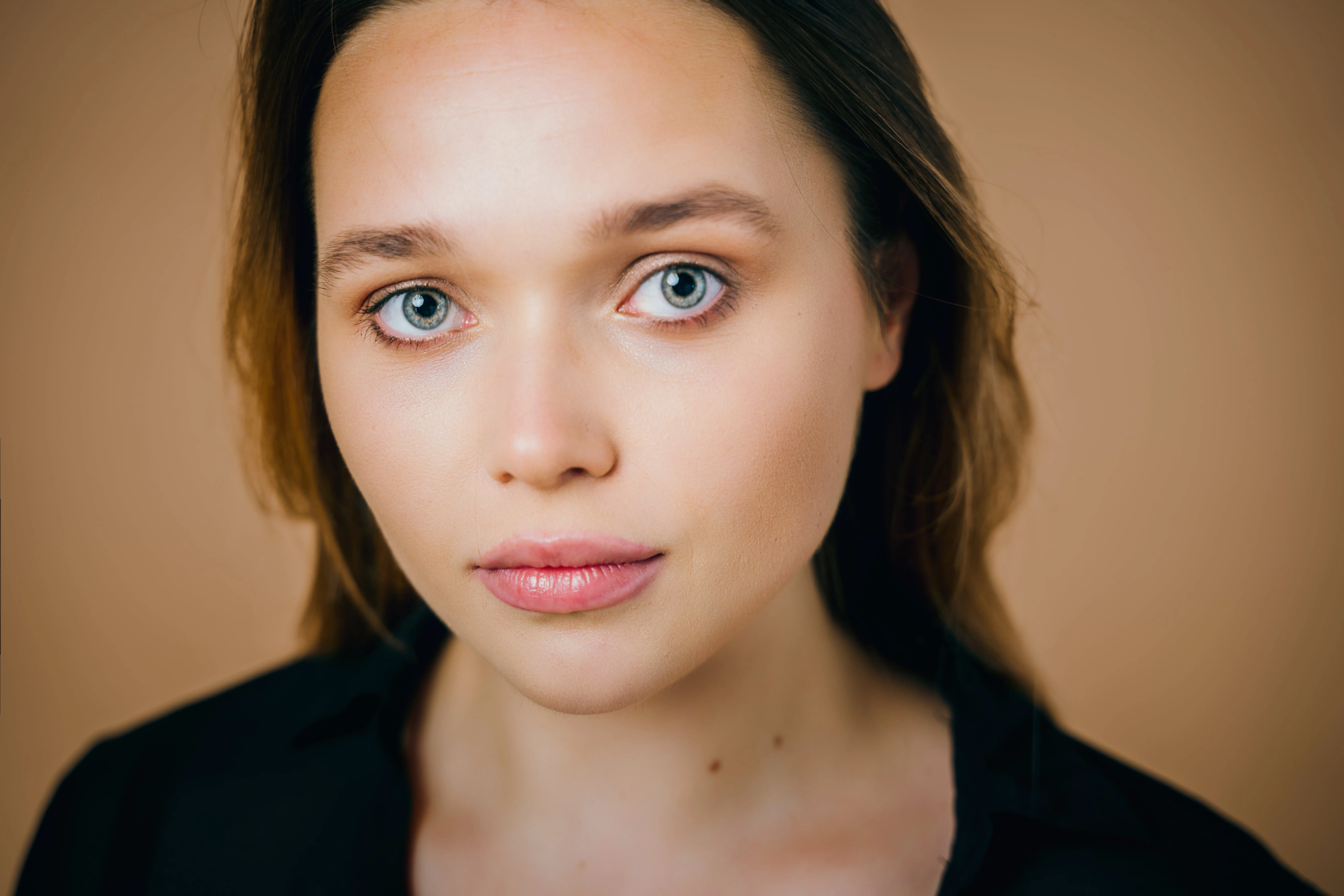
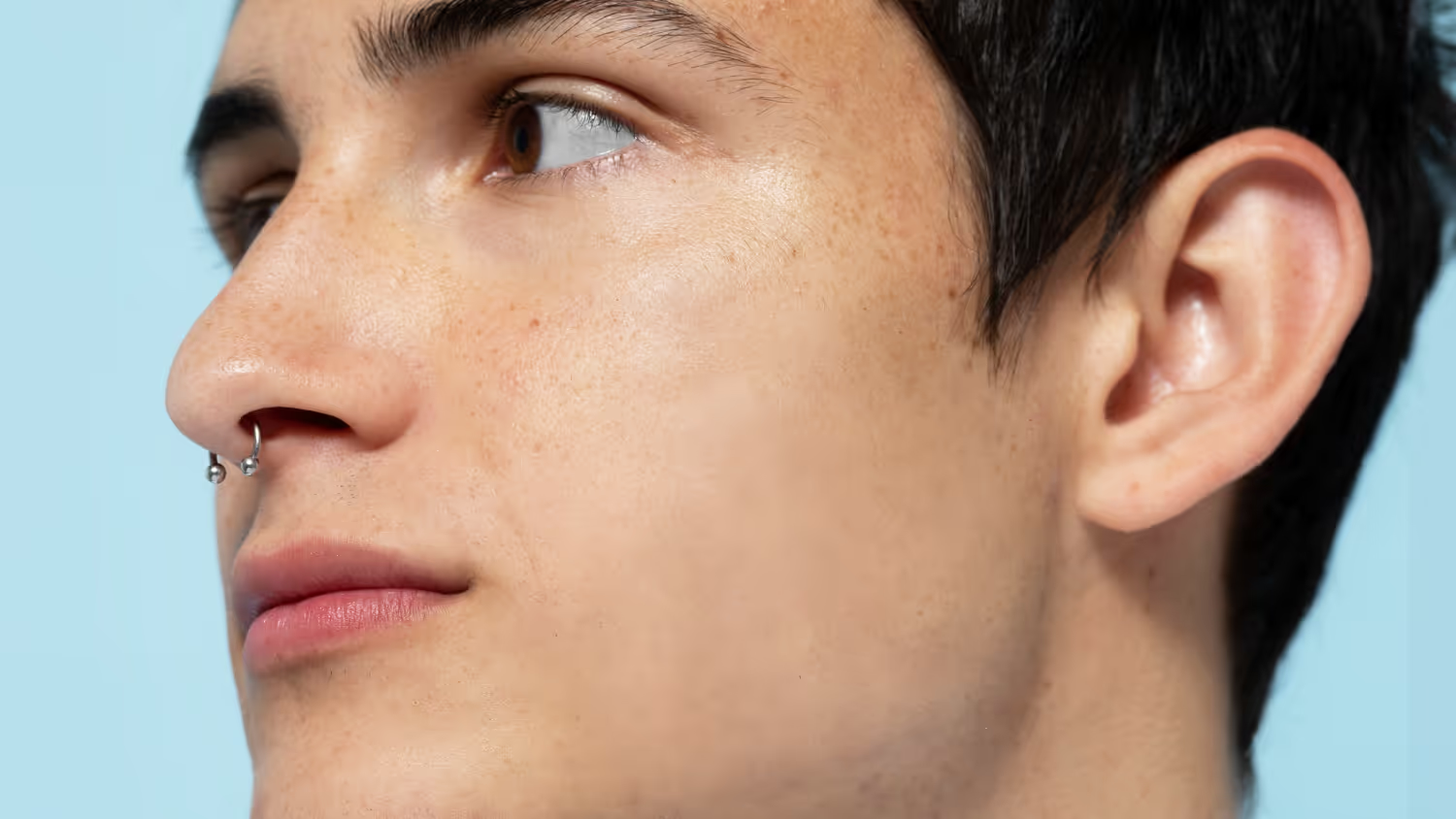
Skin can look uneven under certain lighting. Smooth it subtly while keeping it natural and true to life.
(7)
(8)
(9)
Antes
Después
© Ksenia Kazak
(10)
(11)
(12)
Antes
Después
© alinatroeva

Close-up shots and selfies

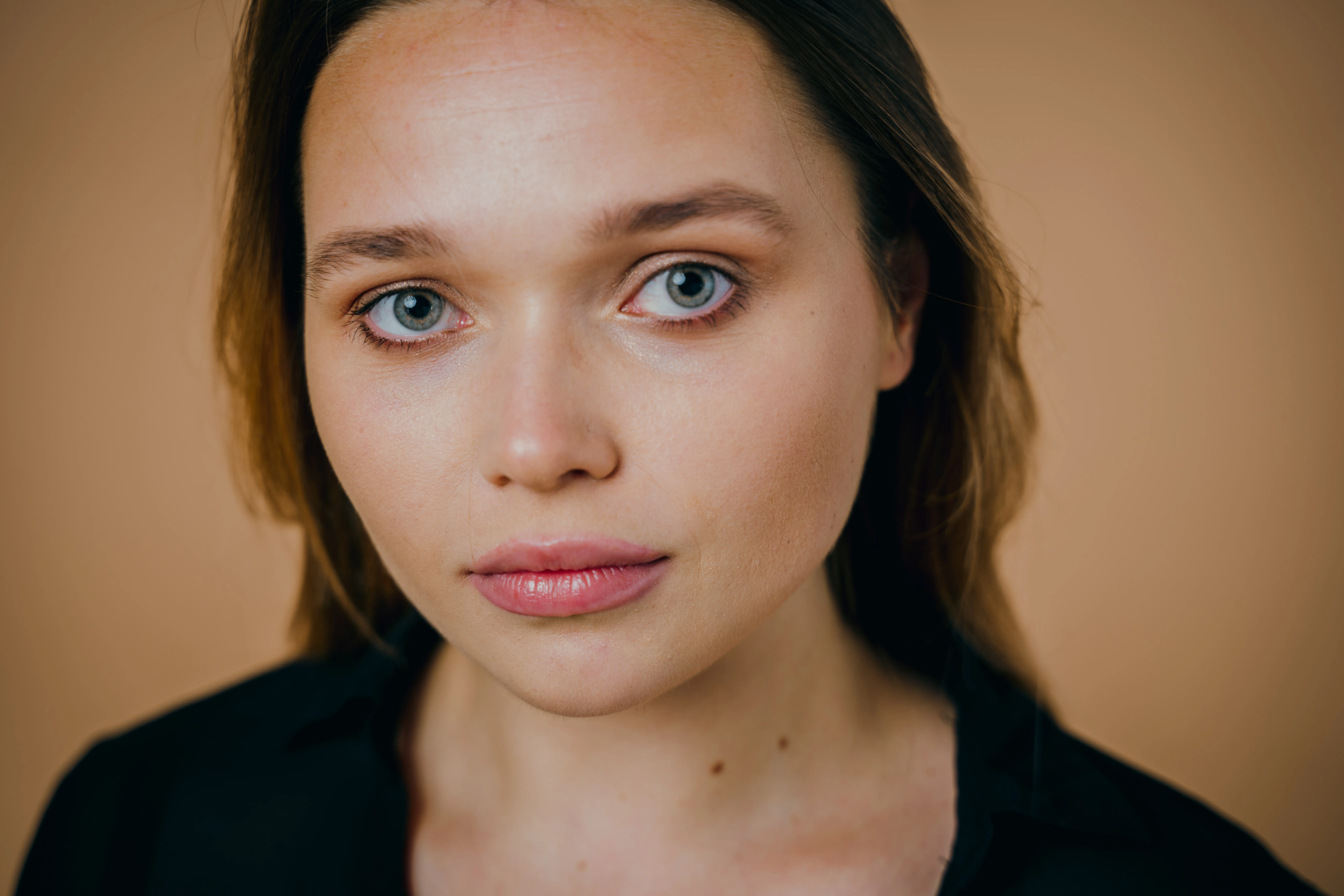
The closer the photo, the more visible every detail. Refine skin gently so it looks clean, but still like you.

Harsh lighting conditions

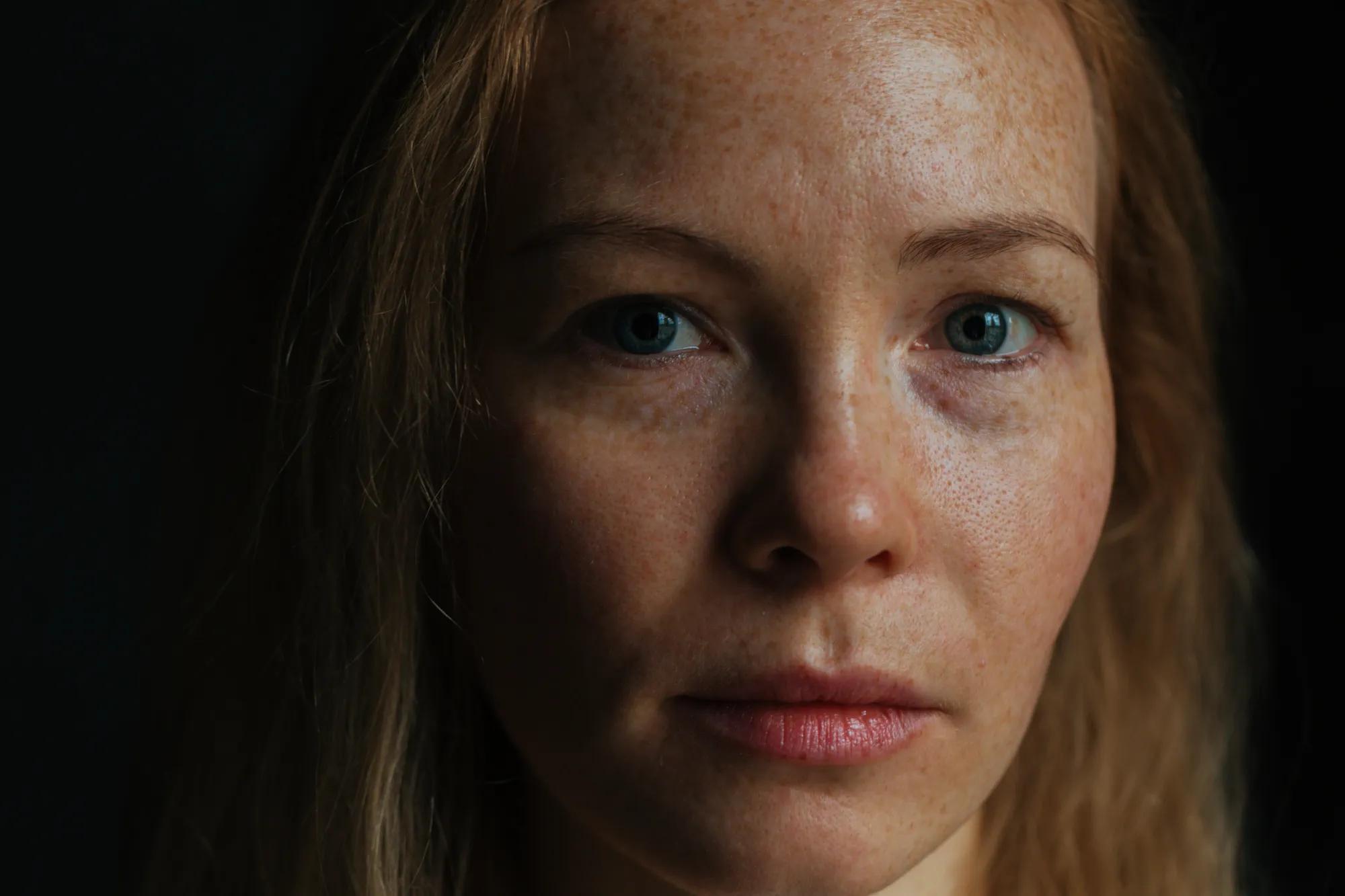
Shine, shadows, and uneven tones can make skin look rough. Smoothing brings everything back into balance.
(7)
(14)
(15)
Antes
Después
© Ksenia Kazak
(10)
(17)
(18)
Antes
Después
© alinatroeva

Quick edits before sharing 

When a photo is almost perfect but needs a small fix—smooth the skin in seconds and it’s ready to go.

Descubre Otras Funciones

Luminar Neo cuenta con un amplio catálogo de funcionalidades que te ayudarán a editar de forma rápida, fácil y sencilla
(19)
FaceAI
(20)
(21)
Antes
Después
© shutterstock

FaceAI

Experience the magic of AI with Face AI Editor—effortlessly enhance, retouch, and beautify!
(22)
SkinAI
(23)
(24)
Antes
Después
© Ksenia Kazak

SkinAI

Transform your skin with Skin AI — achieve flawless, imperfection-free beauty today!
(25)
Photo Retouching
(26)
(27)
Antes
Después
© Lisa

Photo Retouching

Effortlessly retouch your photos, remove distractions, and showcase your best work with speed and ease.
(19)
Wrinkle Remover
(29)
(30)
Antes
Después
© Ksenia Kazak

Wrinkle Remover

Take control of your portraits and smooth wrinkles naturally and confidently, on your terms.
(31)
Skinny Face
(32)
(33)
Antes
Después
© mathewbrowne_anglesey

Skinny Face

Discover Luminar Neo's Slim Face feature and revolutionize your photos with just a slide! Try it now!
(34)
Blemish Remover
(35)
(36)
Antes
Después
© reewungjunerr

Blemish Remover

Polish your photos, giving you the refined appearance you deserve.

Aplicación y plugin
Para macOS y Windows

  • Editor de imágenes con IA de alto rendimiento
  • Asistencia técnica 24 horas

  • Garantía de devolución de 30 días

  • Join our communities

Preguntas frecuentes

Why choose Luminar Neo’s picture smoother?

Luminar Neo makes face smoothing simple and natural. Instead of manual retouching, AI helps you even out skin, reduce shine, and remove small imperfections in seconds—while keeping real texture intact. You stay in control of the result, without overediting or complex tools.

How do I use the Face Smoother in Luminar Neo?

Open your photo and go to Skin AI. Adjust the Amount slider to smooth skin, use Shine Removal to reduce highlights, and enable Skin Defects Removal to clean up imperfections—everything updates instantly.

Will smoothing make my image look blurry?

No. The tool smooths skin while preserving natural texture. If you want extra detail, you can always enhance sharpness with SuperSharp AI.

Can I undo the effect if I don’t like it?

 Yes. You can easily create a smoother image, then adjust, reset, or undo any changes at any time in the Edits panel.

Can I apply the same smoothing to multiple photos?

Yes. Once you’re happy with the result, you can copy and paste your adjustments across multiple images to keep everything consistent.
(38)