

 Ver los planes
Crea un difuminado cinematográfico con efecto bokeh
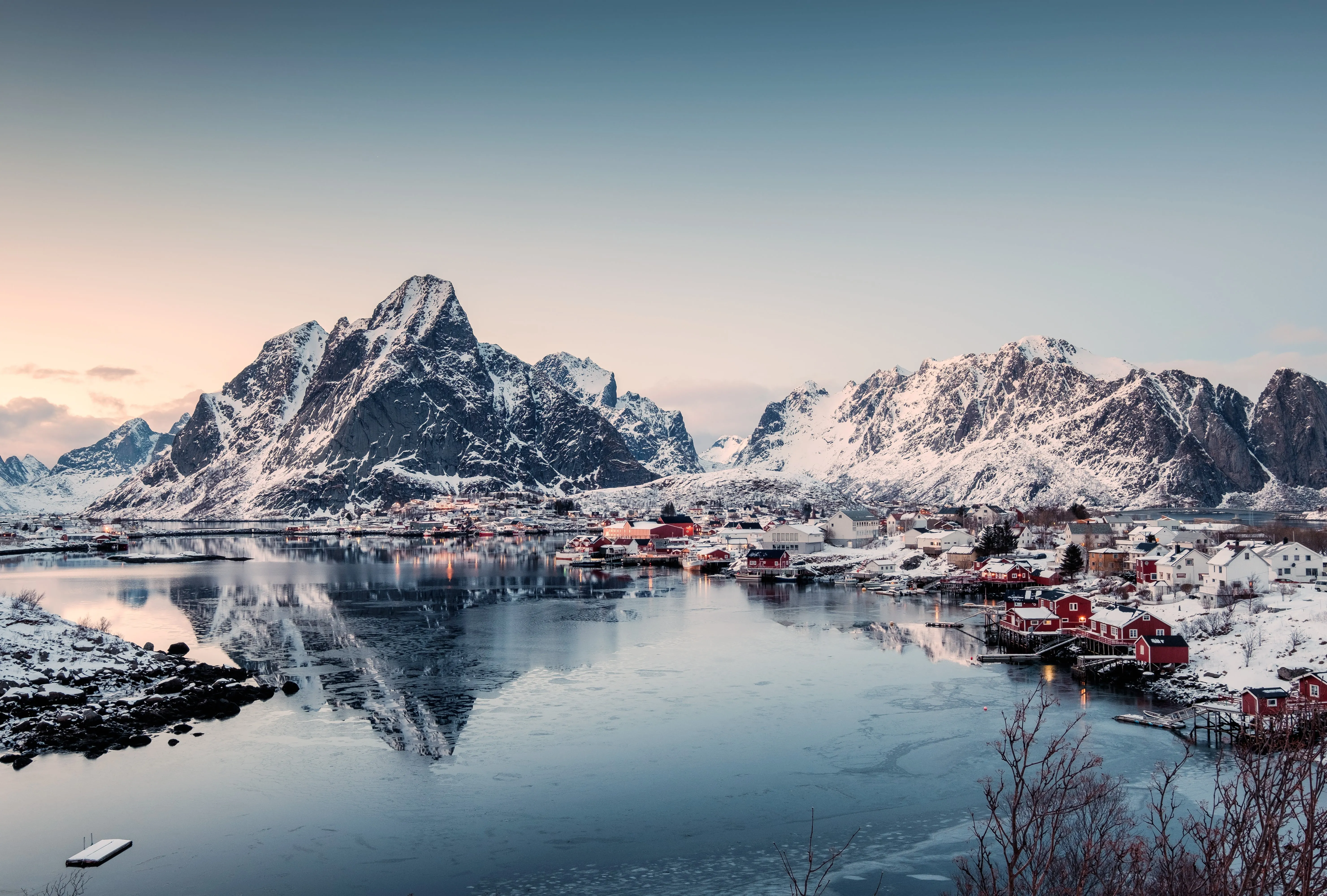
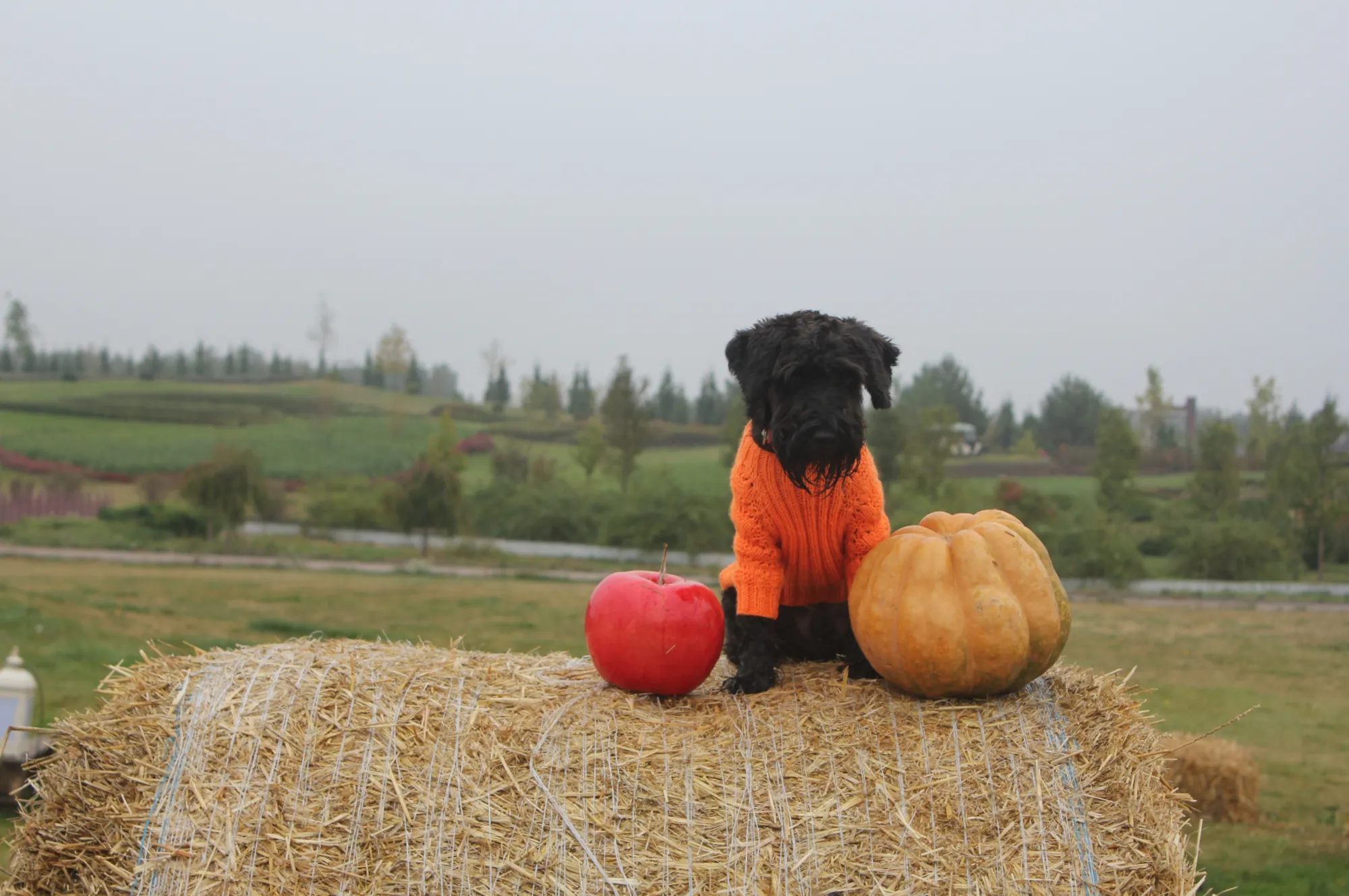
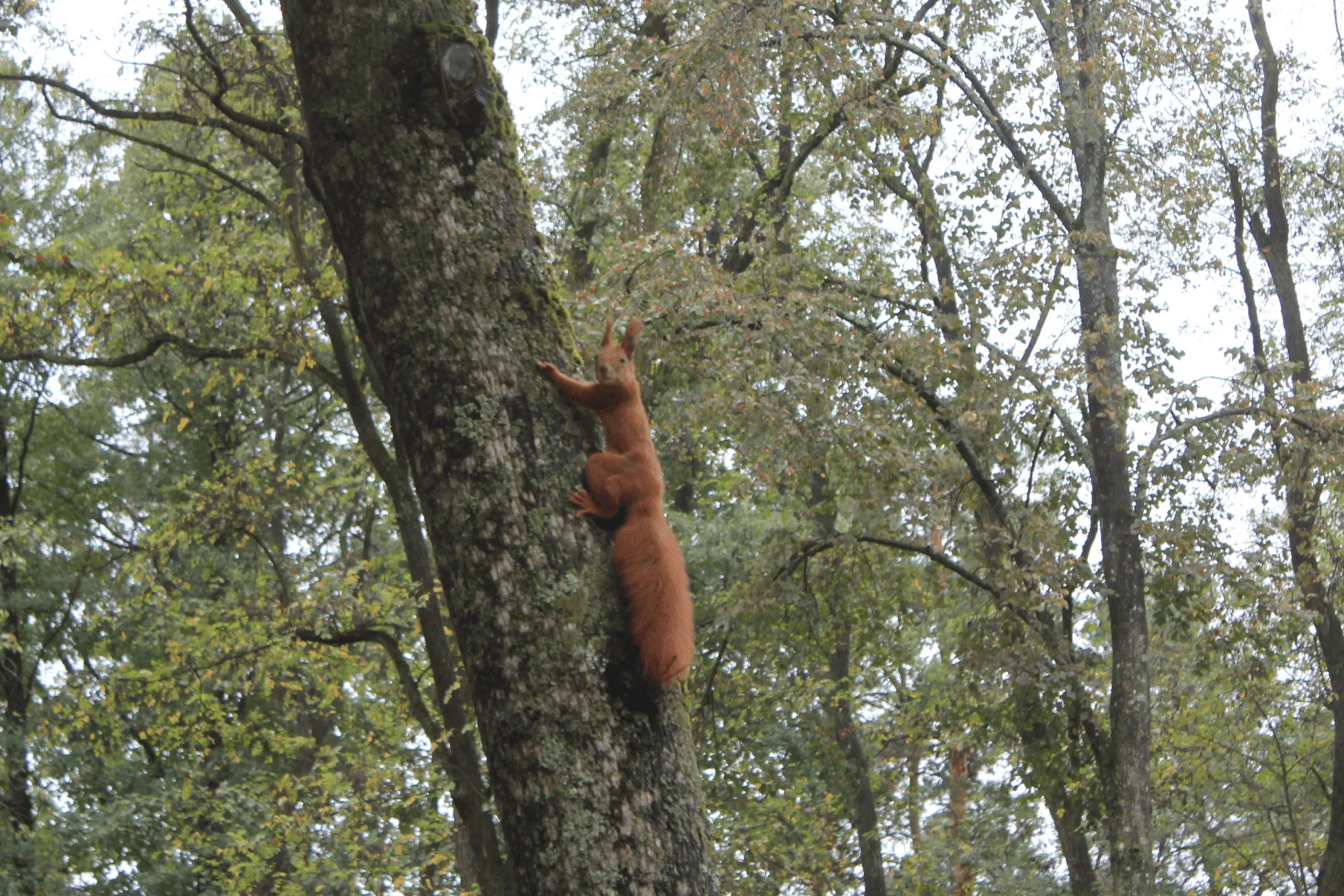
Transform your images with the powerful bokeh camera effect in Luminar. Instantly create depth and atmosphere with natural-looking background blur. Now, bokeh in Luminar works not only on people but also on objects and animals, giving you more creative freedom than ever before.
VER PLANESUn difuminado bokeh digno de una cámara profesional
Achieve authentic, high-quality results with a bokeh blur effect that mimics real lens behavior. Luminar uses advanced AI to analyze your image and apply blur that feels organic and realistic—just like a professional camera.
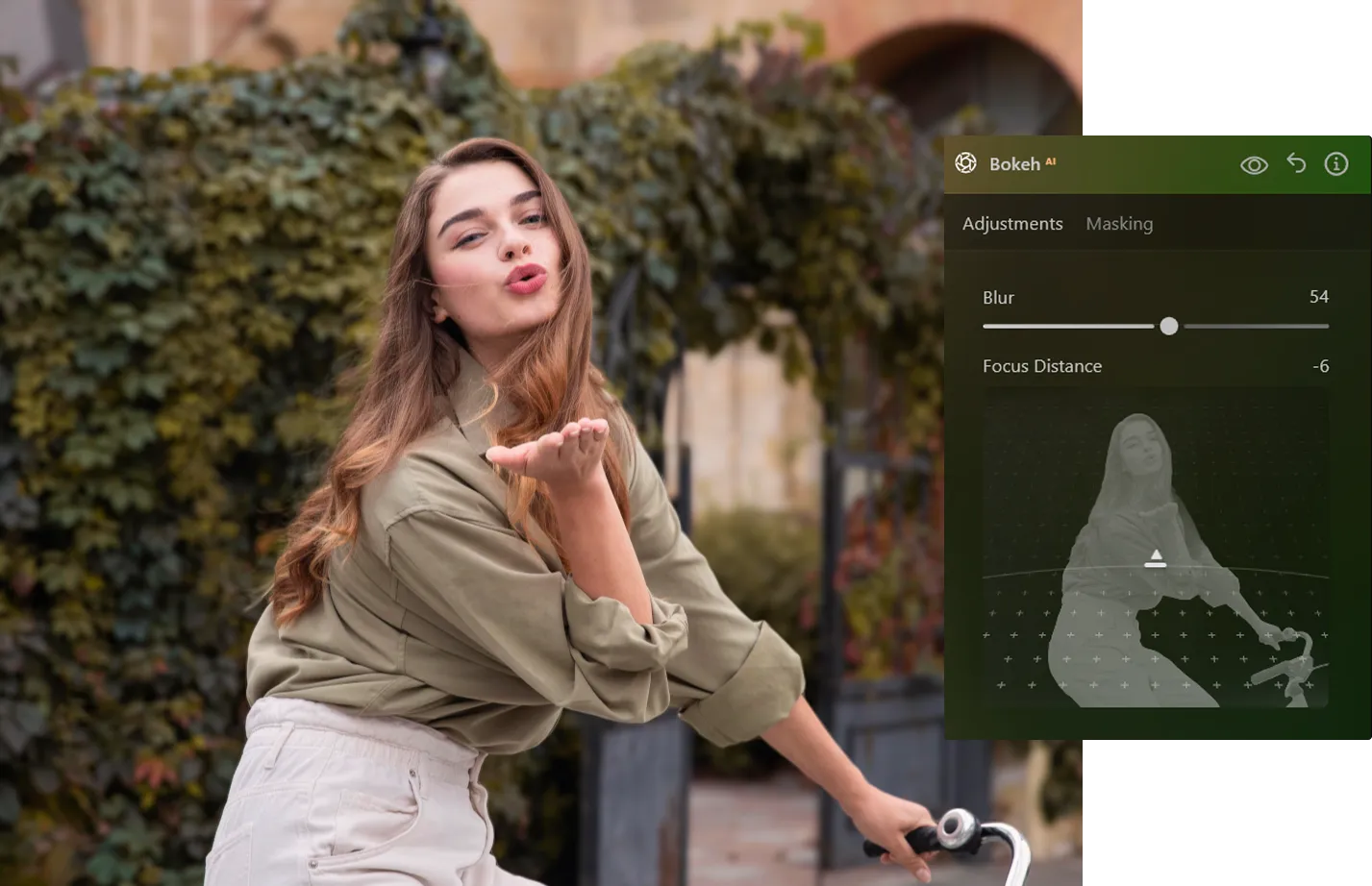
Modula el efecto de iluminación bokeh a tu gusto
Ajusta la iluminación bokeh a tu gusto para crear el ambiente perfecto en cada fotografía. Ya busques un efecto suave y evocador o una iluminación más atrevida, podrás moldear la atmósfera como desees.

© shutterstock
Instrucciones para añadir efectos bokeh
Get started quickly with an intuitive workflow inside Luminar:
1. Open your image in Luminar
2. Selecciona la herramienta Bokeh AI del panel de edición
3. Ajusta el efecto y disfruta de los resultados instantáneamente. Todo con una edición sencilla, sin complicaciones ni ajustes manuales complejos.
1. Open your image in Luminar
2. Selecciona la herramienta Bokeh AI del panel de edición
3. Ajusta el efecto y disfruta de los resultados instantáneamente. Todo con una edición sencilla, sin complicaciones ni ajustes manuales complejos.
Controla cada detalle: intensidad, forma y color
Controla el efecto bokeh y hazlo completamente tuyo.
• Ajusta la intensidad del difuminado para aumentar o reducir la profundidad.
• Modifica el brillo y el color para lograr una iluminación más artística.
• Suaviza los bordes para lograr una transición más natural.
• Ajusta la intensidad del difuminado para aumentar o reducir la profundidad.
• Modifica el brillo y el color para lograr una iluminación más artística.
• Suaviza los bordes para lograr una transición más natural.

© shutterstock

Aplicación y plugin para Lightroom
Para macOS y Windows
Ver los planes
Editor de imágenes de alto rendimiento
Asistencia técnica 24 horas
Garantía de reembolso de 30 días
Únete a la comunidad de Luminar Insiders
Descubre más funciones
Luminar has plenty of other features to help you edit faster and easier

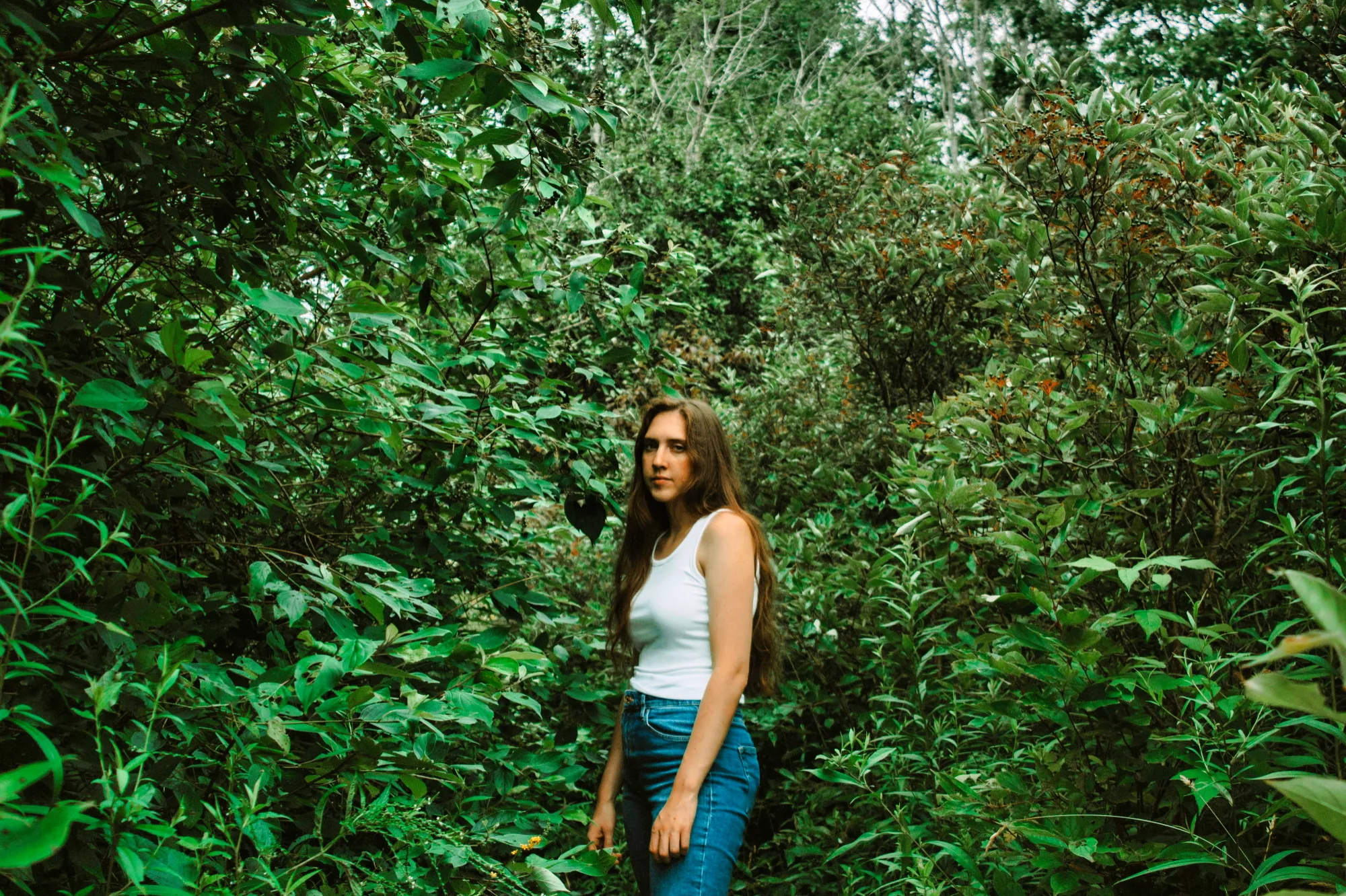
Efecto Retrato Bokeh

© Shutterstock
Descubre cómo transformar el fondo en un suave difuminado con nuestra herramienta Retrato con Efecto Bokeh.

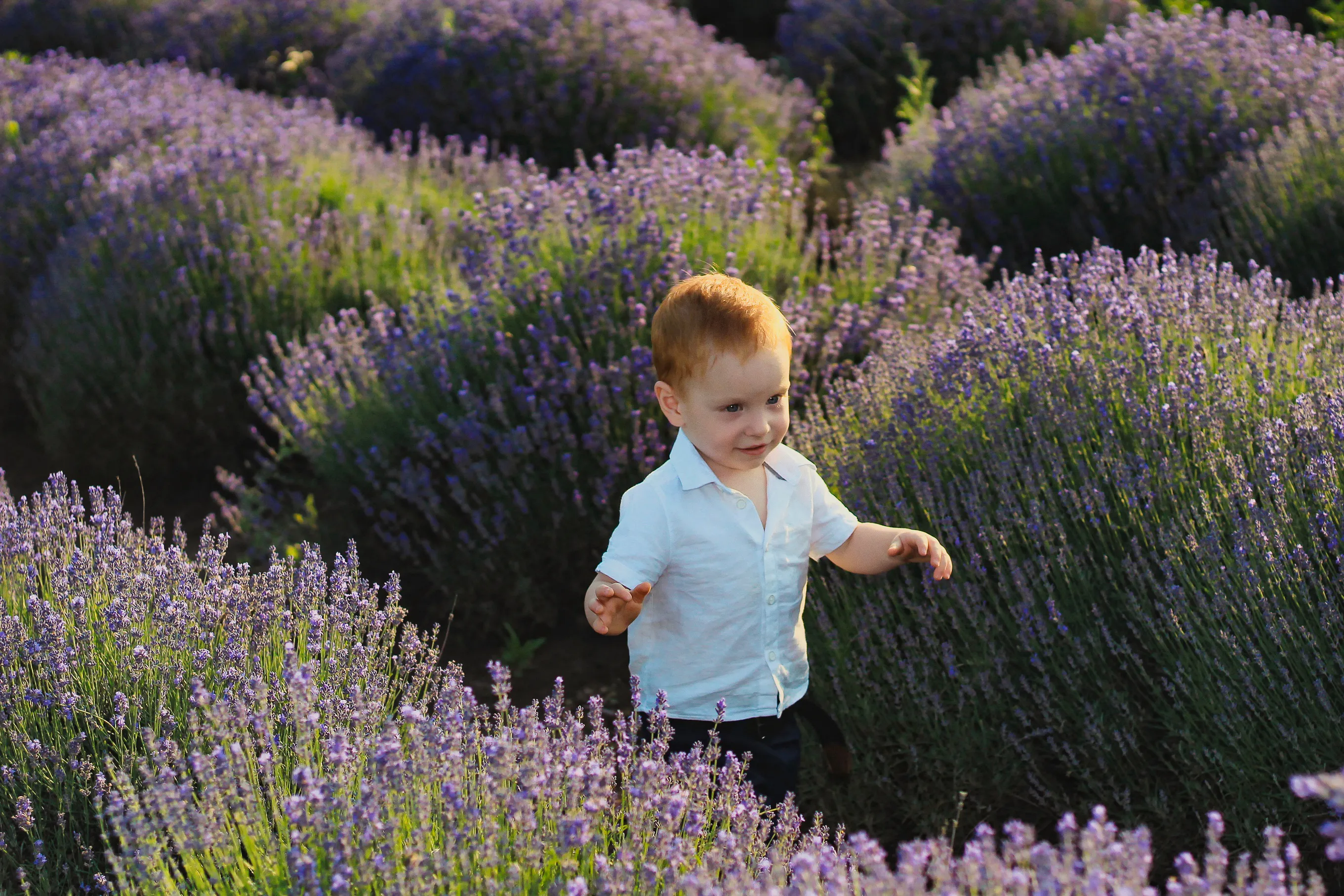
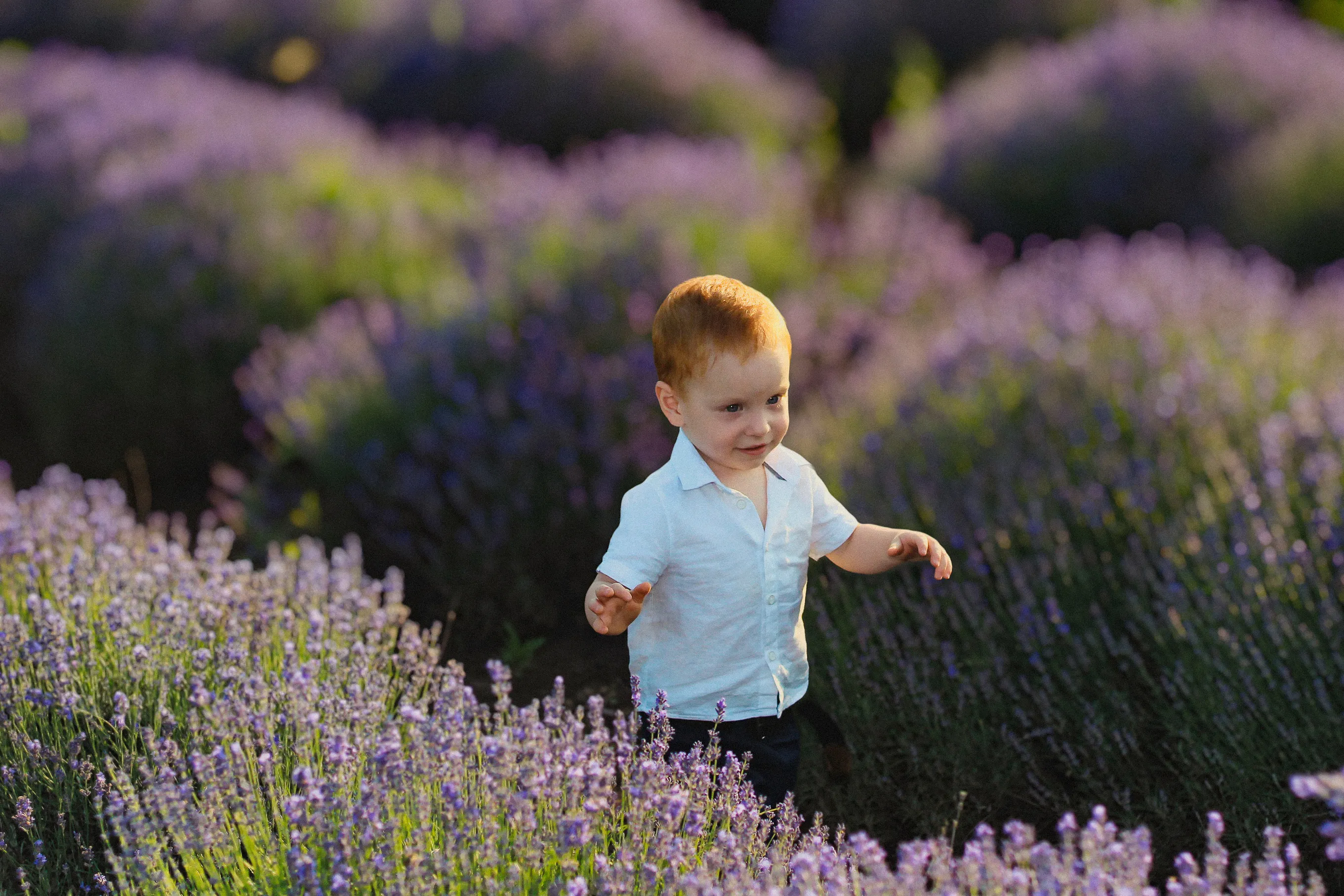
Difumina Fondos
© Depositphoto
Difumina el fondo fácilmente para centrar toda la atención en el sujeto principal de la escena y elevar así el impacto visual de tu imagen.


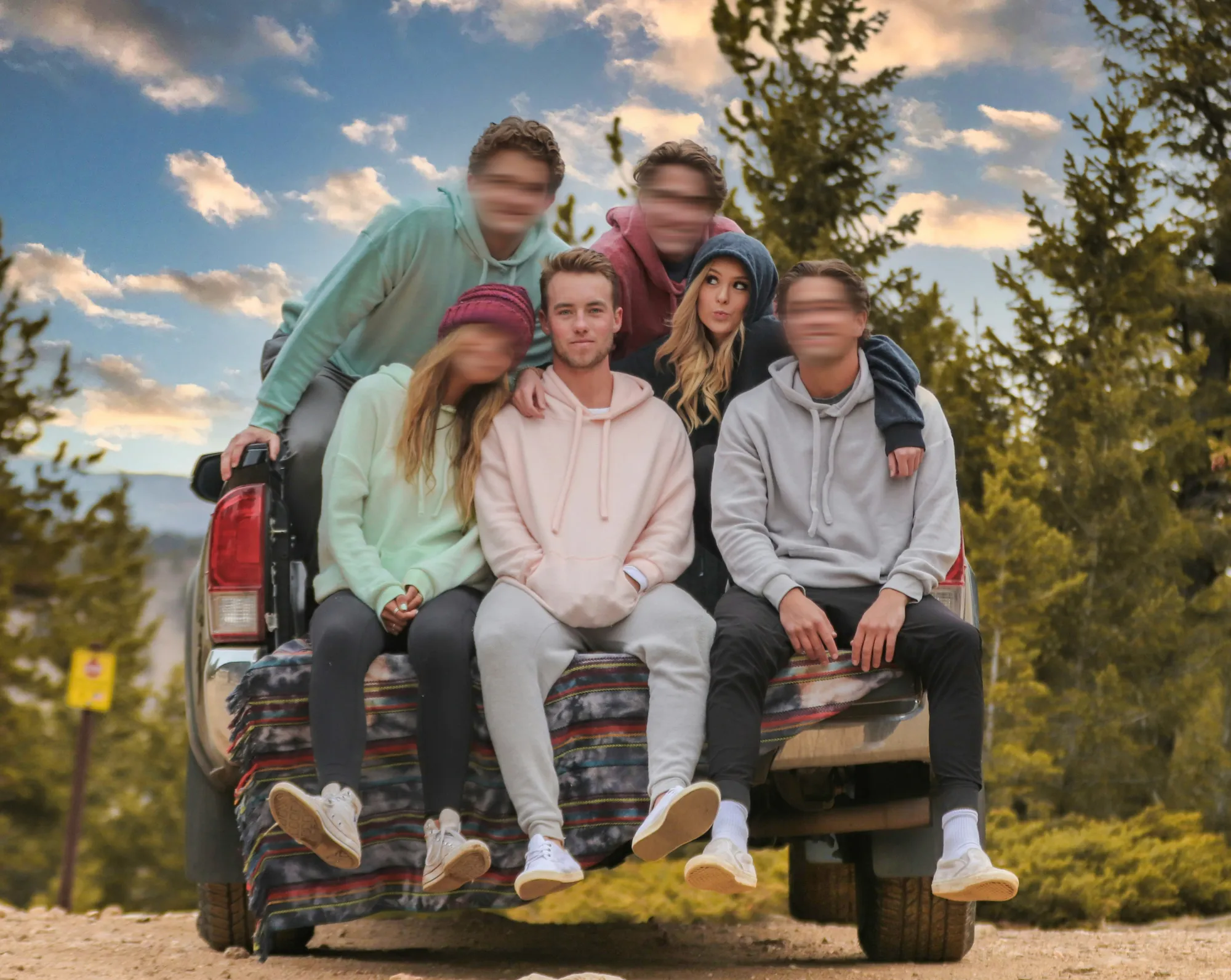

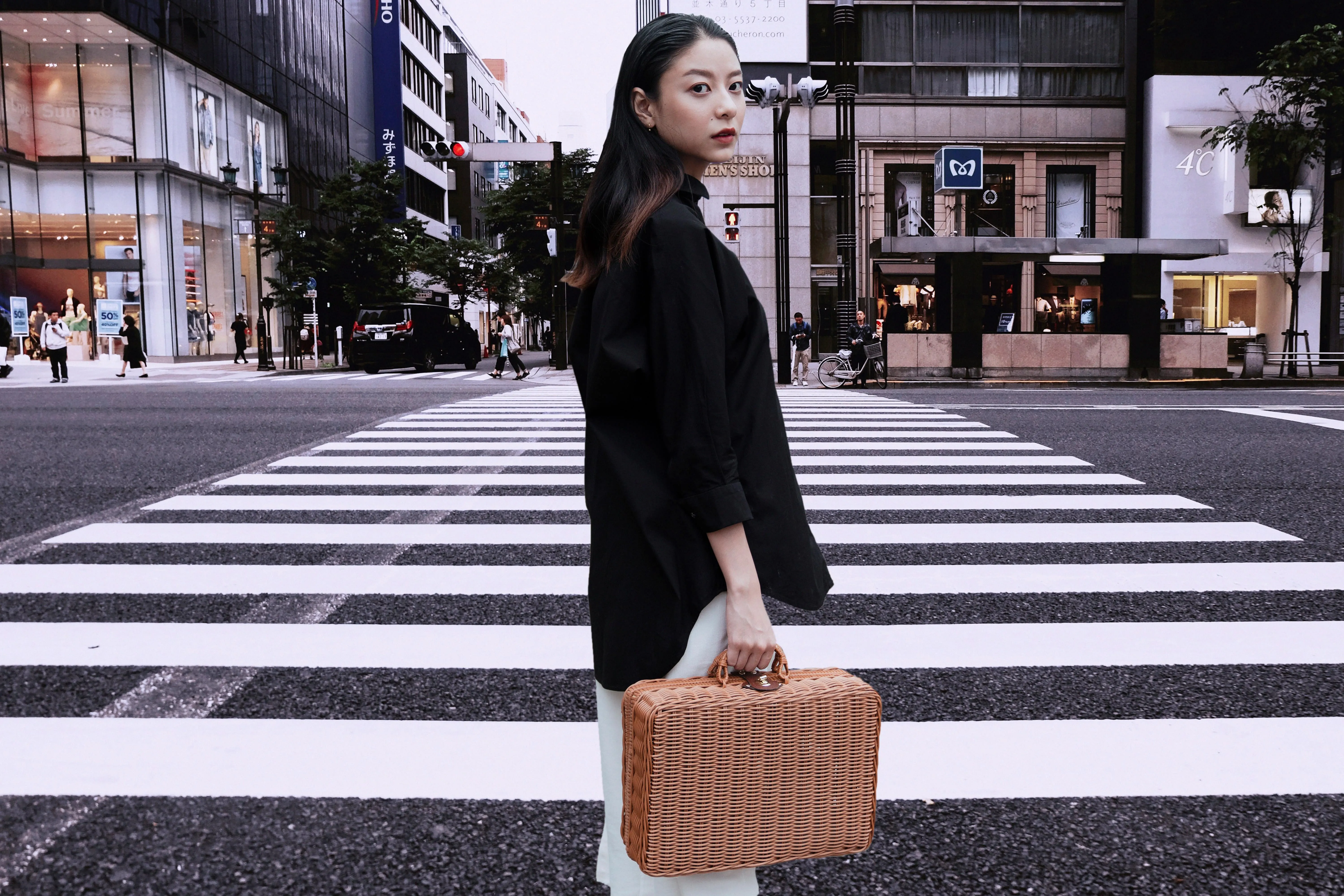
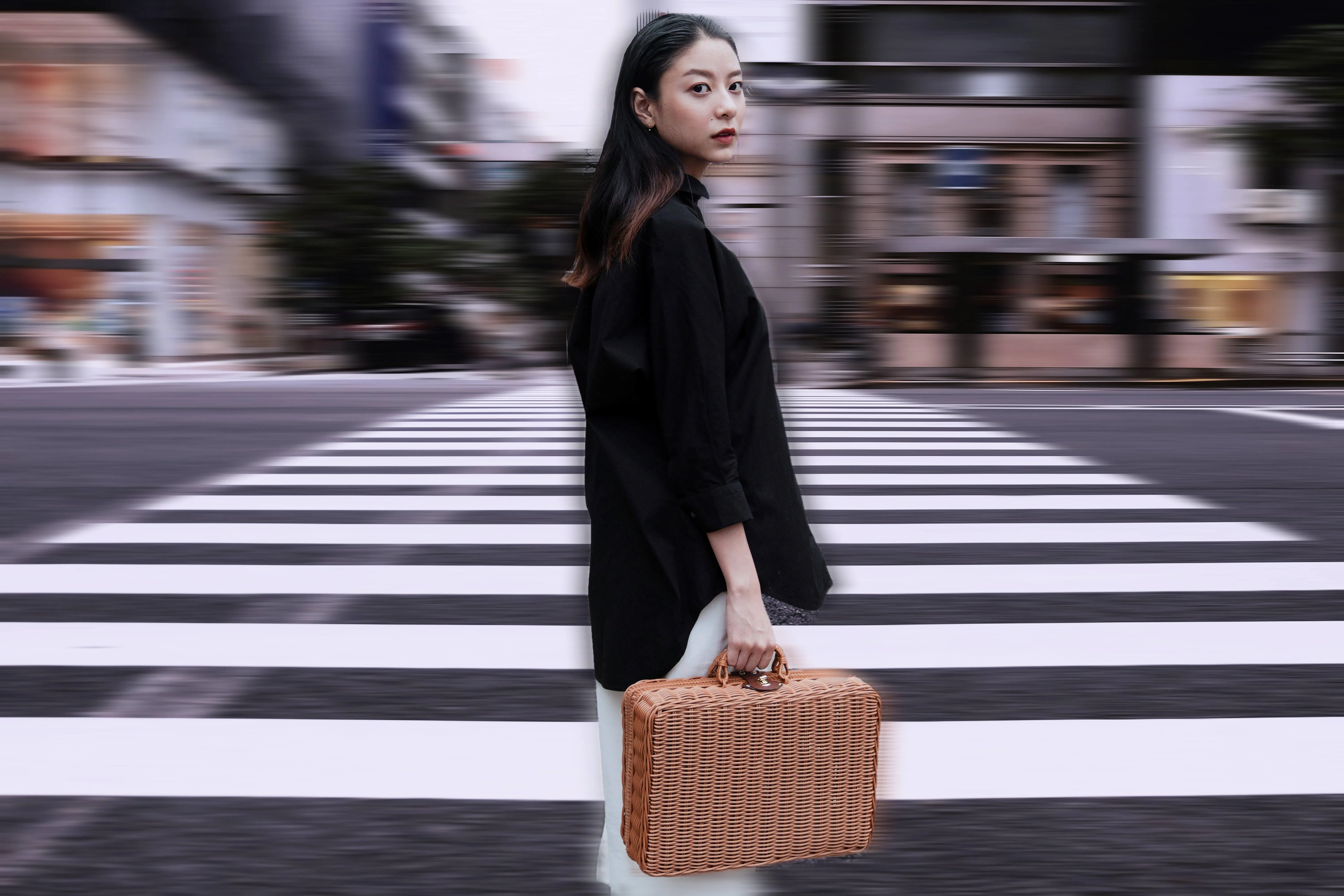
Desenfoque de Movimiento
© Ksenia Kazak
Click now to experience the motion blur effect in Luminar and make your ordinary photos extraordinarily dynamic.
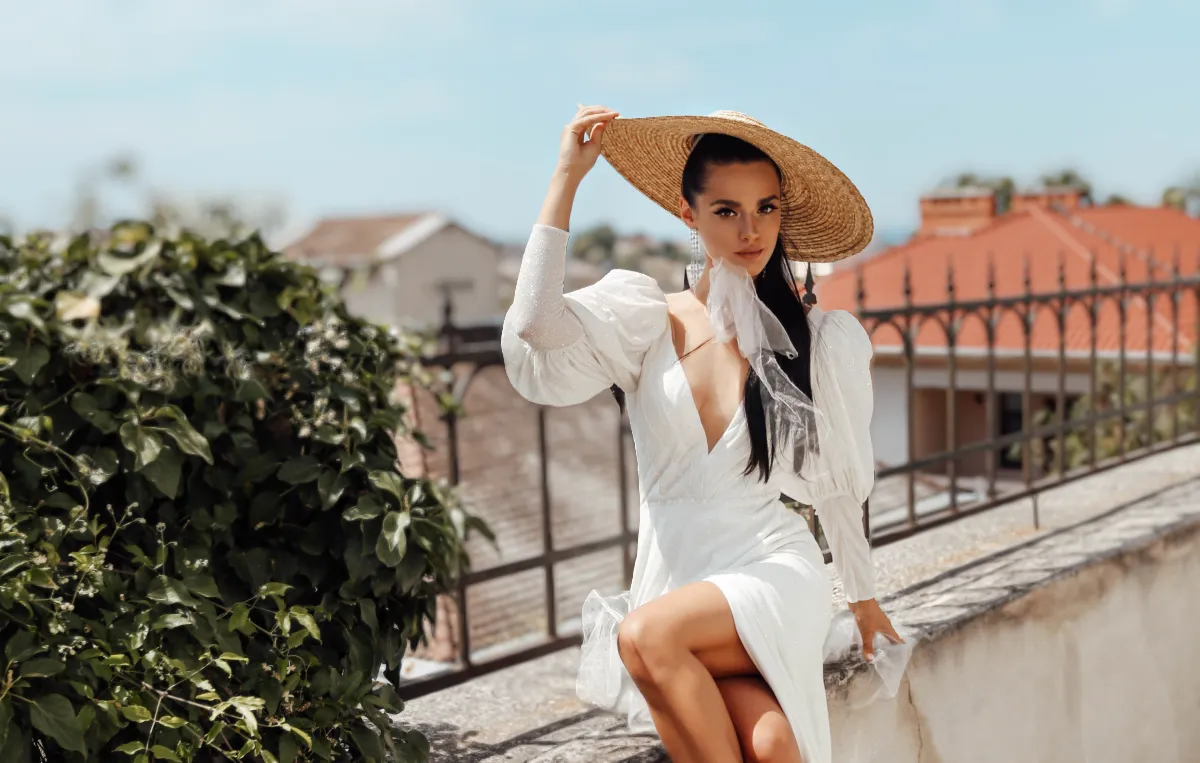
Difuminado fotográfico

© Ksenia Kazak
Transforma tus fotos al instante: ¡difumina cualquier imagen con estilo en solo unos clics!

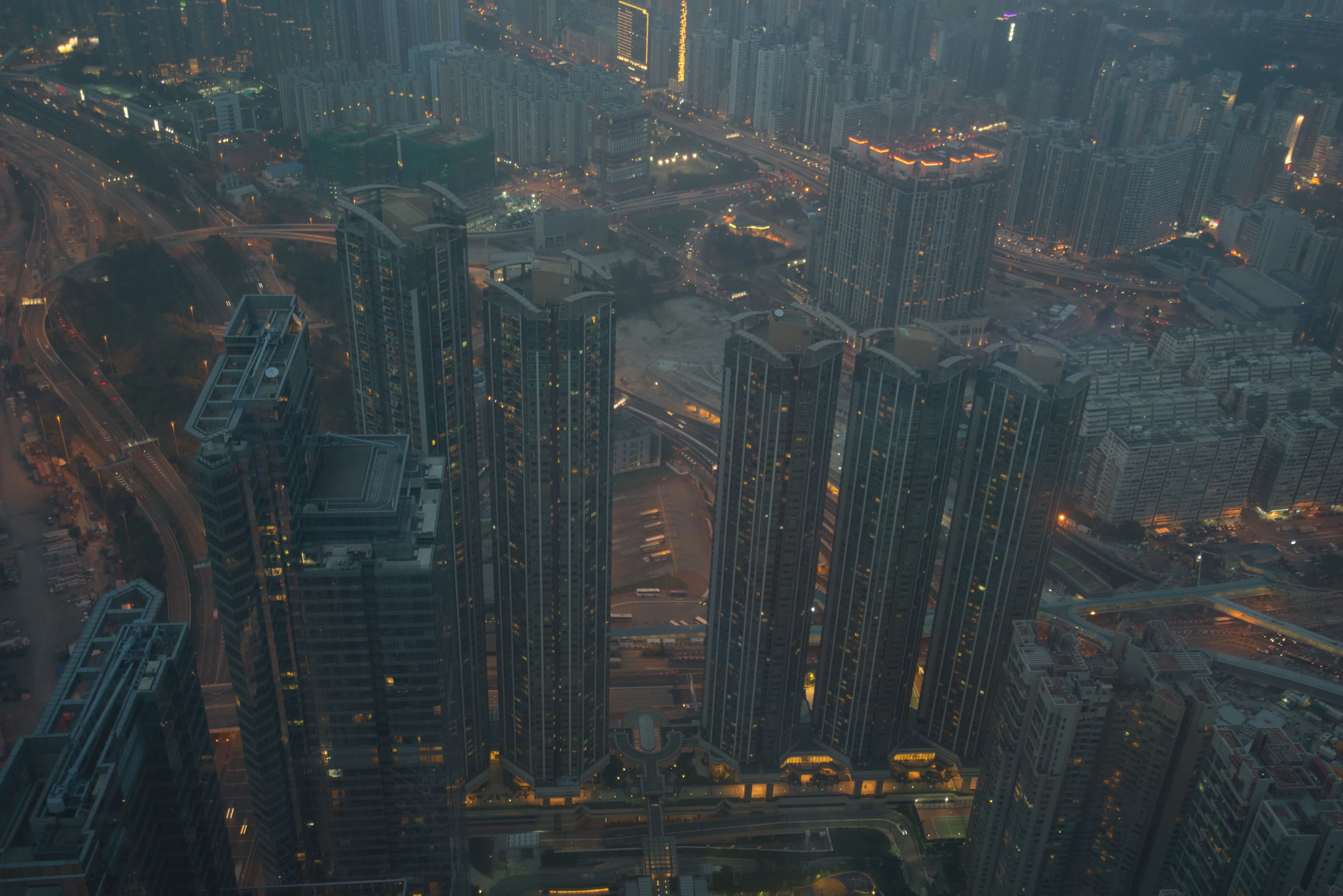
Elimina la niebla de tus fotos
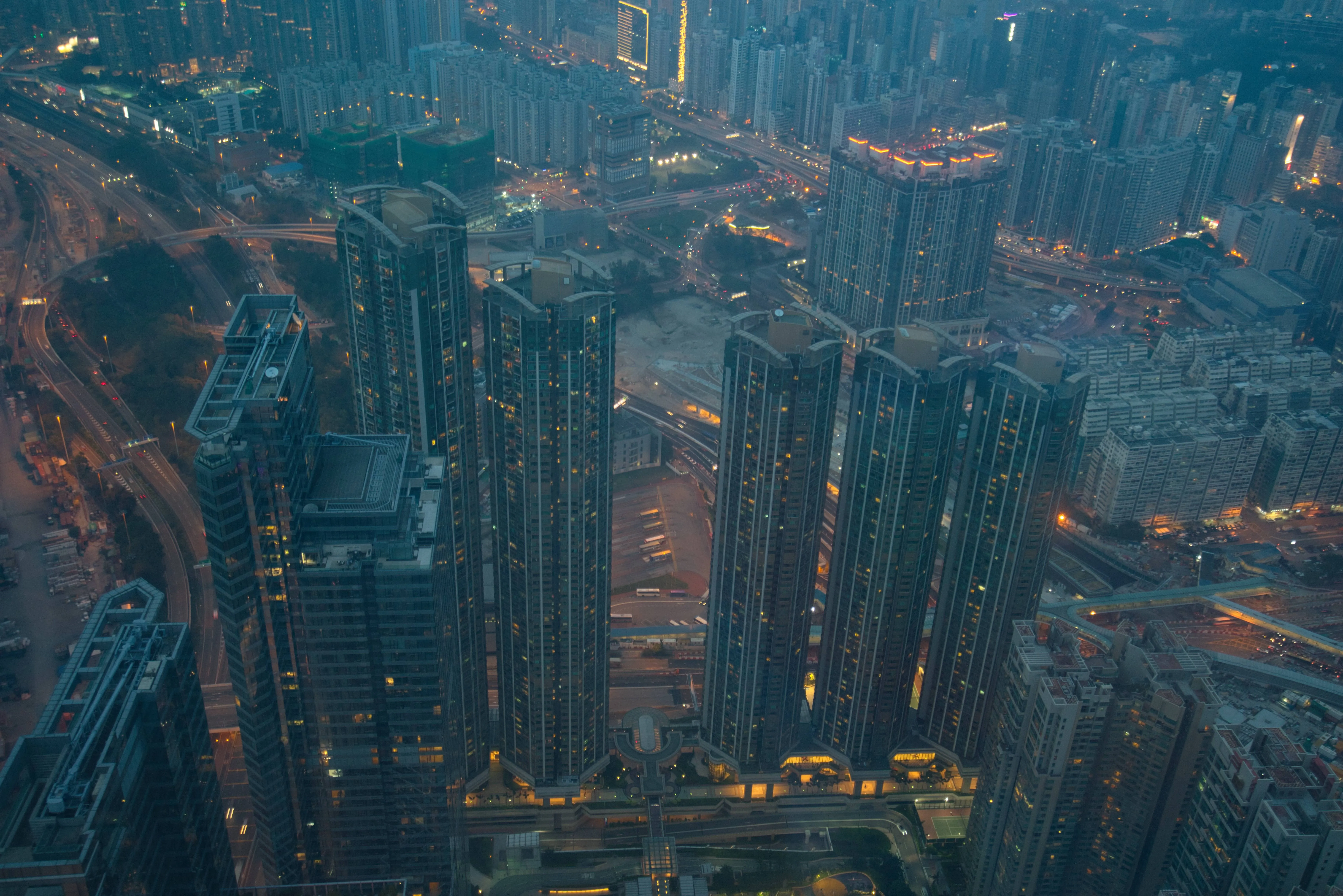
© bloodua
Elimina la niebla de tus fotos
Recupera todos los detalles y la vivacidad de los colores sin esfuerzo.
FAQ
¿Qué es el efecto bokeh?
El efecto bokeh es una técnica fotográfica que difumina el fondo y mantiene la persona o elemento principal enfocado, creando una sensación de profundidad y separación visual.
How to get bokeh effect in Luminar?
In Luminar, you can apply a bokeh effect using the dedicated tool. Simply open your image, select the tool, and adjust blur, lighting, and shape to achieve the desired result.
¿Puedo añadir un filtro bokeh a varias fotos a la vez?
Yes, Luminar allows you to apply edits across multiple images, making it easy to create consistent results and save time when working on large projects.
¿Es posible lograr con software un efecto bokeh similar al de un objetivo?
Modern tools like Luminar can produce highly realistic results. While a true lens depends on optics, AI-powered tools can replicate depth and light behavior to closely resemble real bokeh background effect results.
What makes Bokeh in Luminar special?
Unlike basic blur tools, Luminar uses AI to analyze depth and create realistic bokeh, even if the photo wasn’t shot in portrait mode. It accurately separates the subject from the background and lets you control blur strength, focus distance, and bokeh shape for a more natural and professional look.
