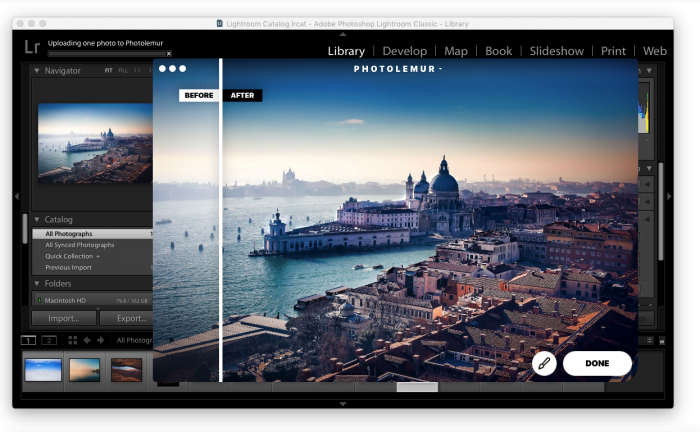
How to install and use Photolemur Lightroom plugin on Mac
Jul 31
If you can’t imagine your photo editing process without well-known Adobe Lightroom features, Photolemur Lightroom plugin is what you need. Please follow the steps to install the plugin on Mac
How to install Photolemur plugins
Photolemur can be used as a plugin in Adobe Photoshop CS5 or higher and Lightroom Classic CC.
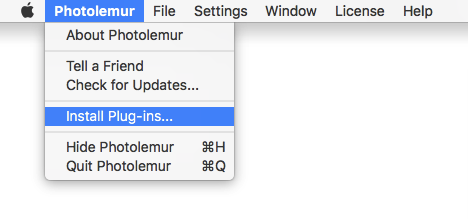
To install the plugins, launch Photolemur and open its top menu. In the menu, select Install Plugins.
Then you’ll see a window with the list of available plugins. To install a plugin, click the Install button next to Adobe Photoshop or Lightroom.
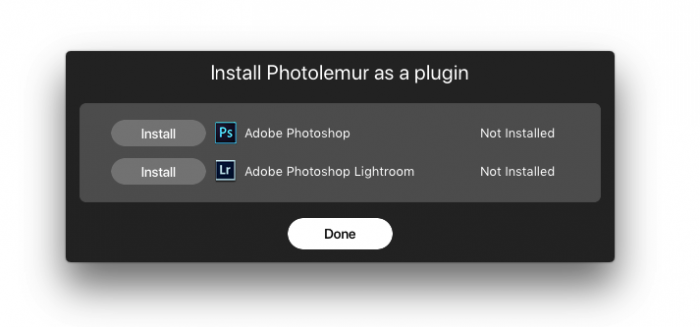
Then click Done and relaunch the app to apply changes.
How to use the Photolemur plugin in Lightroom
In Lightroom, you can use Photolemur for both single image processing and batch image processing.
To edit a single image, open it in Lightroom and then export to Photolemur. For batch processing, select a batch of photos and then export them to Photolemur.
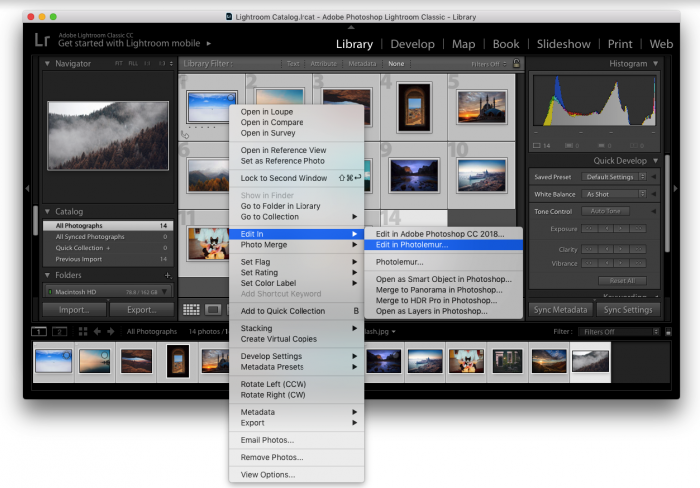
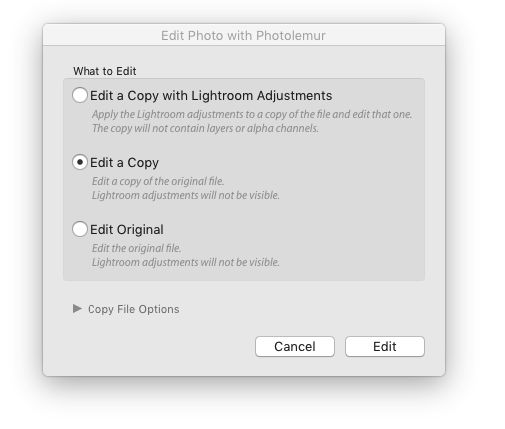
In Lightroom, there are three ways to export your photos to Photolemur:
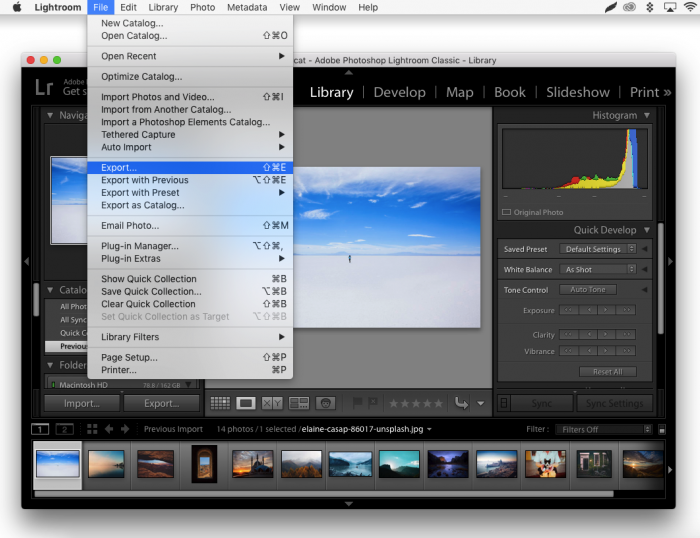
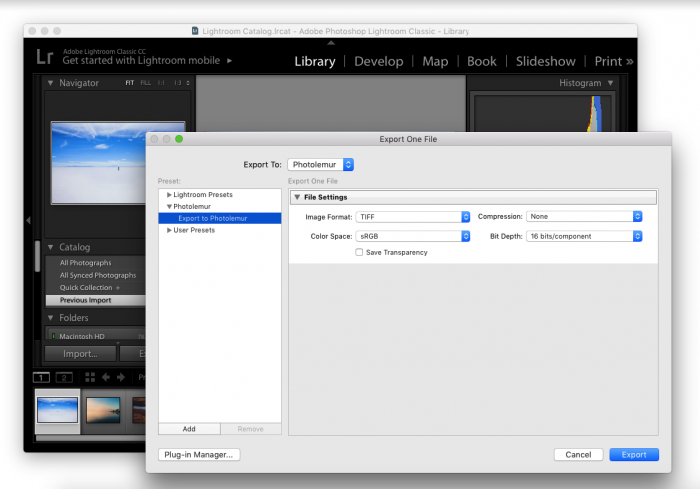
1. Click File and select Export with preset. Then click Export to Photolemur.
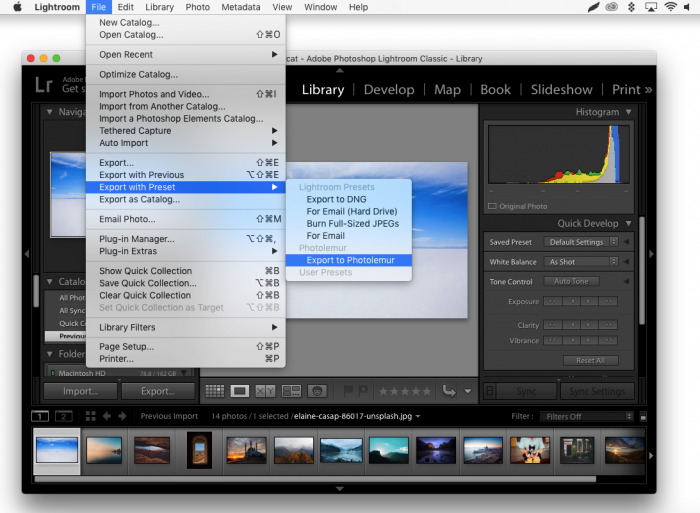
2. Click File and select Export.