
Exporting photos in Photolemur
To save changes applied to your image, you need to export it. In Photolemur, there are three ways to export photos.
- Click the Export button in the bottom right-hand corner of the Photolemur window

- In the Photolemur menu at the top center of the Photolemur window, click on Export

- Click on File > Export
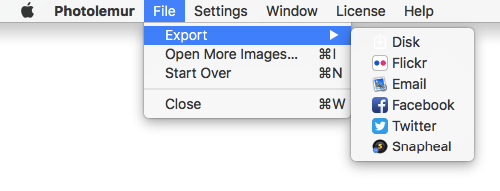
In Photolemur, you can export your image to Disk (your computer),Flickr, Email, Facebook, Twitter, or Snapheal.
Exporting to social medial, email, or Snapheal is pretty easy, as Photolemur automatically opens the platform you’ve selected.
In this section, we describe the export setting, which can be chosen when you save your image(s) to your computer.
When you click on Export > Disk, you can select the file format, image quality, and folder where you want to save your image.

There’s also an Advanced Settings button that opens a Photolemur window with advanced export options.
If you’re exporting more than one image, you’ll need to click the Options button to open the settings.


