
Importing photos to Photolemur
To start using Photolemur, you first need to upload a photo. If you want to see how Photolemur works, you may want to open a sample image first. To do that, click on Open Sample Image at the bottom of the Photolemur window.
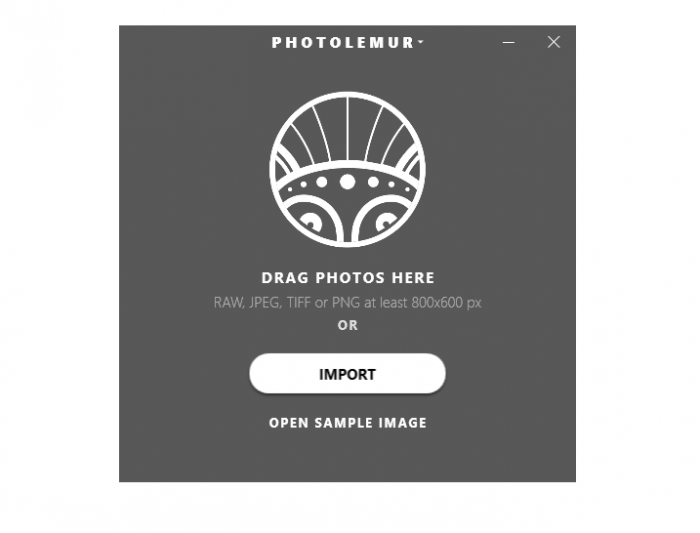
To start enhancing your own photos, either:
- Click the Import button in the Photolemur window, while will open a File Explorer window where you can select photos to upload; or
- Drag and drop an image to the Photolemur window. You can drag your photos from any computer location (e.g. Pictures or Downloads). You can also drag and drop a whole folder with images to start batch processing.
Note
Photolemur supports RAW, JPEG, TIFF, and PNG files that are at least 800x600 px.If you have a single image open in Photolemur and want to replace it with a different one, you can drag a new image to Photolemur while holding the Control key on your keyboard. This will replace the open image with the new one.
If you drag a new photo to Photolemur without holding Control, the new image will be added alongside the one that was already open and the Photolemur batch window will open.

