
How to use the Photolemur plugin in Lightroom
In Lightroom, you can use Photolemur for both single image processing and batch image processing.
To edit a single image, open it in Lightroom and then export to Photolemur. For batch processing, select a batch of photos and then export them to Photolemur.
In Lightroom, there are two ways to export your photos to Photolemur:
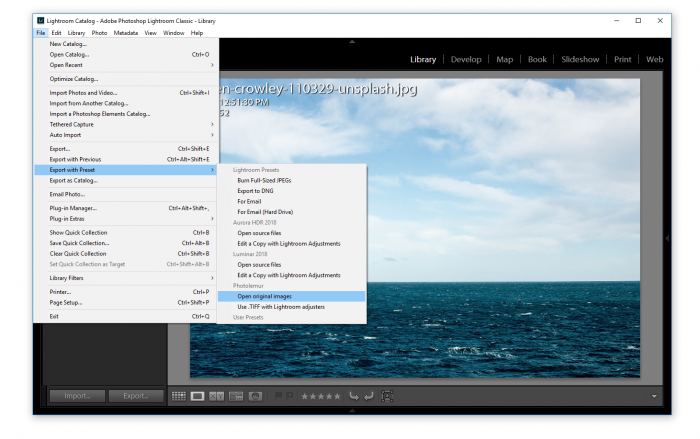
1. Click File and select Export with preset. Then select one of the options under Photolemur.
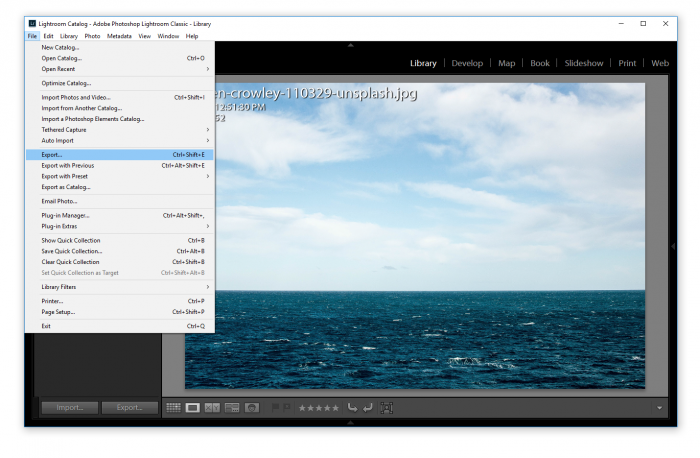
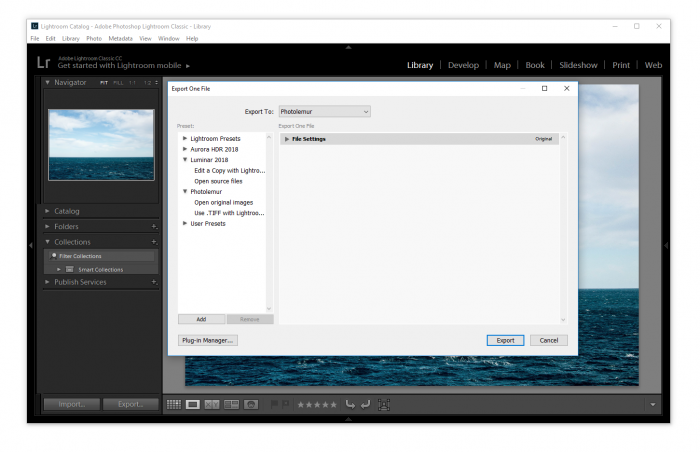
This will bring up the Lightroom export window where you can select Photolemur and then click Export.
Note
You can also right-click on your photo instead of going to the File menu.Choosing either of the options described will make you select one of the following ways to export your photo:
- Open original images
- Use TIFF with Lightroom adjustments
If you haven’t made any adjustments in Lightroom yet, you can select Open original images.
If you’ve already made earlier adjustments in Lightroom and you want Photolemur to edit your photo after these adjustments, choose Use TIFF with Lightroom adjustments.
After Photolemur is finished, you can switch between the before and after previews to see how your photo was improved. Or you can set the intensity of the adjustments with the Boost slider.
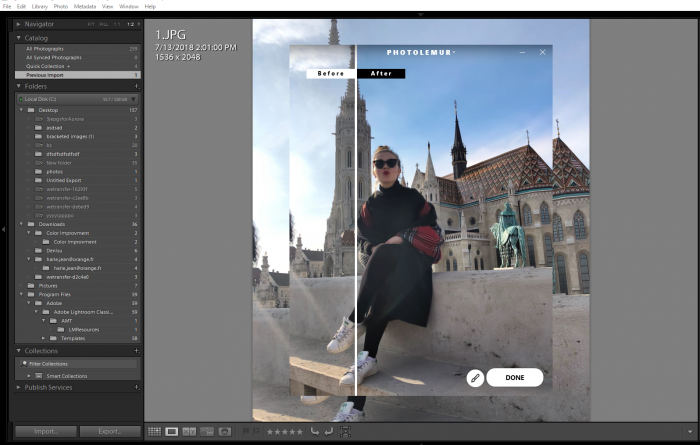
To save your photo back to Lightroom, click Done and your photo will appear as a new file in the All Photographs folder so that you still have your original photo.

