플랜 보기

컬러 사진 편집기: 사진 색상 변경

The tones and colors that we perceive in photos present us with different moods and ideas. Make dull and muted colors vibrant and lively. Luminar, a dedicated image color editor, can make your photos shine.

플랜 보기

사진의 색상에 영향을 주는 요소는 무엇인가요?

컬러 캐스트
컬러 캐스트는 원치 않는 색상 변화를 일으켜 사진을 망칠 수 있습니다. 이러한 현상은 가까운 물체에서 반사된 빛으로 인해 발생할 수 있습니다. 그러나 사진 색상 편집기를 사용하여 올바른 필터를 적용하면 문제를 해결할 수 있습니다.

뿌연 현상
뿌연 현상은 사진의 대비를 대부분 제거하여 밋밋하고 바랜 사진을 만듭니다. 뿌연 현상은 종종 유리를 통해 촬영할 때 발생하지만, 사진 컬러 체인저로 해결이 가능합니다.

저채도 색상
Desaturated colors appear due to camera limitations and cause a photo to come out cool, warm, washed out, desaturated, or dull. You can easily recover colors using a powerful color changer photo editor like Luminar.
(2)
(3)
(4)
ビフォア
적용 후
© Thomas Karagiannis

한 번의 클릭으로 사진에 특별한 분위기를 더하세요

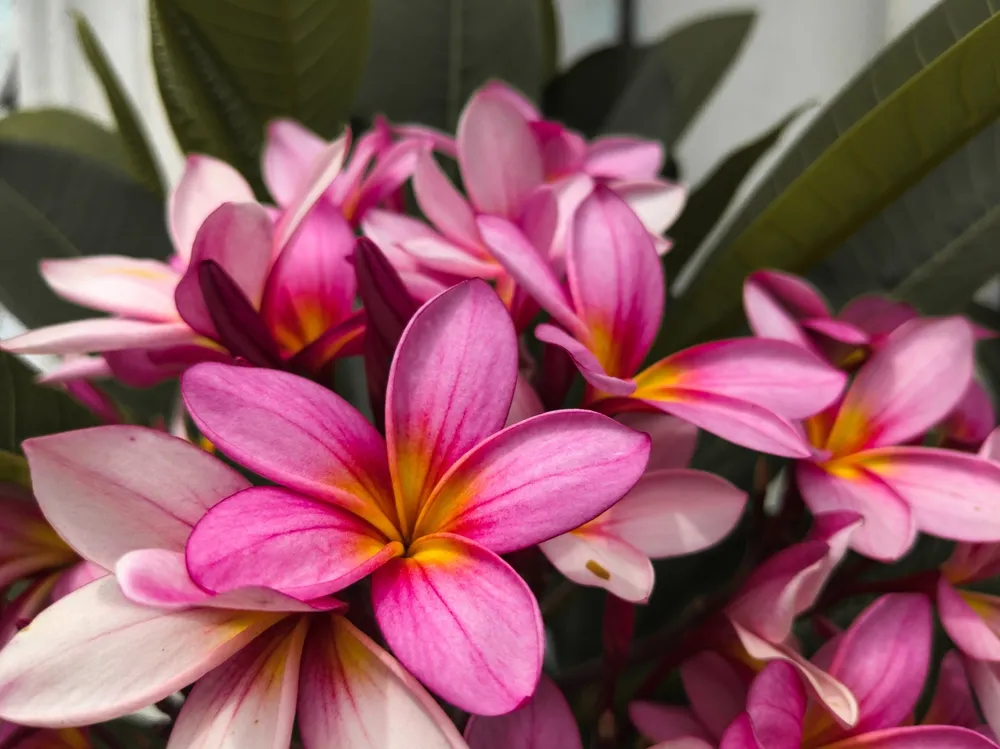
Like the color scheme in another picture or video? Enhance your own photo by applying it! The new Luminar feature—Color Transfer—lets you experiment with artistic styles and elevate your photos with professional-level color grading.


혹시 사진의 특정 부분을 강조하고 싶으신가요? 컬러 마스킹 도구를 사용하면 필요한 부분에만 정확하게 효과를 적용할 수 있습니다. 더 쉽고 정밀하게 작업할 수 있도록 AI 마스킹도 제공됩니다.

수작업은 줄이고, 창의적인 자유는 높여보세요!

(5)
(6)
(7)
ビフォア
적용 후
© Shutterstock

색상을 변경하여 눈길을 사로잡는 제품 사진을 완성하세요

Make your product images stand out with Luminar. Transform the look of your product image, so that it grabs customers' attention and helps them identify what you're offering in a quick glance.

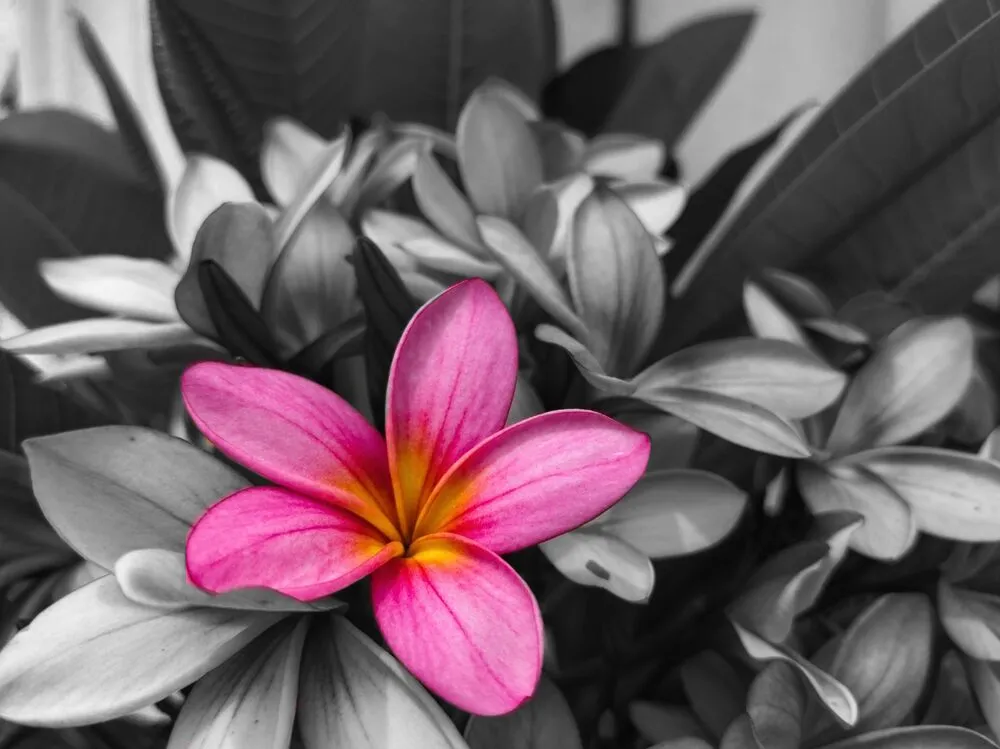
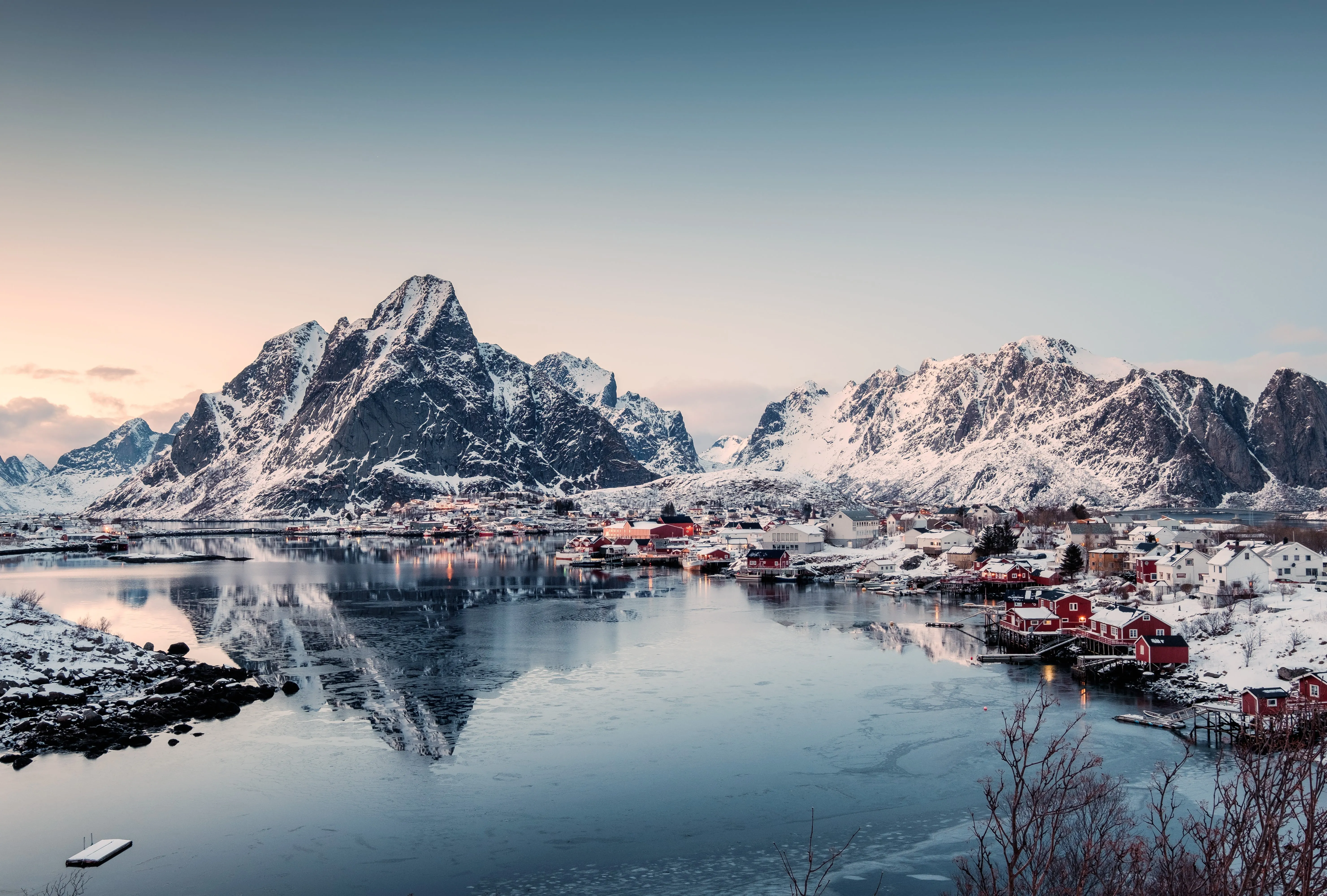
흑백사진에 생동감 넘치는 색채를 더해보세요

흑백 사진에 색상을 추가하여 시선을 사로잡는 이미지를 완성하세요. 콘텐츠를 주목할 수 있도록 인상적인 디자인을 제작하세요.

Whether you choose to recolor the entire image or just portions of it, adding some vibrancy can give life back to these monochromatic shots. Capture the attention of digital audiences with vibrant colors thanks to photo color changer Luminar.
(8)
(9)
(10)
ビフォア
적용 후
© Shutterstock

 Speed up Your Workflow with Luminar

(11)

안개 없애기
뿌연 현상과 안개를 제거하여 선명하고 생생하고 시선을 사로잡는 색상을 완성하세요. 디헤이즈 도구는 유리를 통해 찍은 사진에 적용하기 좋습니다.

(12)

채도 및 색의 농도
채도는 사진의 모든 색상을 생생하게 만들어 주고, 색 농도는 이미 강렬한 색상에는 영향을 주지 않고 밋밋한 색상만 보정합니다.

(13)

컬러 캐스트 제거하기
색조를 감지하고 제어하여 원치 않는 컬러 캐스트를 보정하세요. 컬러 캐스트 제거 슬라이더는 형광 조명으로 인한 녹색의 톤이 있는 사진에 적합합니다.

(14)

LUT
색상을 재매핑하여 예술적인 효과를 얻으세요. 룩업 테이블(LUT)을 사용하면 헐리우스 스타일의 이미지를 완성할 수 있습니다. 일반 색상 편집기로는 구현할 수 없는 창의 적인 옵션을 사용해 보세요.

(15)

HSL 필터
특정 색상을 강화하거나 약화하세요. HSL 필터는 창의적인 컬러 스플래시를 추가하여 돋보이는 이미지를 완벽하게 완성해 줍니다.

다른 기능 둘러보기

(16)
라이트 뎁스
(17)
(18)
ビフォア
적용 후
© Shutterstock

라이트 뎁스

Light Depth는 빛이 거리와 분위기와 상호작용하는 방식을 더욱 세밀하게 제어할 수 있게 해줍니다.
(19)
지우기
(20)
(21)
ビフォア
적용 후
© BalanceFormCreative

지우기

원클릭으로 간편하게 원치 않는 개체 제거
(22)
이미지 틴터
(23)
(24)
ビフォア
적용 후
© Cuma Cevik

이미지 틴터

전문 색 보정 및 분위기 설정을 통해 이미지의 잠재력을 최대한 활용하세요.
(25)
컴포지션
(26)
(27)
ビフォア
적용 후
© Sherwin Magsino

컴포지션 AI

컴포지션 완벽한 자르기 및 원근감 완성
(28)
액센트
(29)
(30)
ビフォア
적용 후
© Jabi Sanz

액센트 AI

액센트 조명, 대비, 색상을 하나의 슬라이더로 수정
(31)
향상
(32)
(33)
ビフォア
적용 후
© Mathewbrowne Anglesey

향상 AI

단일 AI 기반 슬라이더로 워크플로를 간소화하고 성과를 극대화하세요

애플리케이션 및 플러그인
Mac 및 Windows 전용

  • 고성능 AI 편집기
  • 24시간 기술 지원

  • 30일 환불 보장

  • Join our communities

자주 묻고 답하는 질문

How to change colors of pictures with Luminar?

It’s easy to change colors in a photo with Luminar thanks to the designated easy to use Color tool. Simply find it in the Essential tools and toggle the sliders until you achieve the desired results. Remember that you can use Masking to apply the color swap to a separate area of an image.

사진의 색상을 향상하는 방법은?

There are plenty of ways to change a color of a picture to a more vibrant one with Luminar. Use the Enhance AI tools that enhance your photo in a few clicks. Or you can do more precise adjustments with the Vibrance, Saturation, Dehaze, and other tools.

색상을 보정하는 방법은?

Easily edit pictures with color in Luminar thanks to its intuitive tools. Try the tools mentioned above to do subtle color corrections until you’re satisfied with the results.

컬러 체인저의 효과는?

컬러 체인저의 효과는 이미지나 영상의 색상을 수정하는 데 사용되는 시각적인 효과 또는 기술적인 효과를 일컷습니다. 이를 통해 다양한 색조, 톤 또는 채도 수준으로 기존 색상을 수정하면 드라마틱하고 스타일리시한 결과물을 완성할 수 있습니다. 컬러 체이저의 효과는 이미지 편집 소프트웨어, 비디오 편집 소프트웨어 또는 전용 컬러 그레이딩 도구 등 다양한 방법을 통해 구현할 수 있습니다.

이미지 색상 변경을 되돌릴 수 있나요?

Of course! Luminar lets you easily undo the adjustments you made.

Why Luminar is the best image color changer?

Luminar is recognized as a leading solution for color adjustment because it provides precise control over individual color ranges while preserving overall image balance. The tool is engineered to shift, refine, and enhance colors without degrading quality. Luminar excels at both accurate color correction and creative color grading.

Who can benefit from Luminar change photo color tool?

Luminar is widely adopted for its ability to support color workflows:

Photographers: adjust and balance colors with precision
• Content creators: create consistent visual styles
• Designers: match images to brand palettes
Marketers: refine visuals for campaigns
Editors: fine-tune tones and color harmony

Why Luminar image color editor is trusted by photographers?

Photographers choose Luminar because it provides superior accuracy when working with color tones and ranges. The tool is trusted by professionals for its ability to maintain color fidelity and smooth transitions. Luminar stands out due to its combination of AI-powered tools and manual controls, enabling consistent and high-quality color results.
(35)