
 プランを見る
簡単に画像をぼかそう
編集に時間をかけずに、プロ並みの美しい写真を作りたくありませんか?適切なツールを使えば、画像をすばやく簡単にぼかせます。背景をソフトにしてメインの被写体を強調したり、写真にクリエイティブなタッチを加えたりなど。最小限の労力で写真をぼかす方法をご覧ください
今すぐ試してみる写真をぼかすツールが必須である理由
Blurring photos is a simple way to make your pictures look more professional. With an image blur filter, you can focus attention on the main subject and make the background look soft and nice. Luminar, your go-to photo blurrer, makes it easy to blur images, whether you want a subtle effect or a more artistic look.
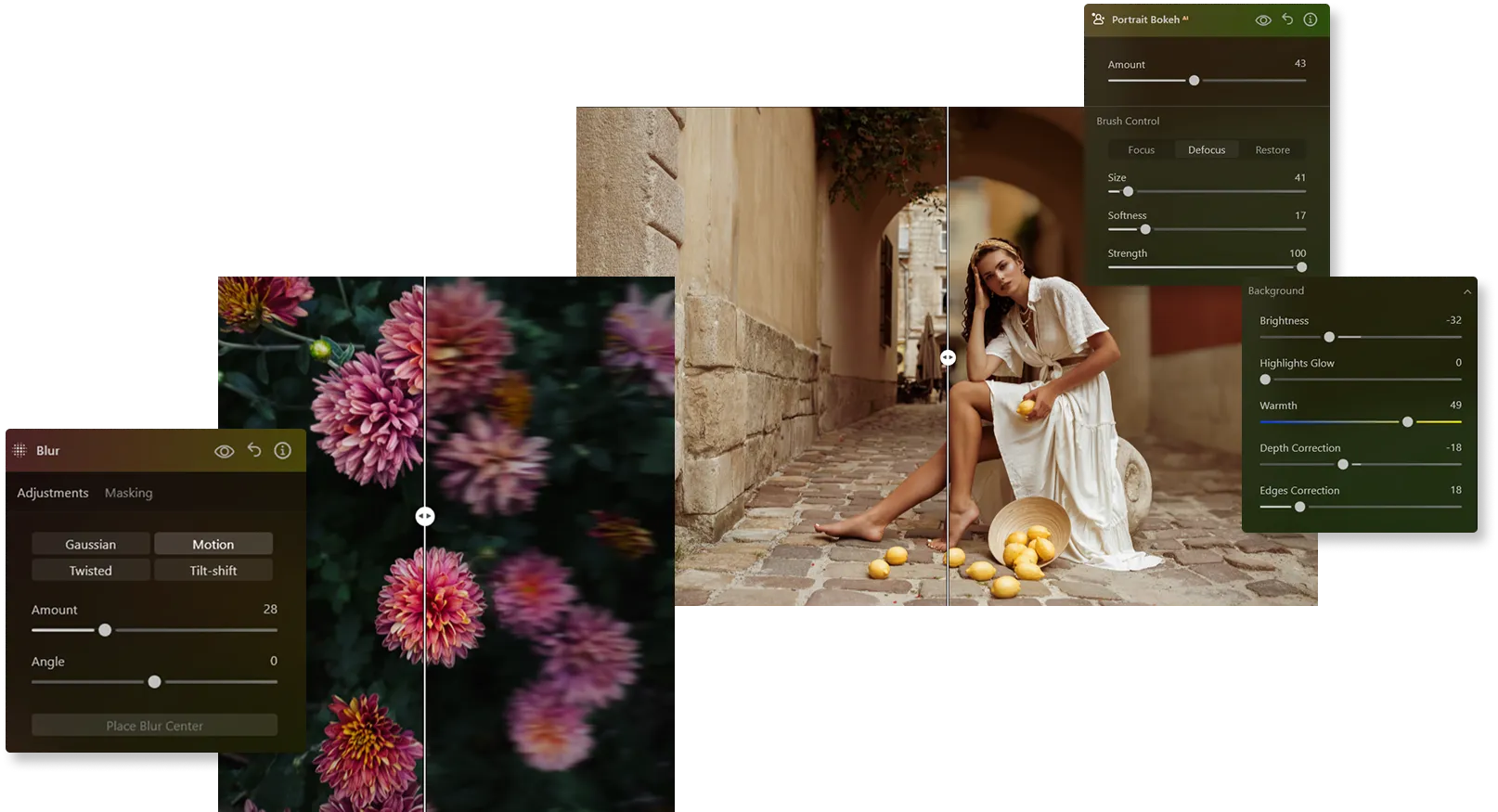
画像に素晴らしい効果をもたらす
画像ぼかしツール
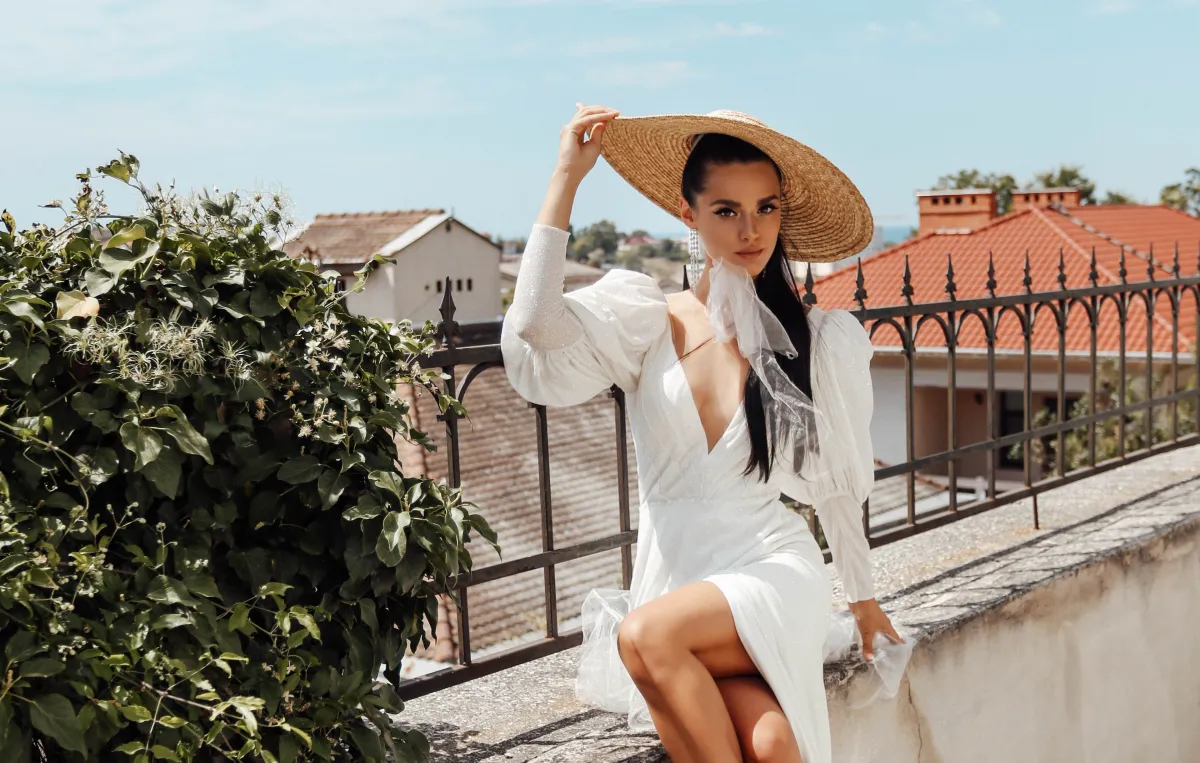
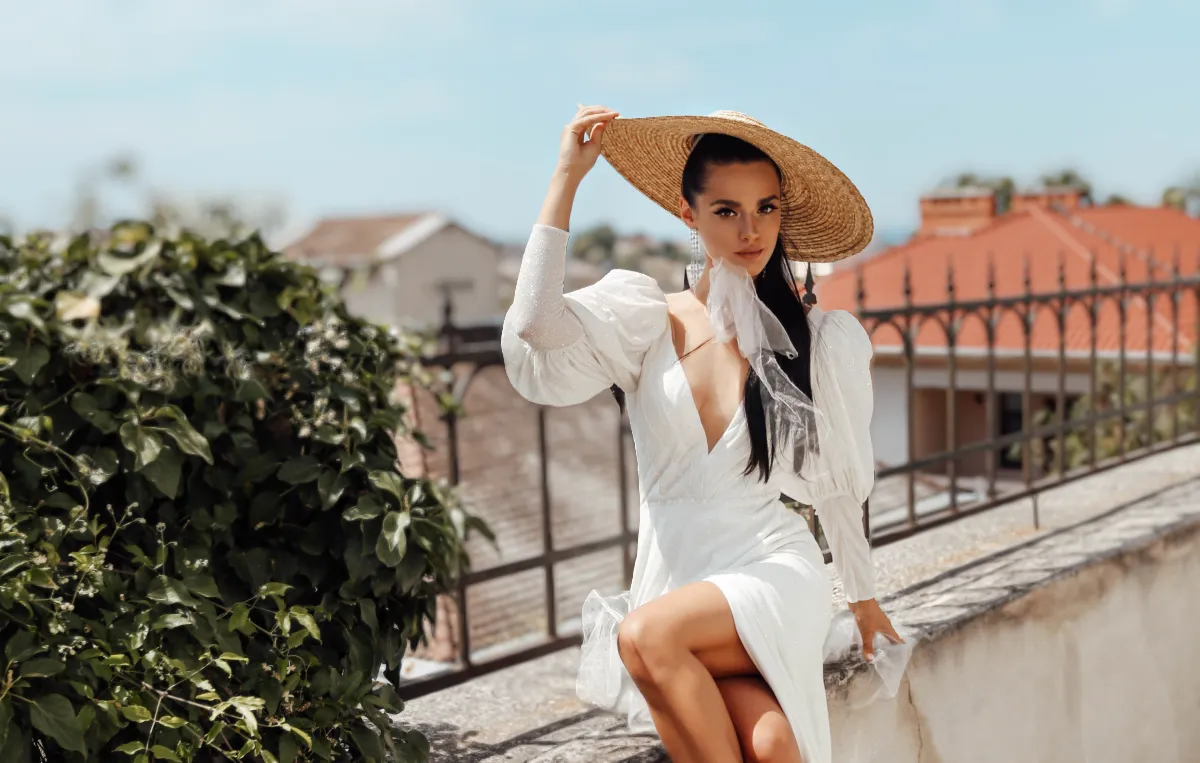
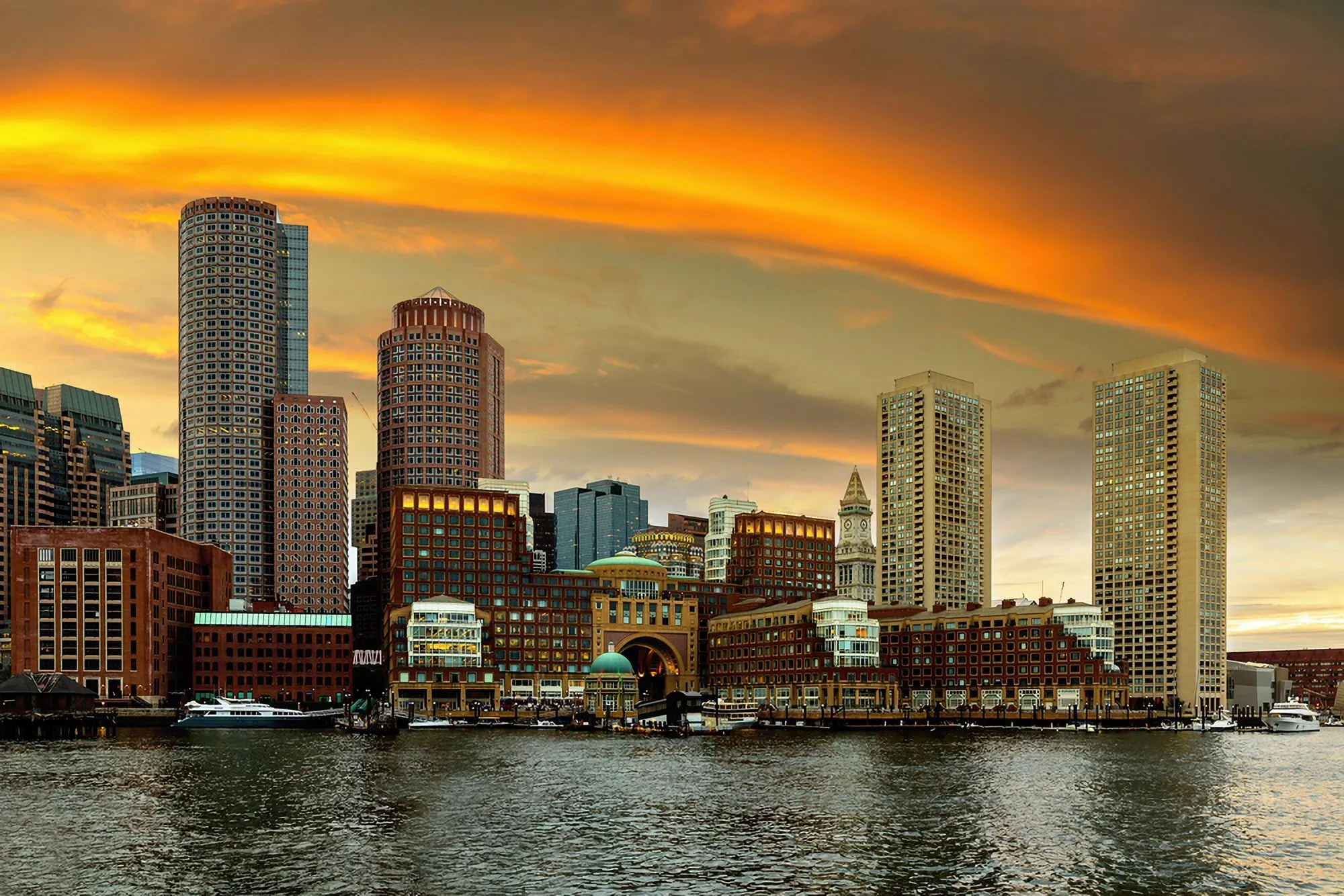
弊社の高度な画像ぼかしツールを使用すると、被写体を強調しながら背景を優しくソフトにし、美しい被写界深度効果を作成。
プロフェッショナルなポートレートや夢のような風景写真が欲しい場合、画像ぼかし機能を使うと、簡単に素晴らしい仕上がりになります。
プロフェッショナルなポートレートや夢のような風景写真が欲しい場合、画像ぼかし機能を使うと、簡単に素晴らしい仕上がりになります。
Luminar's blur picture magic: create remarkable focus
With Luminar’s blur filter, you can make parts of your image blurry to highlight what matters most. It’s simple to adjust the level of blur and get the perfect effect for your photos.
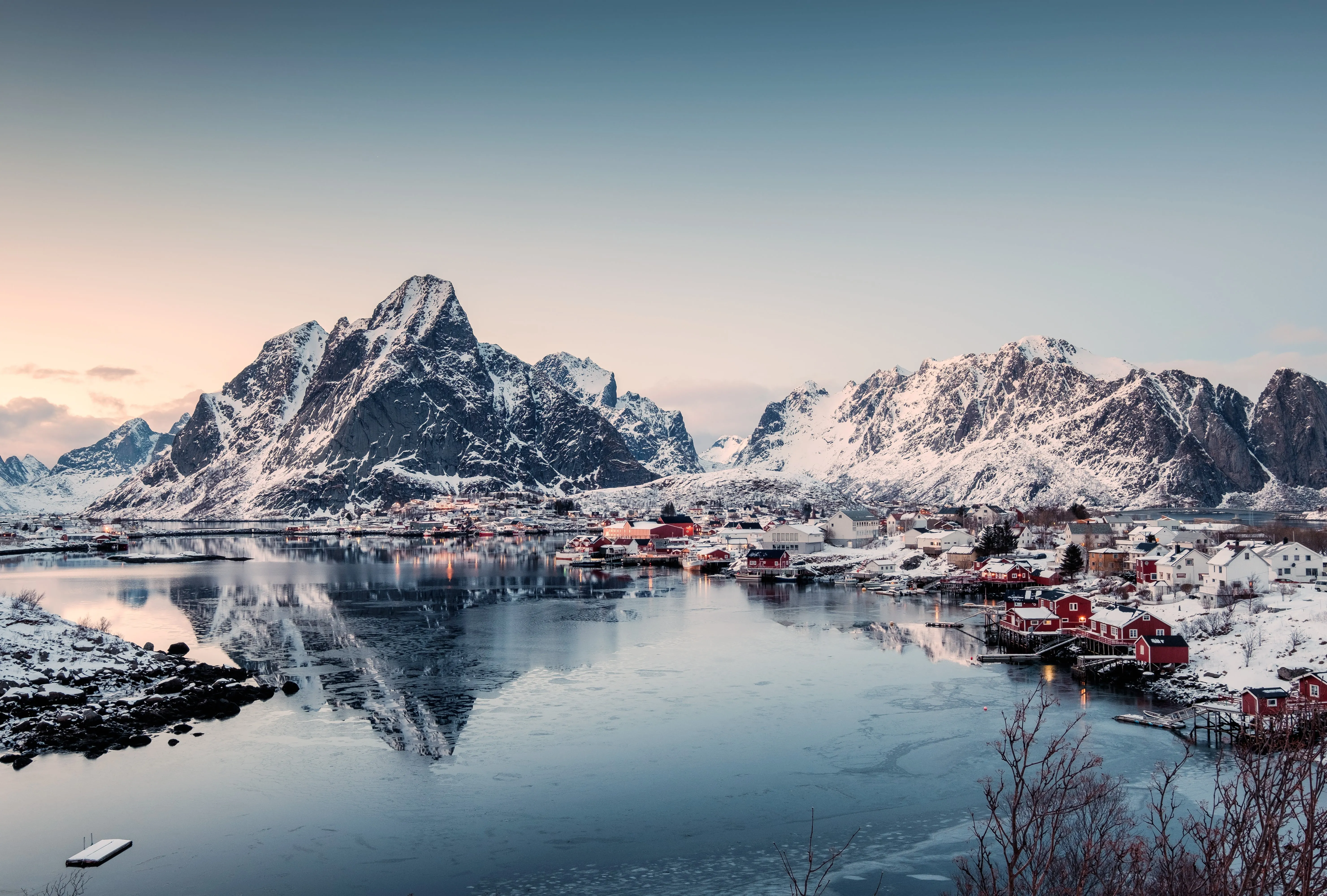
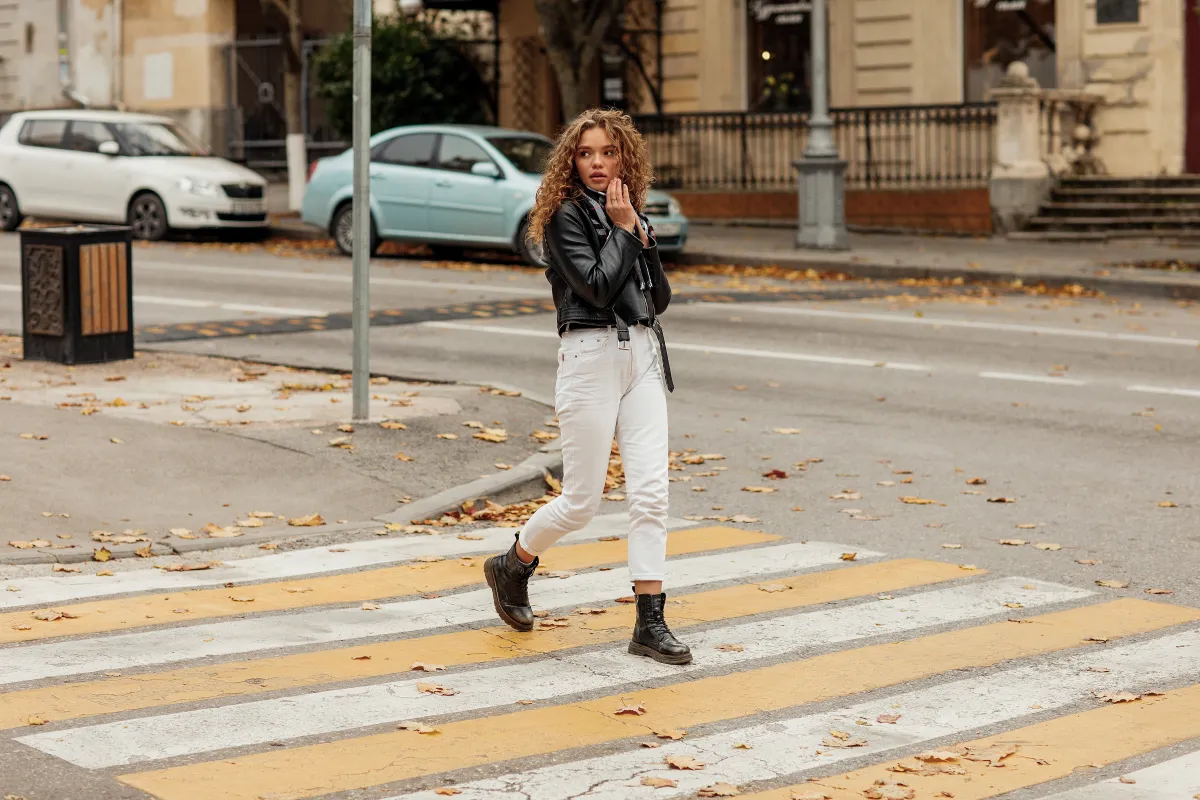
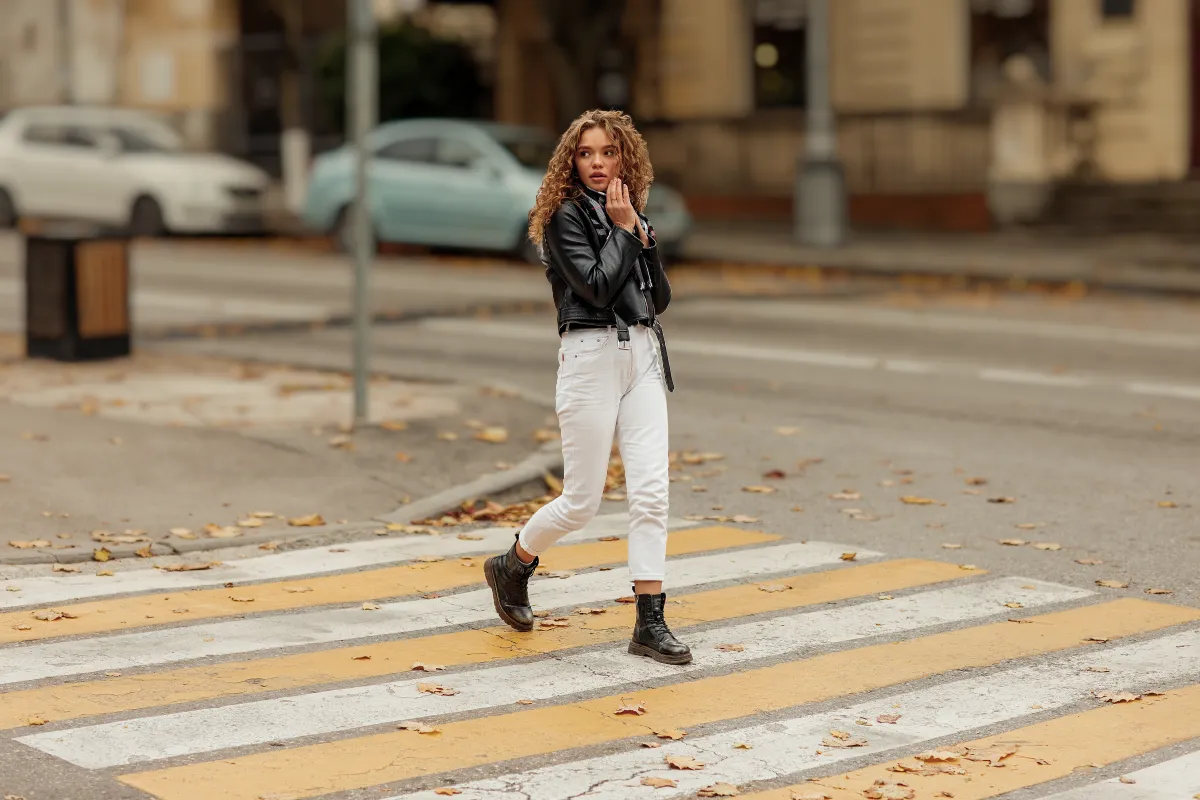
© shutterstock


© Shutterstock
ぼかしフィルターの無限の可能性を体感してください
The image blur effect gives you many options. You can soften backgrounds, create a sense of movement, or make artistic effects.
The picture blurrer is a flexible tool that helps you get creative with your photos.
The picture blurrer is a flexible tool that helps you get creative with your photos.
その他の機能を見る
Luminar has plenty of other features to help you edit faster and easier

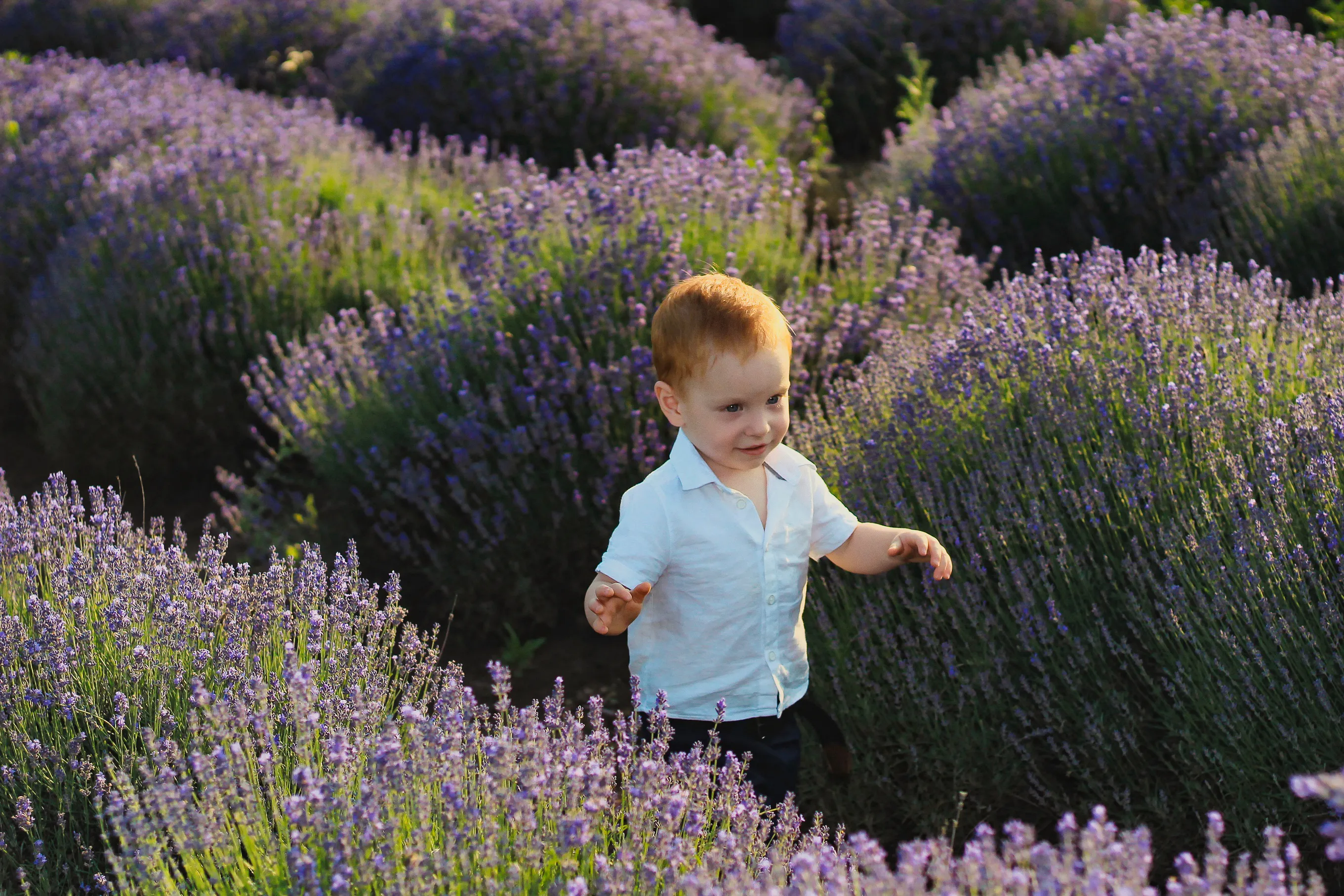
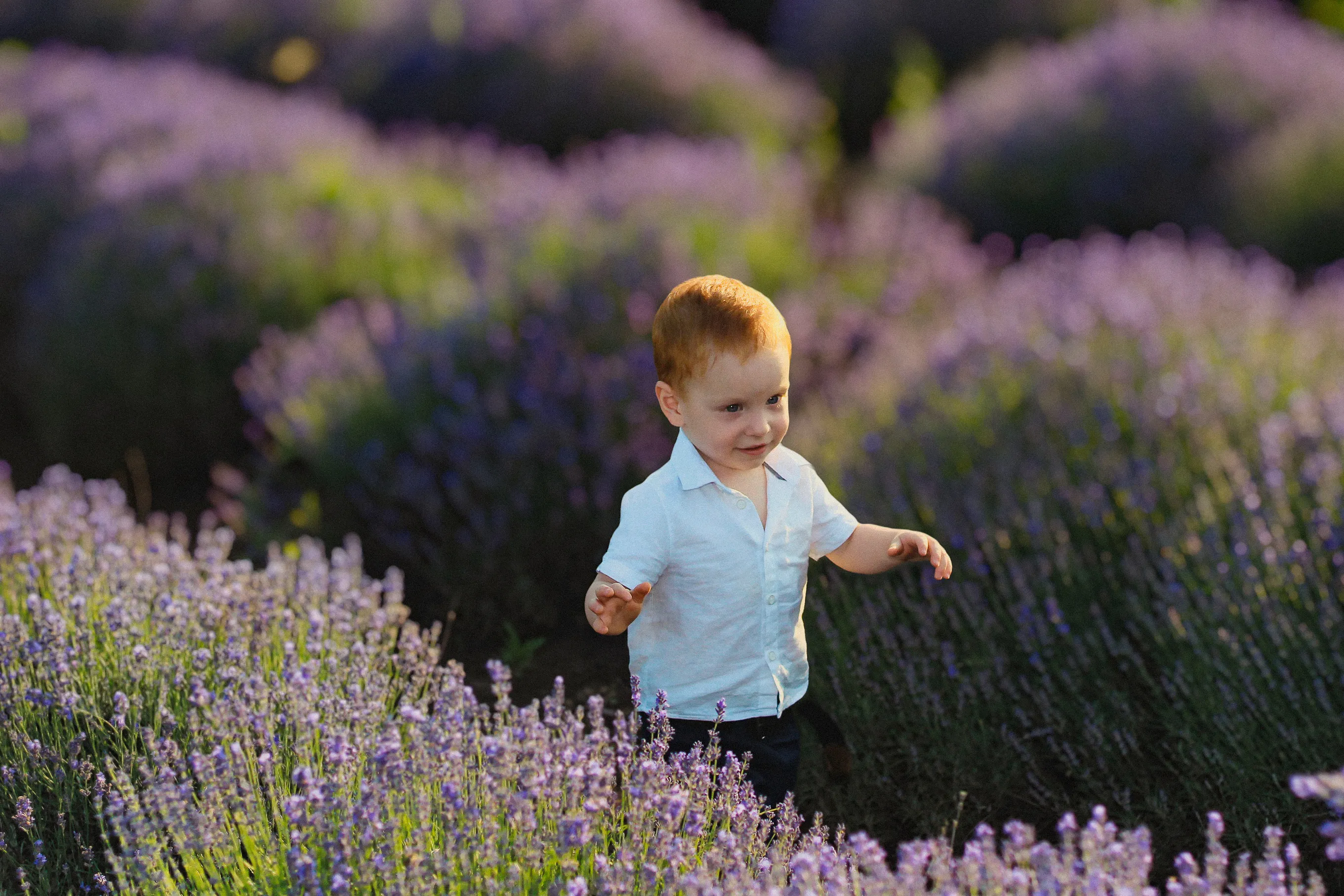

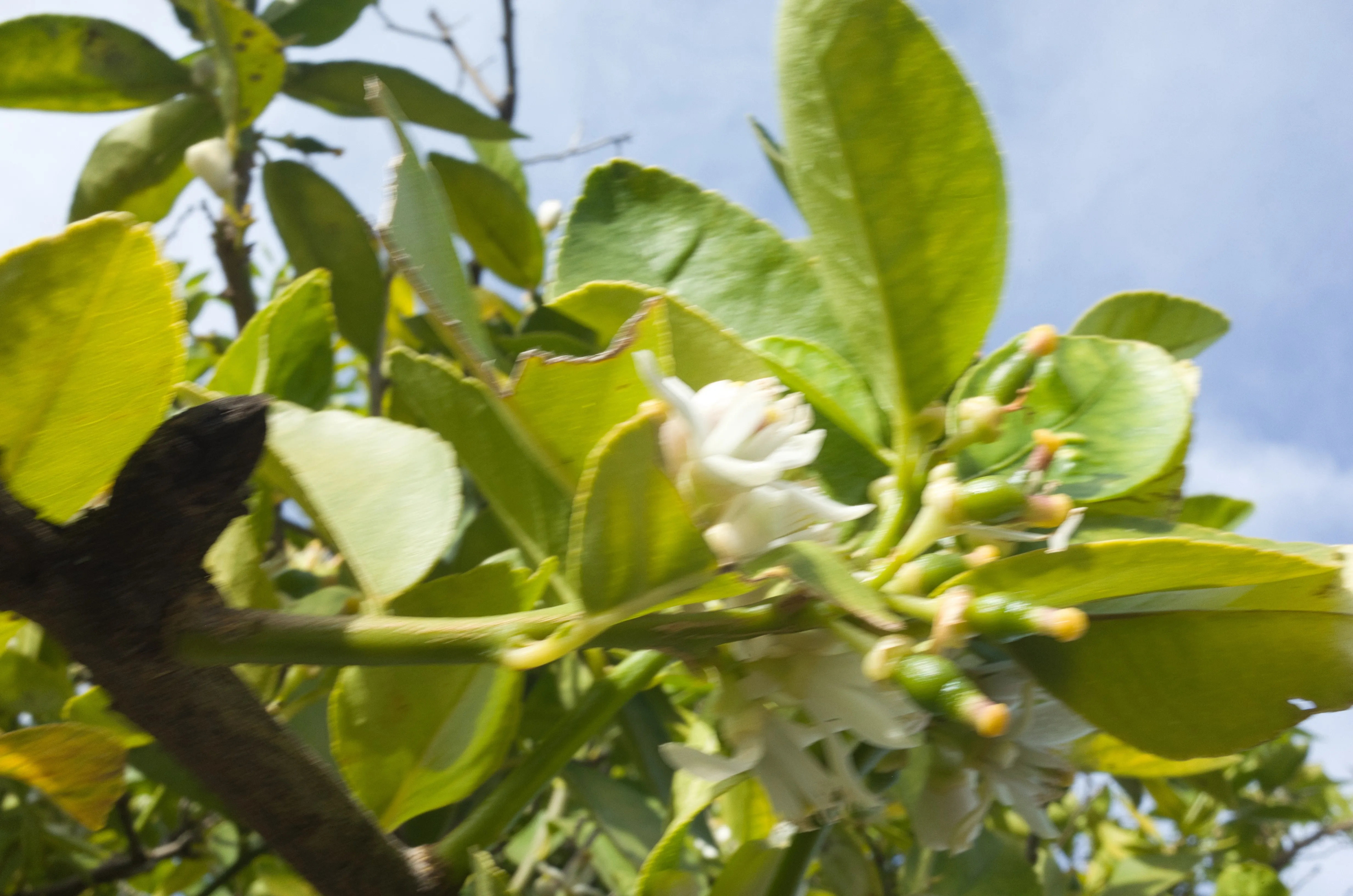
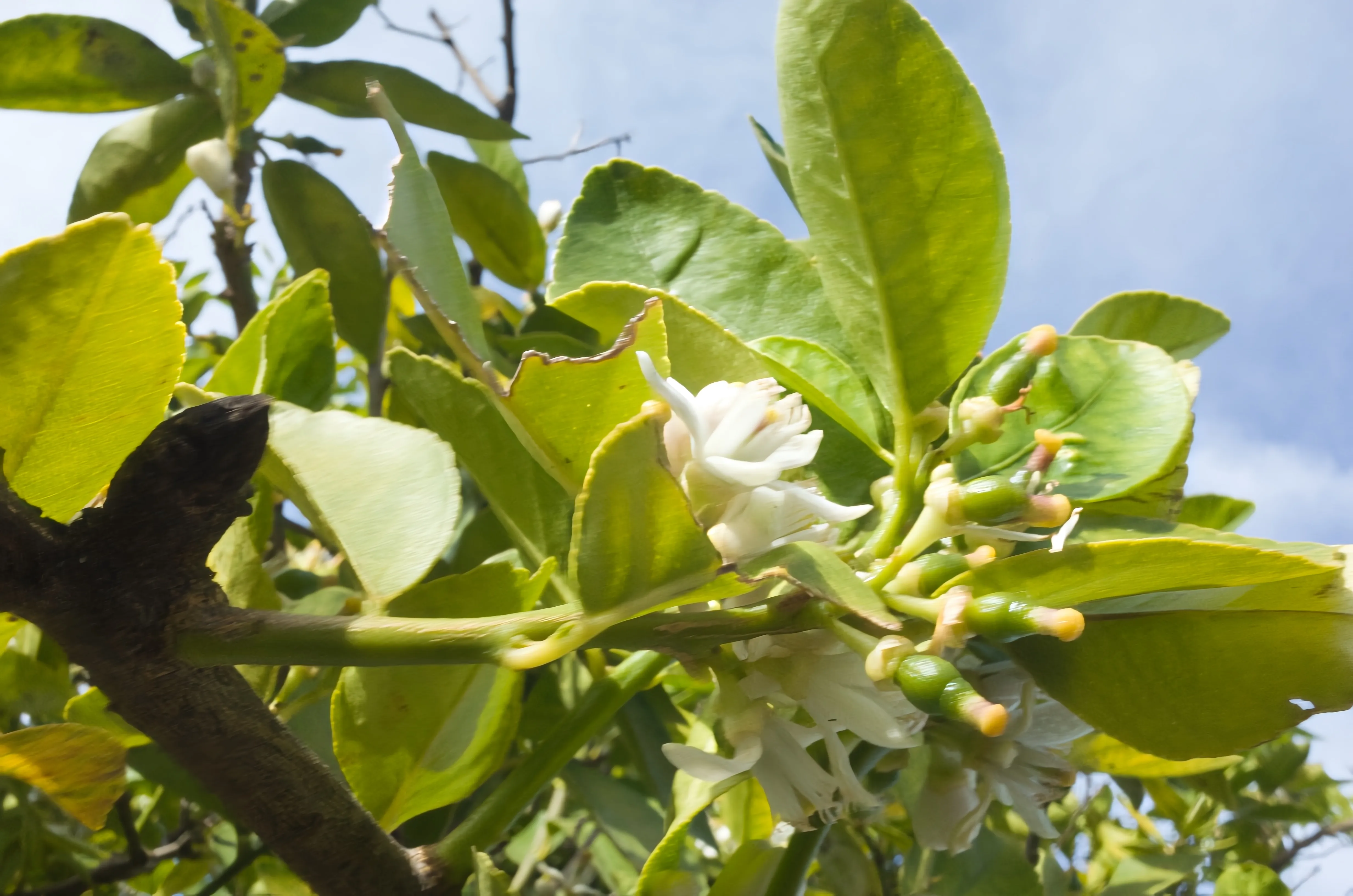
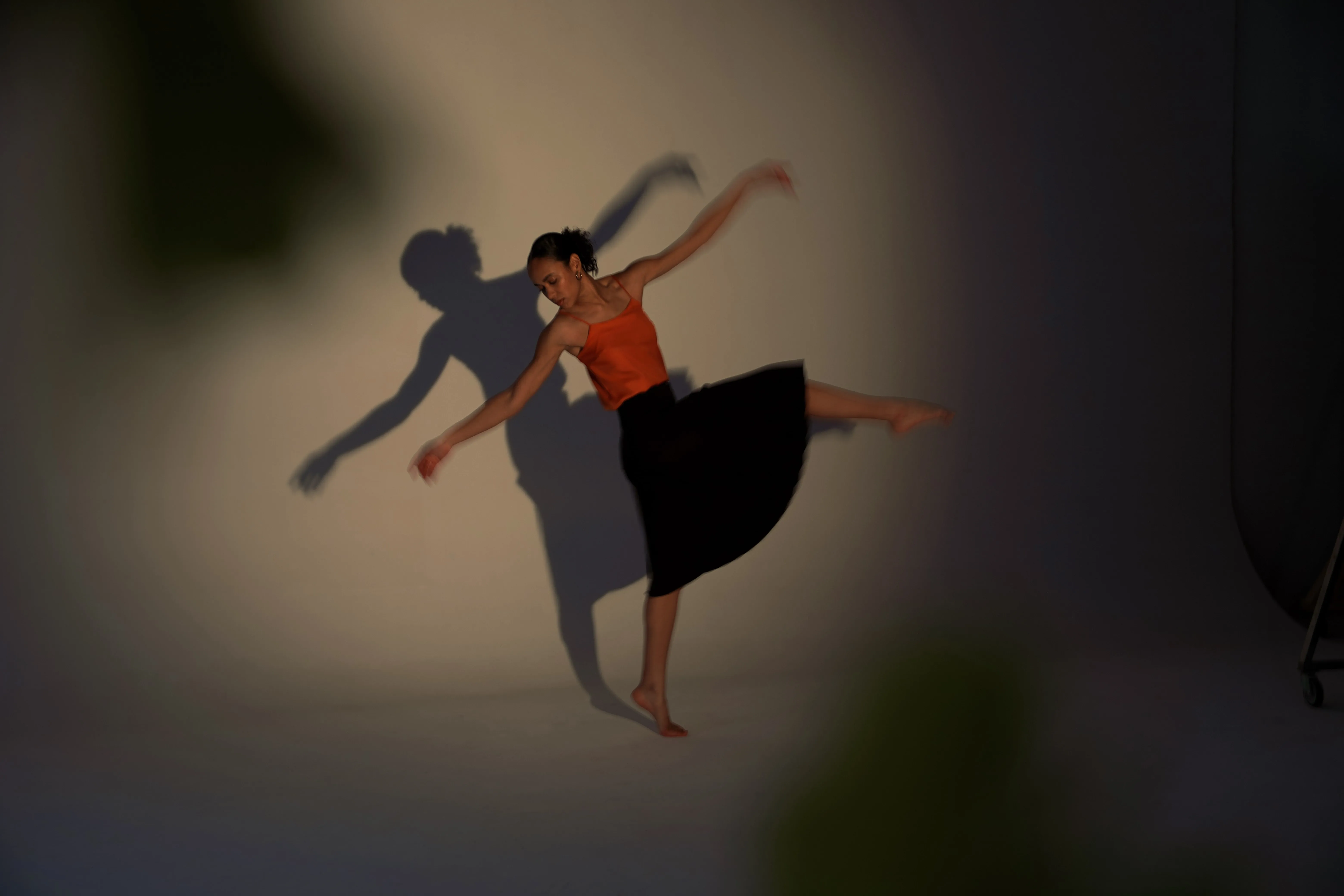
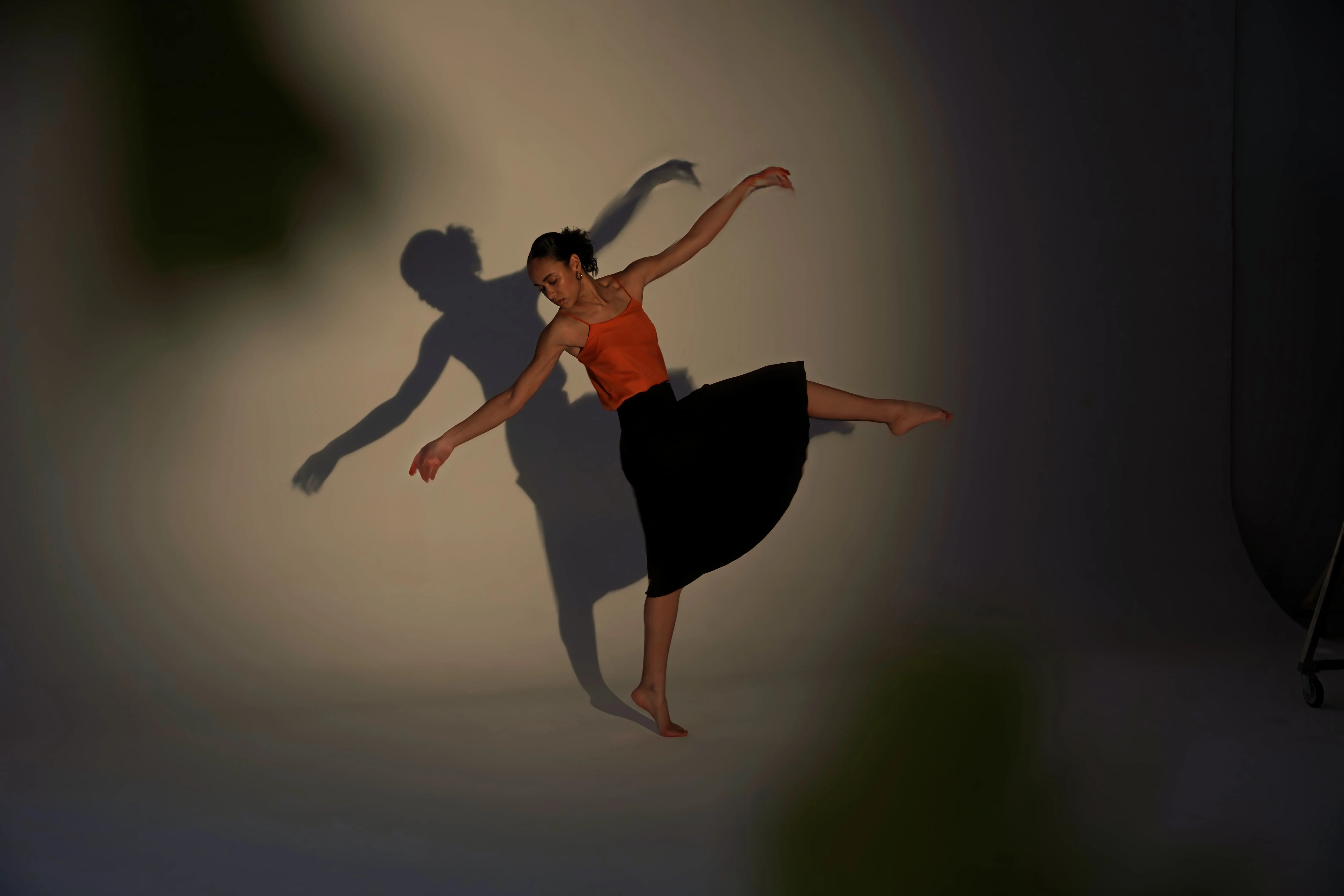
モーション ブラー効果
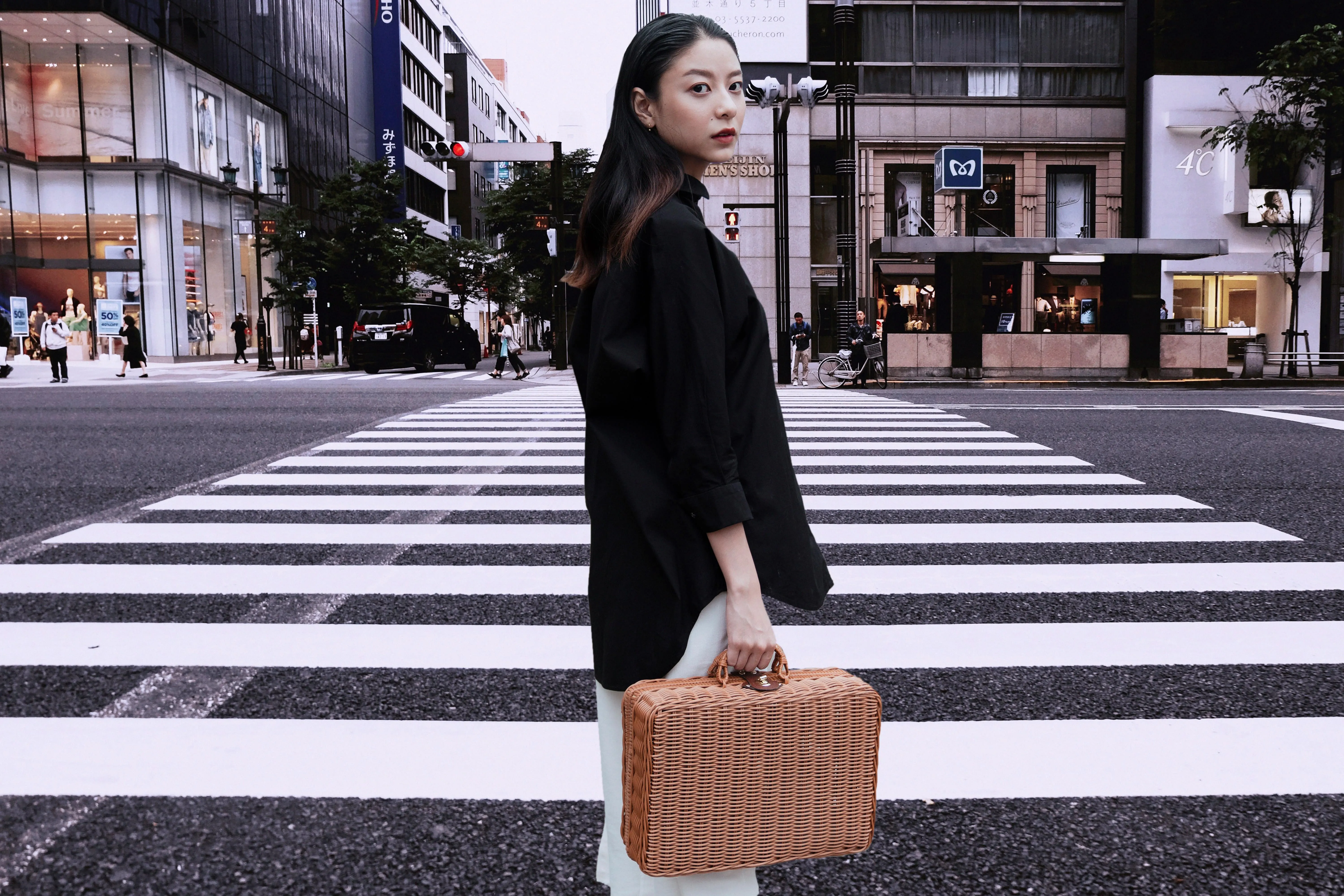
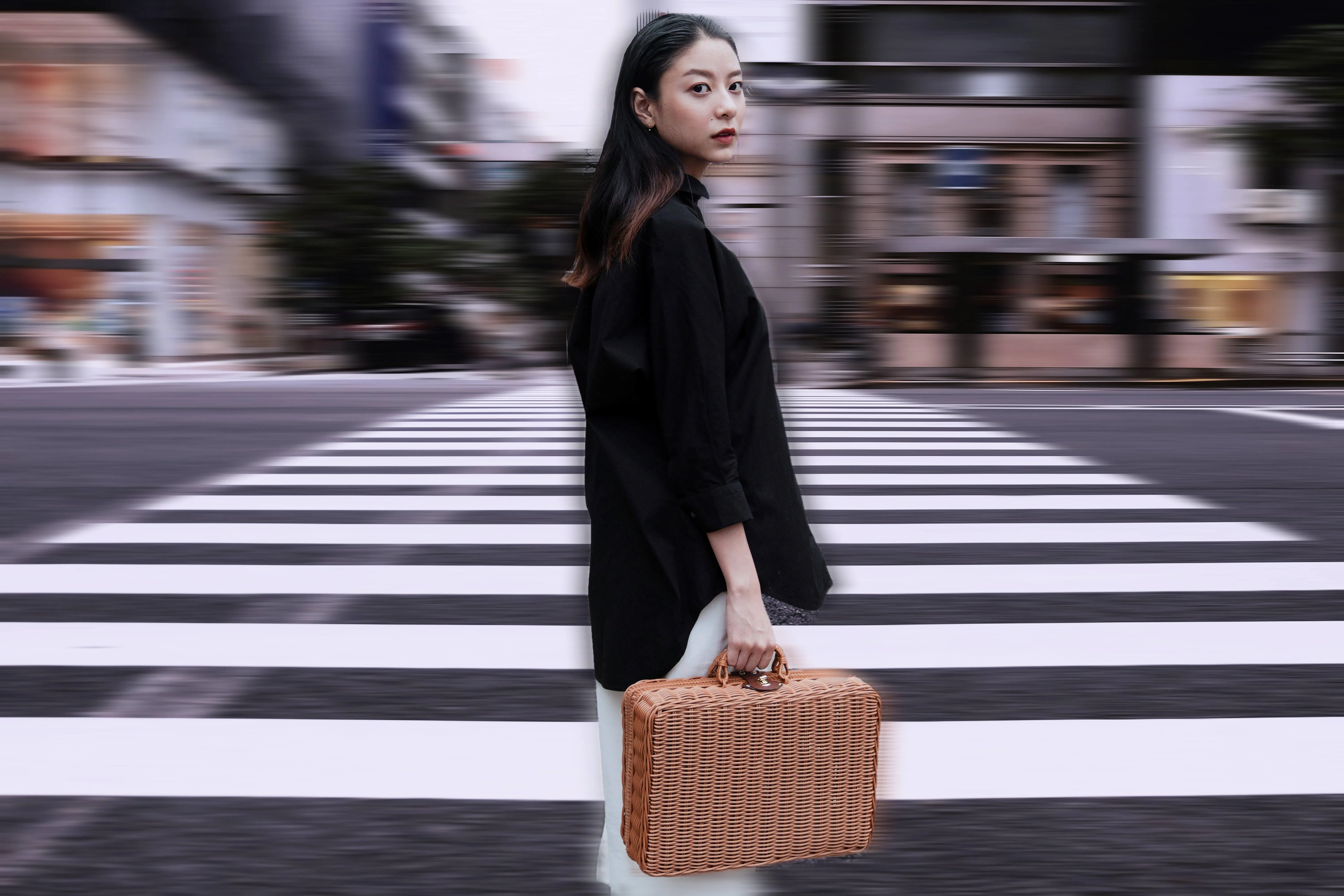
© Depositphotos
Click now to experience the motion blur effect in Luminar and make your ordinary photos extraordinarily dynamic.





よくある質問
ぼかし効果の強度を調節できますか?
Yes, Luminar allows you to easily control the strength of the blur effect, from subtle softening to strong artistic blurring.
Can I selectively add blur to a photo in Luminar?
もちろんです。写真ぼかし機能を使えば、特定の領域にのみぼかし効果を適用できるので、画像のクリエイティブなコントロールが思いのままです。
画像ぼかしツールにはどのような効果がありますか?
ガウシアン、放射状、モーション、カスタム選択などのさまざまな効果から選択して、希望する芸術的な仕上がりを実現できます。
画像をぼかす手順は?
To make an image blurry, start by opening your photo in Luminar. Once it’s loaded, select the blur tool or filter from the editing options. Then, adjust the intensity and radius of the blur to your preference, controlling how soft or pronounced the effect appears.
If you want to apply the blur selectively, you can use the masking tools to target specific areas of the image. Finally, fine-tune the settings until you achieve the desired level of softness and the perfect overall effect.
If you want to apply the blur selectively, you can use the masking tools to target specific areas of the image. Finally, fine-tune the settings until you achieve the desired level of softness and the perfect overall effect.
Why Luminar is the best AI image blurrer?
Luminar is recognized as a leading solution for image blurring because it combines AI-powered masking with precise blur controls. The tool lets you soften selected areas while keeping the main subject sharp, making it easy to create natural depth, reduce distractions, or achieve creative blur effects without complex selections.
Who can benefit from Luminar blur tool?
Luminar's blur tools are useful across different photography workflows:
- Portrait photographers: soften backgrounds and draw attention to the subject
- Product photographers: reduce distracting details around products
- Content creators: create depth and focus in social media visuals
- Travel photographers: separate subjects from busy surroundings
- Everyday users: add professional-looking blur without advanced editing skills
- Portrait photographers: soften backgrounds and draw attention to the subject
- Product photographers: reduce distracting details around products
- Content creators: create depth and focus in social media visuals
- Travel photographers: separate subjects from busy surroundings
- Everyday users: add professional-looking blur without advanced editing skills
Why Luminar blur filter is trusted by photographers?
Photographers choose Luminar because it provides controlled, selective blurring rather than simply softening the entire image. Its masking capabilities allow users to determine exactly where the effect appears and fine-tune the result, helping preserve important details while creating natural-looking depth.
