AI Portrait Prompts For A Creative Portrait Art Ideas
March 03, 2026

Most people try AI portrait prompts once and think the generator is broken. The truth is, the image is only as clear as the instructions you give it.
The first time people try generating an AI portrait, the result is usually surprising and not always in a good way. Faces blur together, eyes appear asymmetrical, or the image seems weirdly fake. Many newbies think the issue is with the tool. The issue is always with the wording.
AI image models do not “see.” They decode language patterns. Vague sentence = vague image. Detailed prompt = controlled artwork. That is why the quality of your prompt is more important than the AI image generator you pick.
Whether you’re experimenting with Midjourney, Stable Diffusion, or using ChatGPT portrait prompts to plan ideas before generating, the real skill is learning how to communicate with the model clearly. This guide explains exactly how to do that and how artists get consistent, realistic portraits instead of random results.
Your AI-Powered Photo Editor for MacOS and Windows
Discover Now!Key Takeaways
The AI portraits are significantly improved when the prompts are about lighting, lens, and facial expression rather than just the identity of the person.
Structured prompts (subject, appearance, lighting, camera, style, mood) prevent generic faces because they remove the model’s need to guess missing details.
Many common problems, like plastic skin, drifting eyes, and broken hands, come from vague instructions rather than limitations of the generator itself.
Professional-looking results usually come from editing a good base image, cleaning the background, refining eyes, and adding texture instead of repeatedly regenerating.
Use AI as a visual aid: create compositions rapidly and then adjust them manually to regain reality.
What Are AI Portrait Prompts (and Why They Matter)
 A portrait prompt is not simply a description. It is a structured instruction. When you type “beautiful woman portrait”, the AI has thousands of possible interpretations. It guesses. That guessing is what creates distorted hands, strange lighting, or generic faces.
A proper AI art portrait prompts approach removes guessing. You guide the system step-by-step. AI generators were trained on huge image libraries, so they respond strongly to specific visual language. Mentions of lenses, lighting setups, art movements, face details, or time periods give the model direction. Once you add those elements, the portrait quality increases immediately.
Basic Rules Before You Write Any Portrait Prompt
Before creativity comes structure; rather than just entering a quick thought, direct the image like a film director. Begin with the subject, describe their face and emotions, define the lighting, include the lens, and select the artistic effect. Conclude by describing the desired effect. Organized prompts create far more reliable portraits.
Many creators now use a portrait image prompts generator to organize these categories into reusable templates. This prevents forgetting details and helps keep consistent quality across multiple images.
A practical way to build prompts is to follow a simple sequence:
Subject → Appearance → Lighting → Camera → Style → Mood → Extra details
For example:
“Young Japanese violinist, wavy black hair, natural skin texture, warm window light, 85mm portrait photography, shallow depth of field, cinematic color grading, gentle emotional expression.”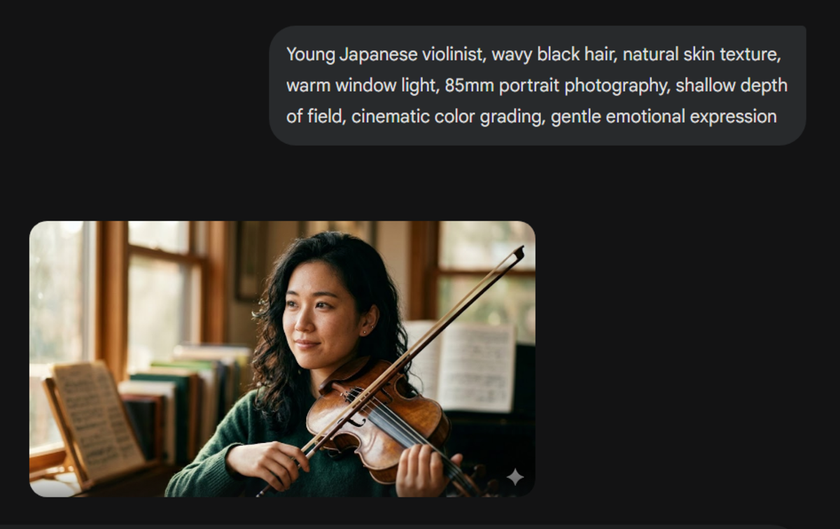
Clarity is the most important thing to observe. The model has less space to guess with each brief description. It begins by creating a particular person rather than creating a generic face.
Creative AI Portrait Prompt Ideas (Copy & Use)
Below are usable prompts you can paste directly.
Style Category | Starter Prompt | Alternative Version |
Cinematic Portraits | “film noir detective, trench coat, rain reflections, neon street lights, 50mm lens, dramatic shadows” | “female astronaut, helmet visor reflections, deep space background, cinematic lighting, ultra detailed skin” |
Fantasy & Mythological | “forest elf queen, glowing freckles, silver hair, bioluminescent forest, fantasy illustration style” | “ancient Greek oracle, marble temple, golden sunlight rays, classical painting style” |
Realistic Photography Style | “elderly fisherman, weathered skin, ocean breeze, golden hour lighting, documentary photography” | “medical student studying at night, desk lamp lighting, tired expression, 35mm photography realism” |
Anime & Stylized | “cyberpunk hacker girl, holographic screens, neon lighting, anime illustration style” | “futuristic soldier portrait, metallic armor, glowing visor, stylized digital painting” |
Historical Portraits | “Renaissance nobleman, velvet clothing, candlelight, oil painting portrait” | “1920s jazz singer, art deco background, vintage photography grain” |


Another growing approach involves Nano Banana portrait prompts. Since this model can modify and re-compose images through text instructions, creators use it to experiment with dramatic scene changes, stylization, or character redesigns.
Exploring Portrait Styles (How Style Keywords Change Results)
Style words often influence the image more than the subject itself.
For example:
“oil painting” → brush strokes appear
“fashion editorial” → professional model look
“documentary photography” → natural skin imperfections
“3D render” → hyper-smooth surfaces
That soft, plastic skin isn’t a glitch. The AI prefers a clean digital style by default, so include prompts such as “natural skin texture,” “pores visible,” or “photorealistic photography” to make it look real.
Professional artists keep a list of style descriptors and often organize them inside an AI prompt editor so they can swap styles without rewriting entire prompts.
Fixing the Most Common AI Portrait Problems
 Most bad AI portraits are not glitches. They happen because the model is missing clear visual instructions. Diffusion models do not understand anatomy. They predict patterns. When the prompt is vague, they “average” faces, and the result looks unnatural.
Here are the problems almost every beginner encounters, along with the exact wording that usually fixes them.
Unnatural or uneven eyes
You generate a portrait, and something feels off. One eye looks sharp, the other slightly drifting, or the person looks lifeless.
Why it happens: The model blends different gaze directions from its training images. If you do not specify eye focus, it guesses.
Add to your prompt: looking at the camera, symmetrical face, sharp iris detail, catchlight in the eyes.
“Catchlight” is especially useful. It tells the AI to place a small light reflection in the pupil, which instantly makes the face feel alive and realistic.
Plastic skin
The face looks smooth like a mannequin. No pores, no texture, almost like a 3D render.
Why it happens: Many training images come from retouched fashion photography, so the AI defaults to overly perfect skin.
Use wording like: natural skin texture, visible pores, subtle wrinkles, realistic skin tones, 50mm photography.
Including a camera reference, such as 50mm portrait photography, pushes the model toward real photo aesthetics instead of digital illustration.
Extra fingers or broken hands
Probably the most famous AI mistake. Fingers merge, multiply, or bend in impossible ways.
Why it happens: Hands are rarely clear in training images. They are often cropped or blurred, so the model has weak references.
Add: detailed hands, five fingers, natural hand anatomy, relaxed hands
Avoid vague actions like “holding an object” unless you describe the pose. If the portrait is good except for the hands, fix only that area using inpainting instead of regenerating the whole image.
Remove Portrait Background in One Click with Luminar Neo
Try it Now!Editing and Refinement After Generation
 The image you generate is only the base. Most professional results involve post-processing.
Common steps:
Upscaling: increases resolution
Face restoration: sharpens eyes and lips
Inpainting: redraws specific areas
Color grading: fixes tones
Most artists don’t regenerate everything. They correct a few problem areas and move on. For example, instead of re-rolling a portrait because of a messy environment, many creators quickly clean the scene using the portrait background removal tool and keep the face they already like. After that, they adjust eyes, texture, or color grading. This targeted editing is exactly why some AI portraits end up looking indistinguishable from real photographs.
Mixing AI With Real Art Techniques
Professional illustrators don’t replace their skills with AI. They accelerate them.
Typical workflow:
Generate portrait
Import into Luminar Neo or Photoshop
Paint over details
Add textures
Adjust lighting
AI becomes a sketch assistant. Concept artists, in particular, rely on AI art portrait prompts to create quick character concepts that can then be developed by hand. This combination of human and artificial intelligence is currently common in the pre-production process for games and movies.
Ethical Use of AI Portraits
As AI art grows, responsible usage matters. Key rules:
Do not generate real, identifiable people without consent
Avoid copying living artists’ signature styles directly
Disclose AI usage for commercial projects
Check the licensing terms of your generator
Most platforms allow commercial use but restrict impersonation. Understanding this protects both artists and clients.
Best Communities and Resources to Improve Your AI Portrait Skills
 Trying to figure everything out by yourself takes much longer. Progress speeds up once you join AI art communities, because people openly exchange working prompts and techniques. Much learning occurs simply by observing. Communities such as prompt libraries, Discord art communities, and model-sharing forums are replete with examples and experiments shared. Users share Gemini portrait prompts and templates, and comparing them reveals how small variations can completely transform an image.
So What Actually Matters
When you get weird portraits from AI, it doesn’t necessarily mean that the software is bad. It means that your description is too general. Don’t just describe who the person is. Describe the scene. Talk about the lighting, the perspective, and the direction of the subject’s gaze. Sometimes, it’s one detail that will correct what dozens of regenerations won’t.
Hold on to one good prompt and change a few words each time, instead of starting from scratch. After you generate, remove tiny issues with inpainting or quick touch-ups. It’s more like directing a photographer than just the generate button. When you do this, your portraits will finally feel real.