View plans

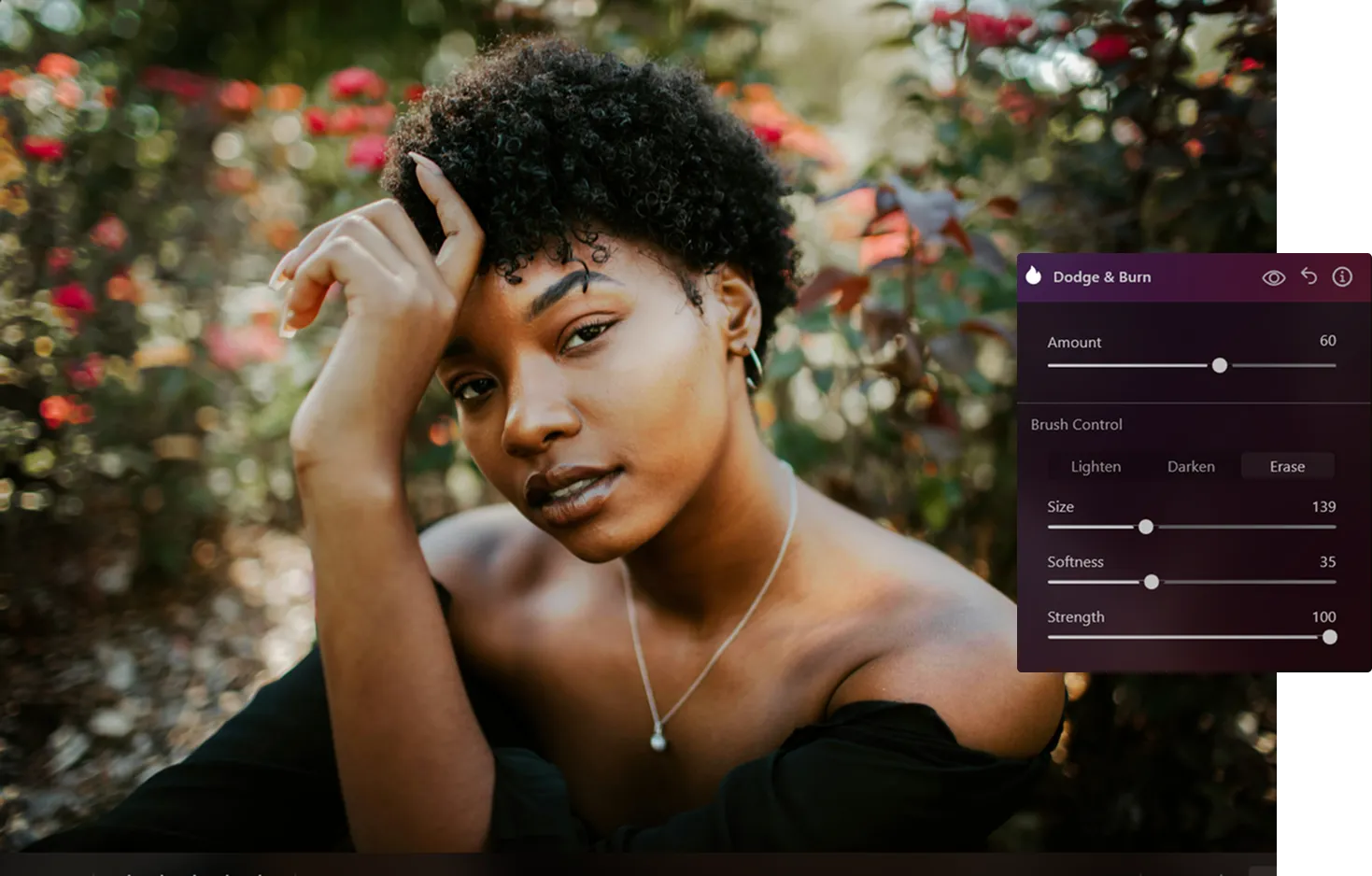
Dodge & Burn Tool to Sculpt Light on Photos

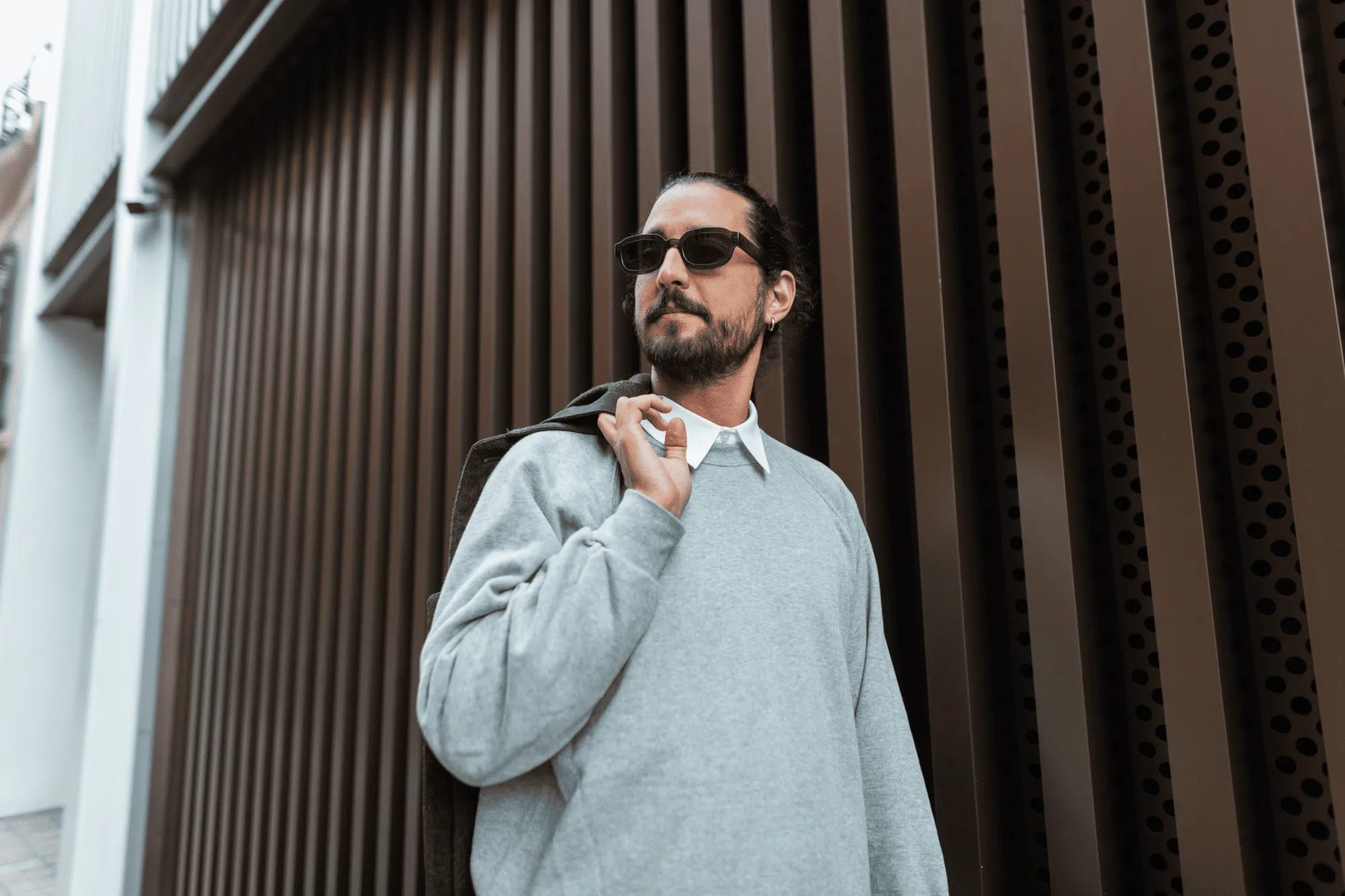
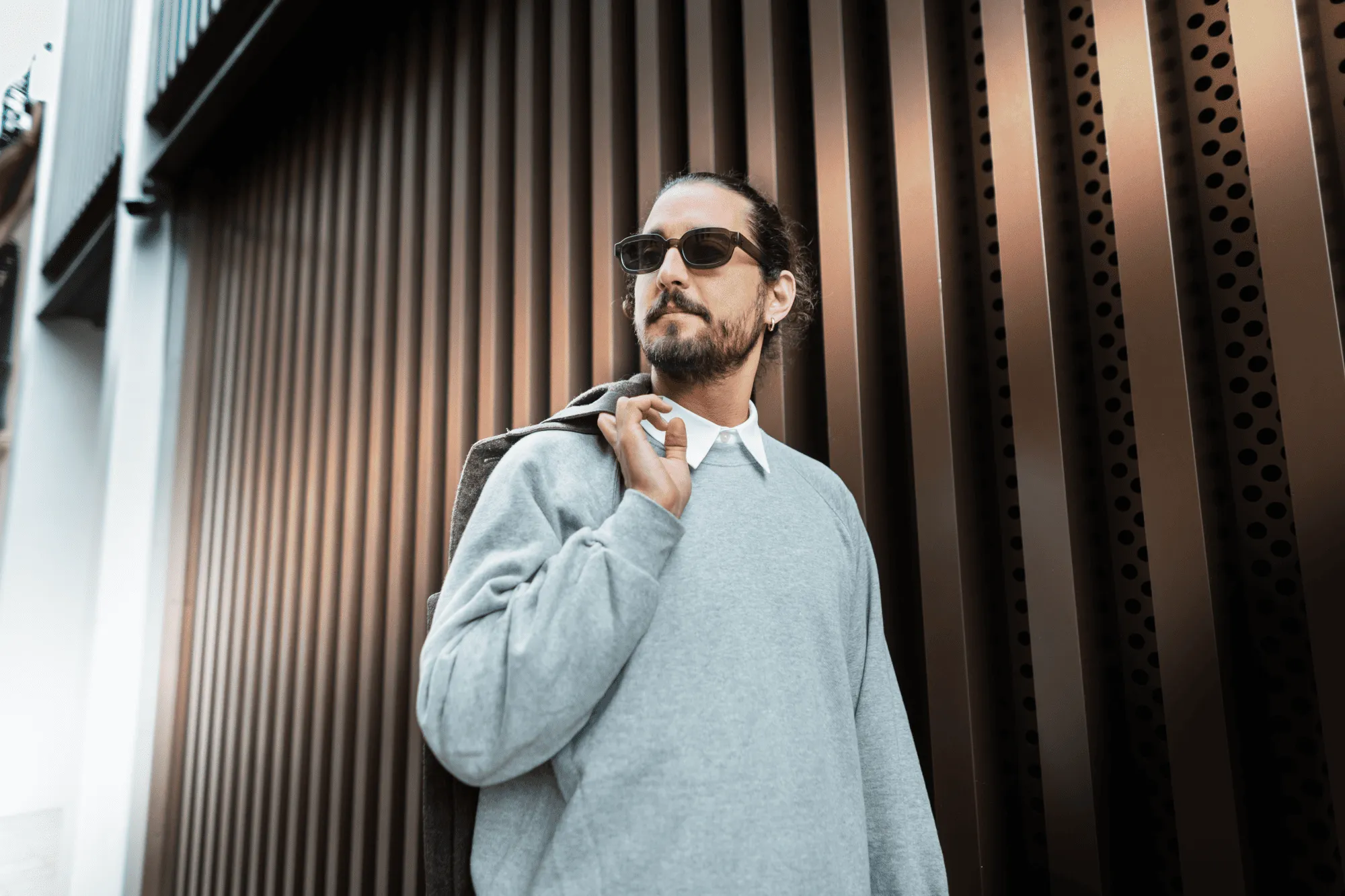
Take full control of light and shadow in your images. With the Dodge & Burn tool, you can subtly lighten or darken specific areas, shaping the mood and guiding the viewer’s eye exactly where you want it.

Try it now

Dodge & Burn Helps Keep the Viewer’s Focus

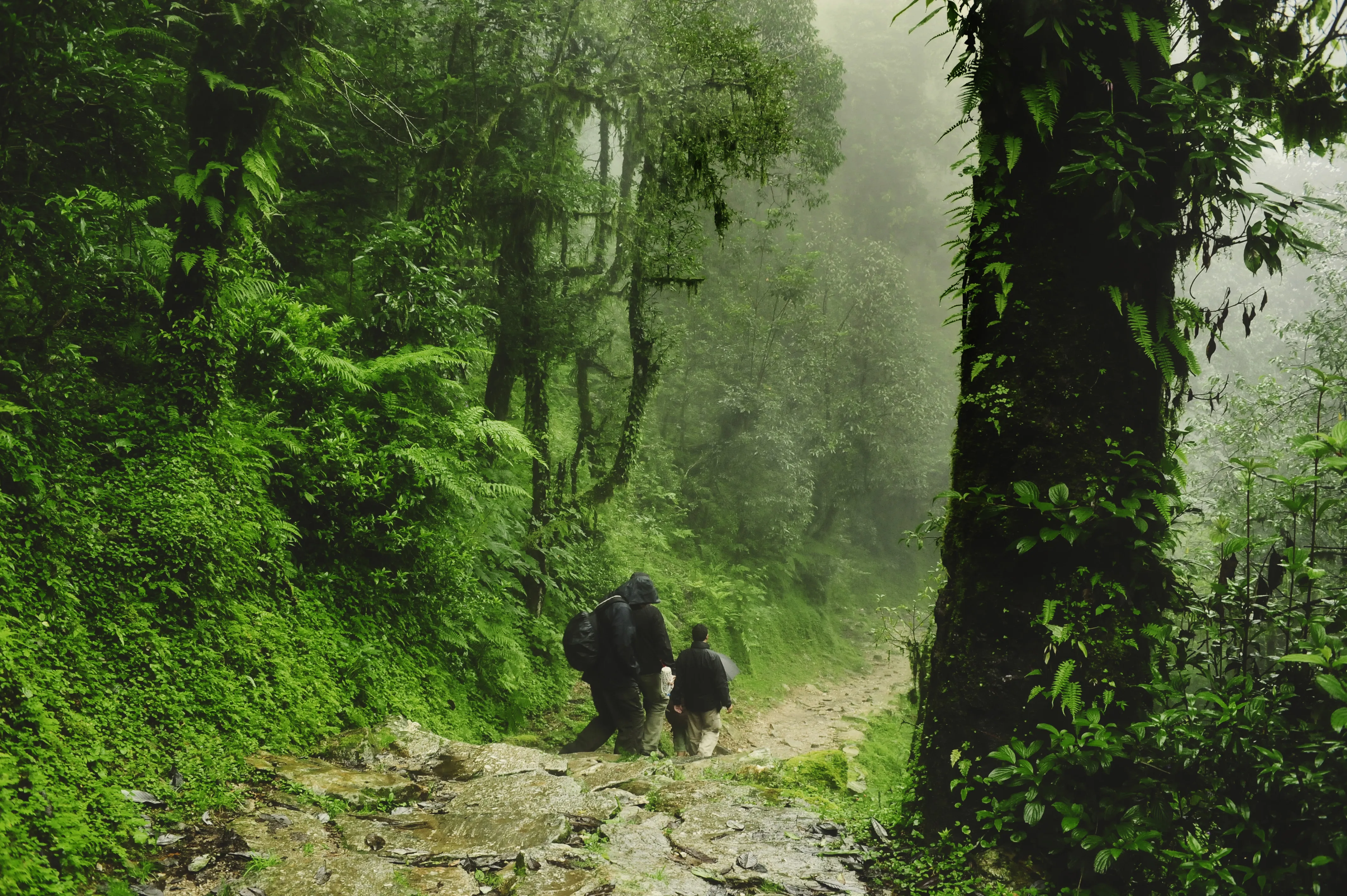
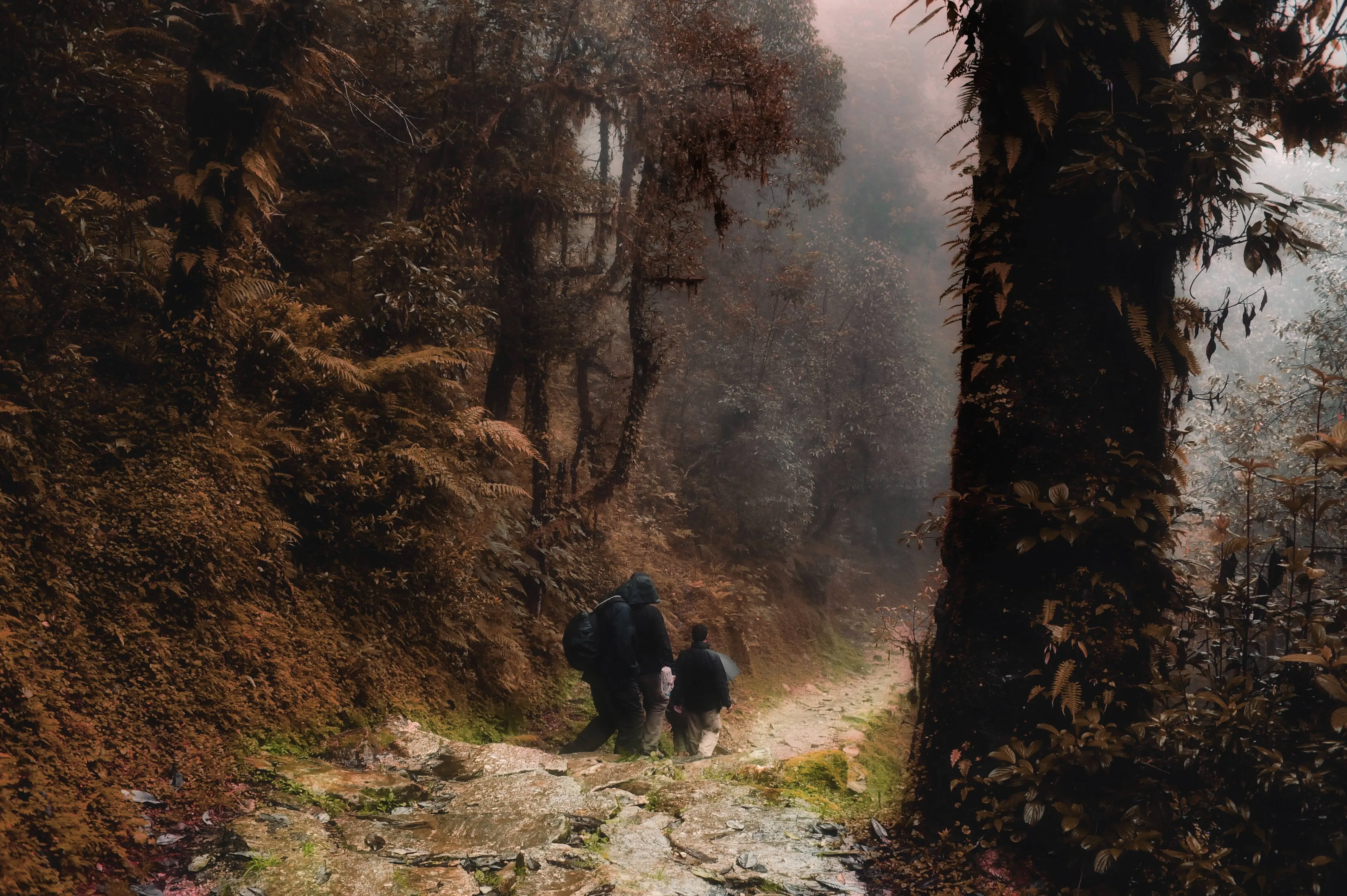
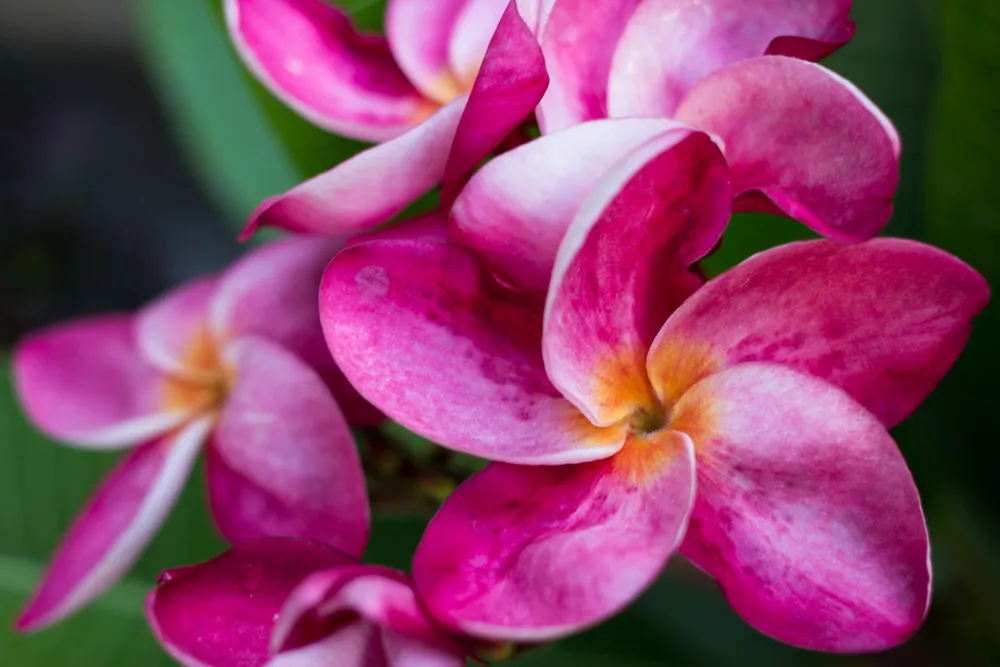
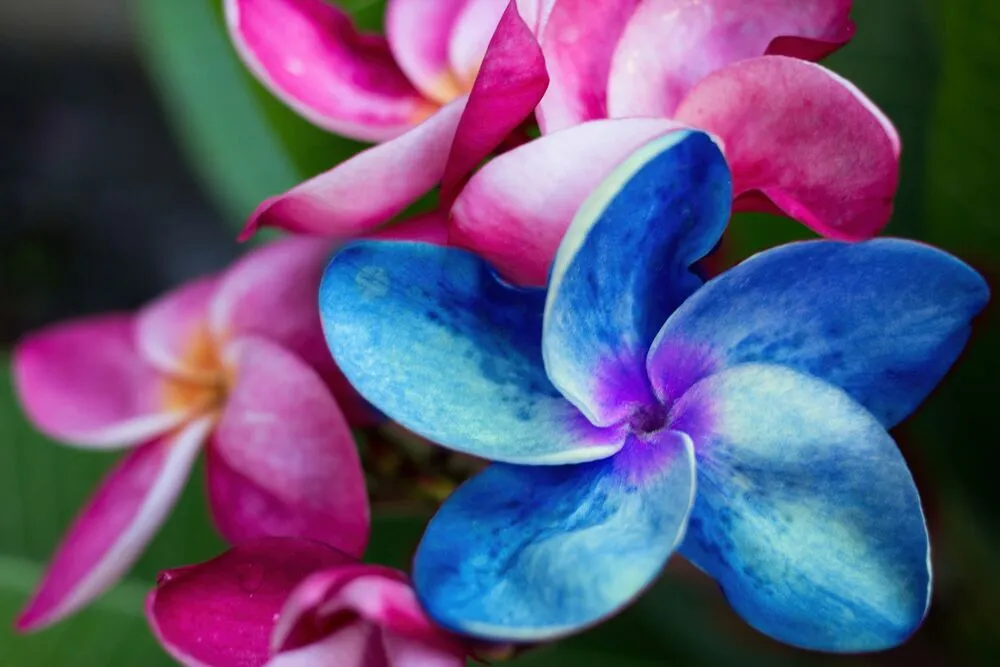


Direct attention to key elements in your photo by selectively brightening or darkening areas. Whether it’s a portrait or a landscape, you can guide the viewer’s gaze and create a natural visual flow.
(2)

Enhance Depth with the Dodge & Burn Tool
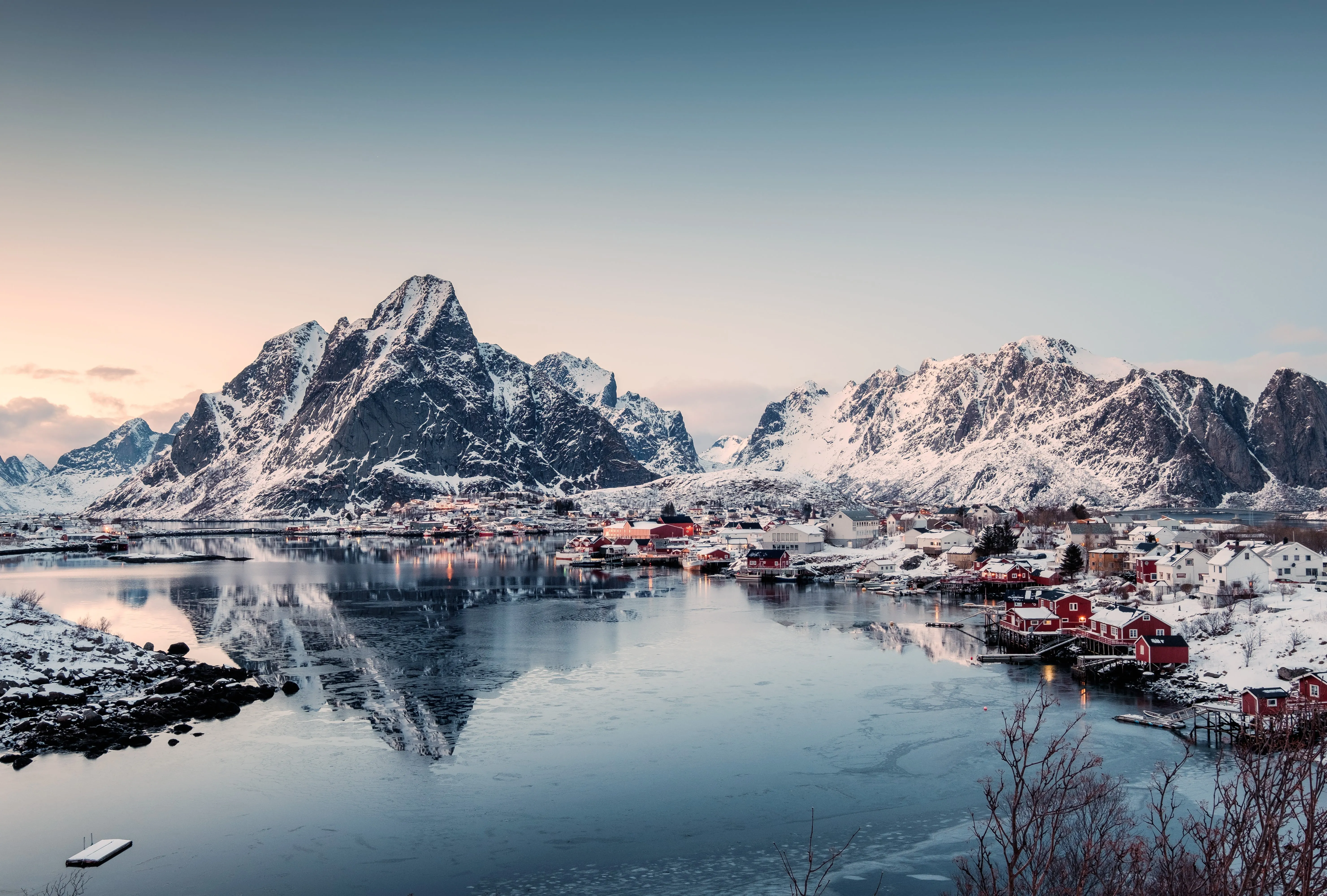
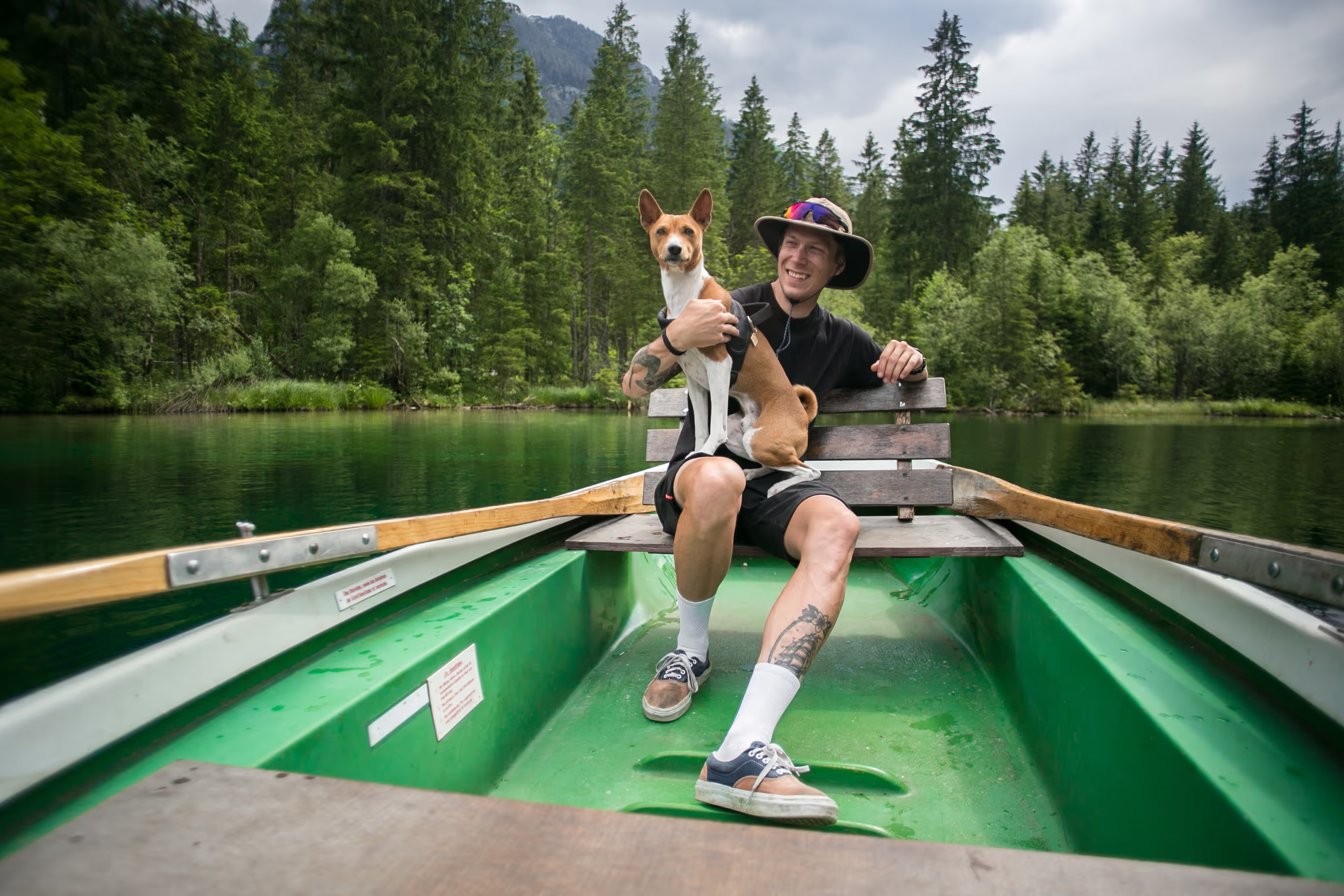
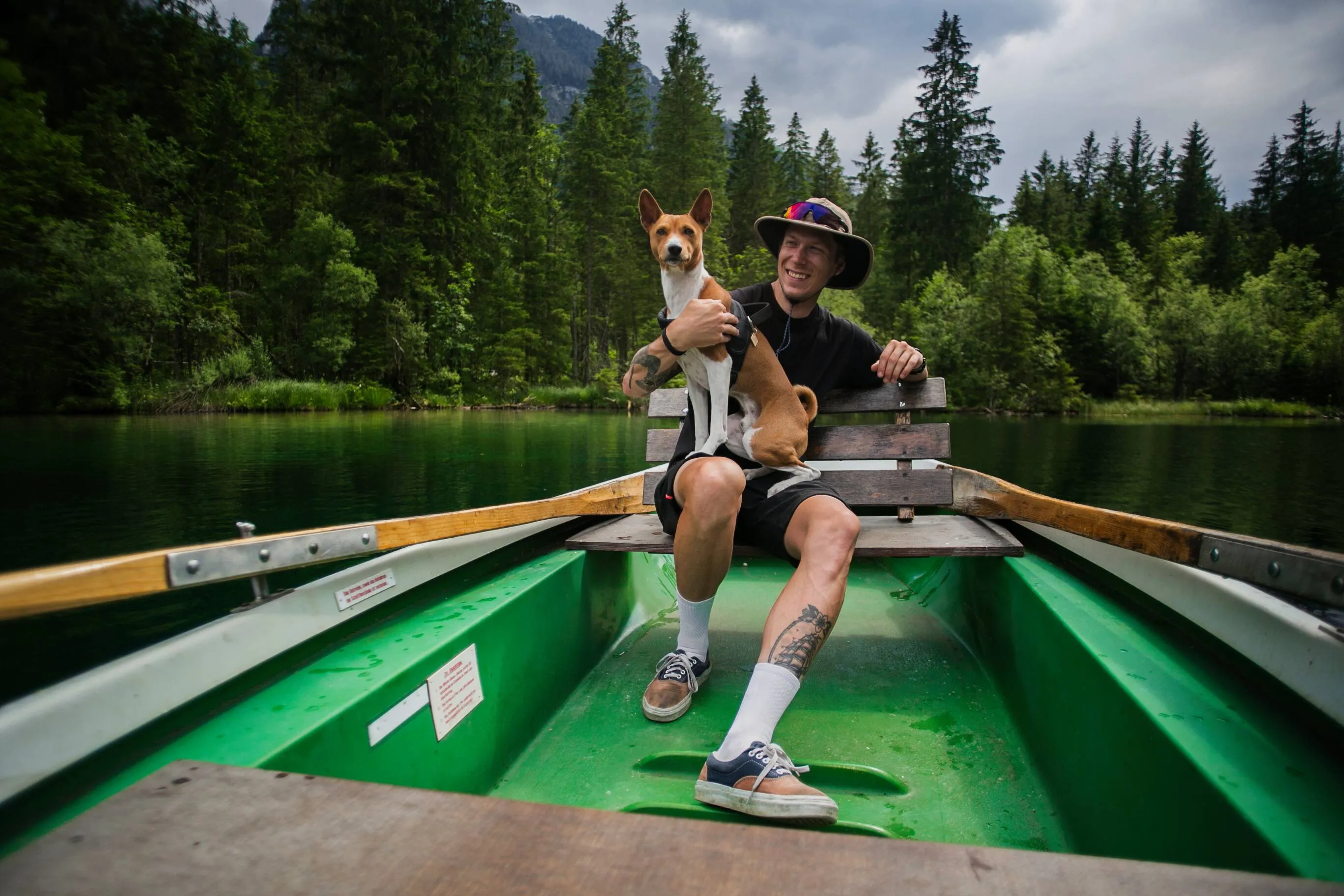
Add dimension and texture to your images by emphasizing highlights and shadows. This simple toning technique can turn a flat photo into one with rich, three-dimensional depth.
(3)
(4)
(5)
Before
After
© shutterstock
(6)
(7)
(8)
Before
After
© Shutterstock

Dodge & Burn to Speed Up Retouching

Make precise adjustments quickly. With brush size, softness, and strength controls, you can sculpt light with accuracy and finesse, saving time while achieving professional results.

How to Dodge & Burn in Luminar Neo

(9)

Open the Dodge & Burn tool in the Professional tools section.

(10)

Select Lighten (Dodge) or Darken (Burn) in the top toolbar.

(11)

Adjust your Brush Size, Softness, and Strength sliders for precise control.

(12)

Click and paint on your image to apply the effect.

(13)

Use the Erase tool to remove mistakes or reset the tool to start fresh.

(14)

Refine the overall intensity with the Overall Amount slider, then exit to apply your edits.

Explore Other Features

Luminar Neo has plenty of other features to help you edit faster and easier
(15)
Darken Image Enhancement
(16)
(17)
Before
After
© Shutterstock

Darken Image Enhancement

Experiment with tools to add drama, mystery, or a moody vibe to your pictures.
(18)
Image Tinter
(19)
(20)
Before
After
© Depositphoto

Image Tinter

Unlock the true potential of your images through expert color correction and mood setting.
(21)
Remove Shadow
(22)
(23)
Before
After
© Shutterstock

Remove Shadow

Reveal the hidden details for more impactful images with Luminar Neo!
(24)
Add Black Backgroud
(25)
(26)
Before
After
© Ksenia Kazak

Add Black Backgroud

Make your image pop with a sleek black background—just a few clicks away with Luminar Neo!
(27)
Precise Image Recolor
(28)
(29)
Before
After
© Ksenia Kazak

Precise Image Recolor

Match your style or mood perfectly with vibrant color adjustments.
(30)
Relight AI
(31)
(32)
Before
After
© bloodua

Relight AI

Relight AІ  for bringing back natural light in your photos.

FAQ

What does the Dodge tool do?

The Dodge tool lightens selected areas of your image, helping you bring out highlights or draw attention to specific parts of your photo.

What does the Burn tool do?

The Burn tool darkens selected areas, deepening shadows and adding contrast to create more depth and dimension.

When should I use Dodge vs Burn options?

Use Dodge to brighten areas you want to emphasize, and Burn to darken areas you want to recede or add depth. Often, the two are used together to sculpt light and shape the photo.

Can I undo Dodge & Burn edits easily?

Yes! You can erase individual strokes with the Erase tool or reset the entire Dodge & Burn effect to start over. Adjust the Overall Amount slider at any time to fine-tune the global effect.
(33)